
Access/Print Attendance Reports for Families
Option 1: Parent Portal
Share instructions linked HERE with families
 with families](https://assets.guidejar.com/uploads/9ee7f40f-cefe-439f-807e-16223fdb714a/iFdfFaA1gOMgnnHI5tv5Oik5Ya33/54abd980-32ba-4be7-8d8b-2d4701c73cf5/1755522155943.jpeg)
Option 2: Print detailed Attendance Profile Report
Search the student or students' you'd like to print for
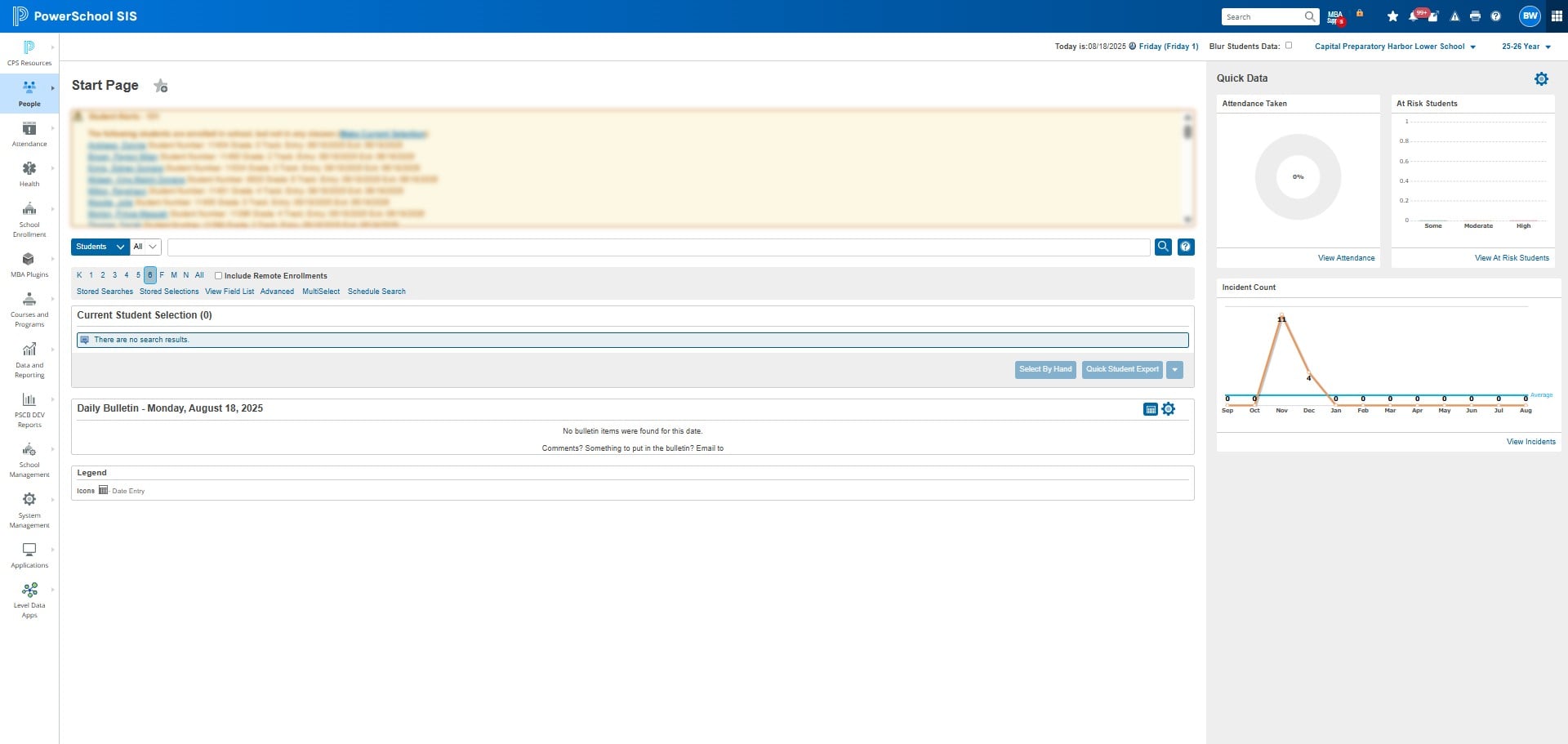
To prevent report crashes due to excessive data, select students in batches of 50 or fewer.
Click on "Data and Reporting"
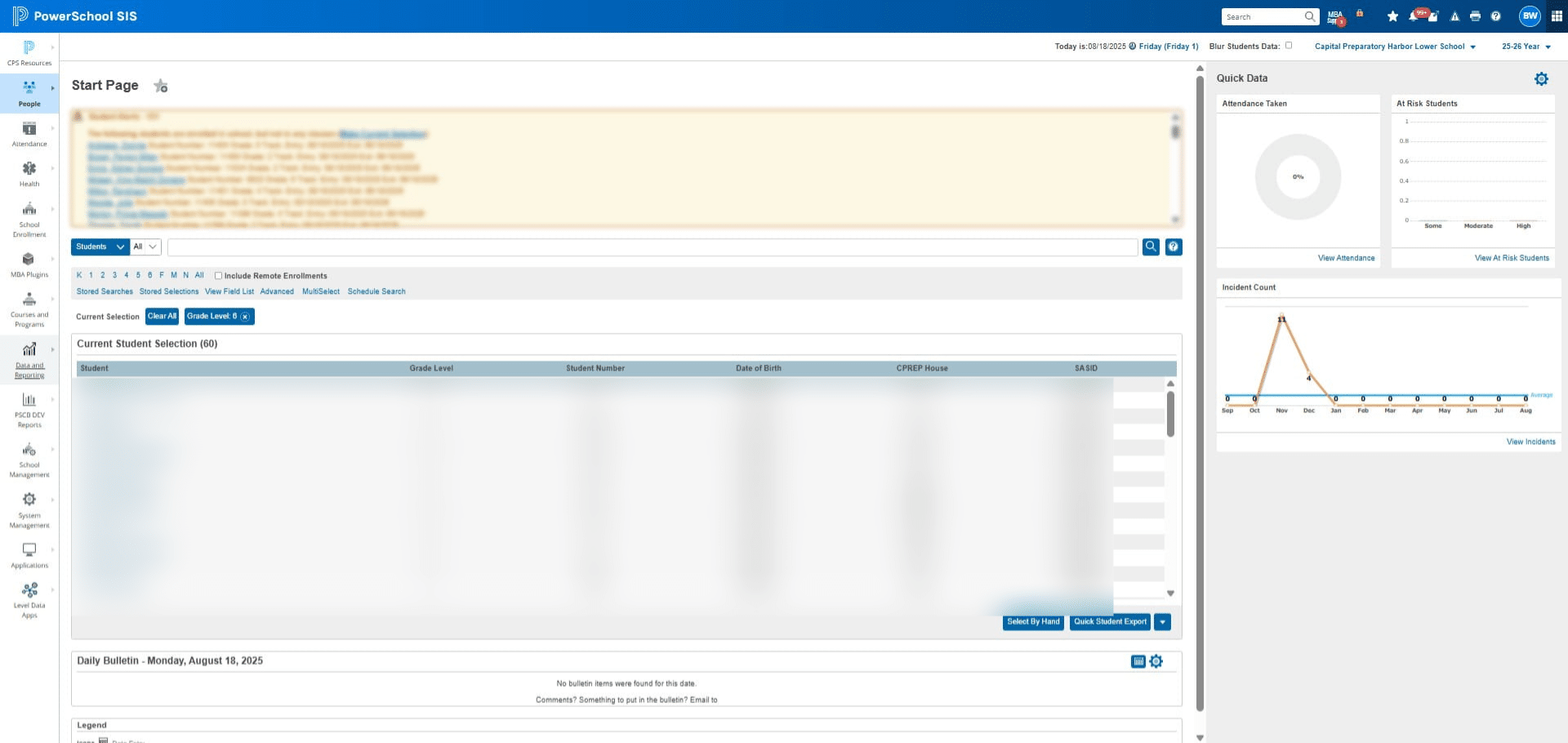
Click on "Reports"
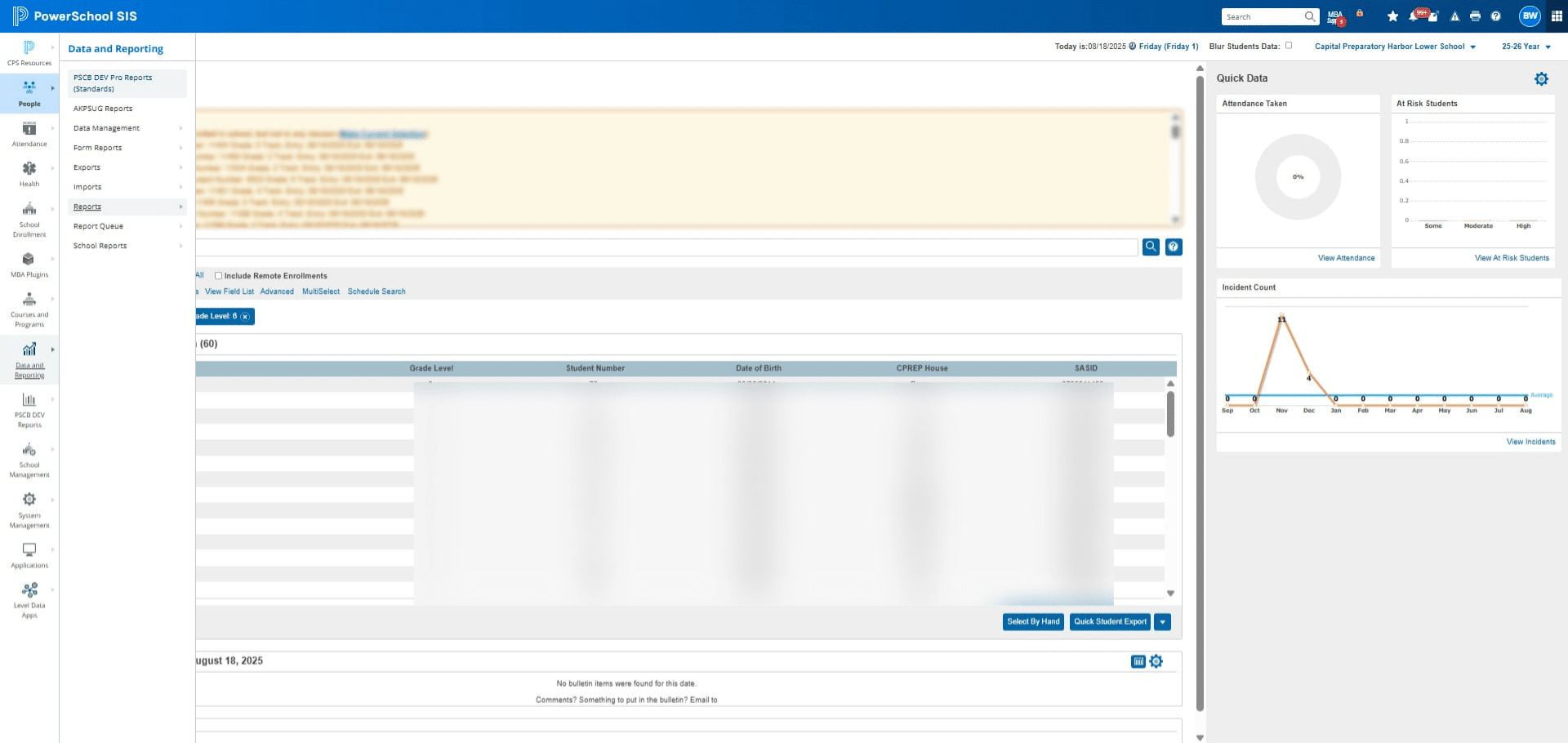
Click on "System Reports"
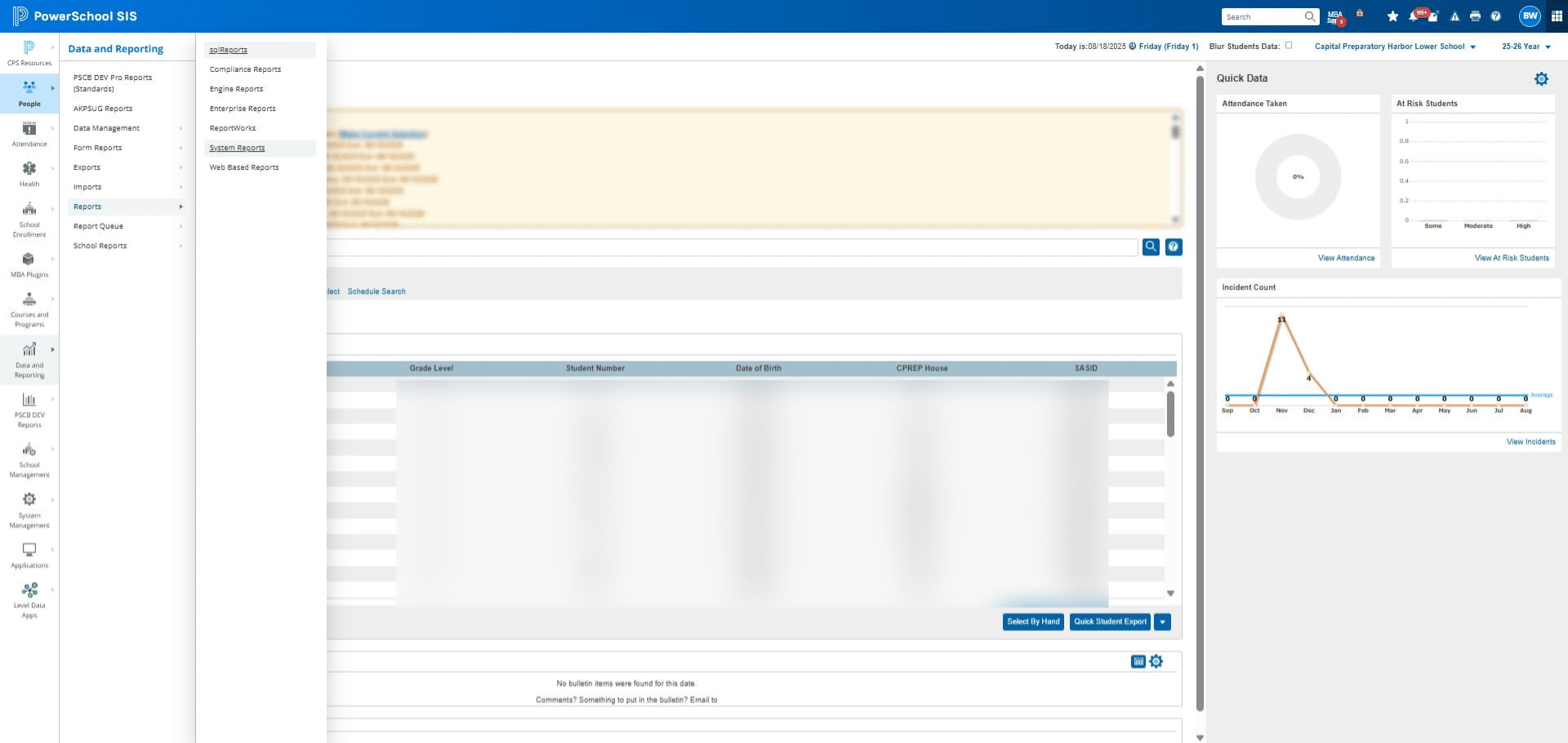
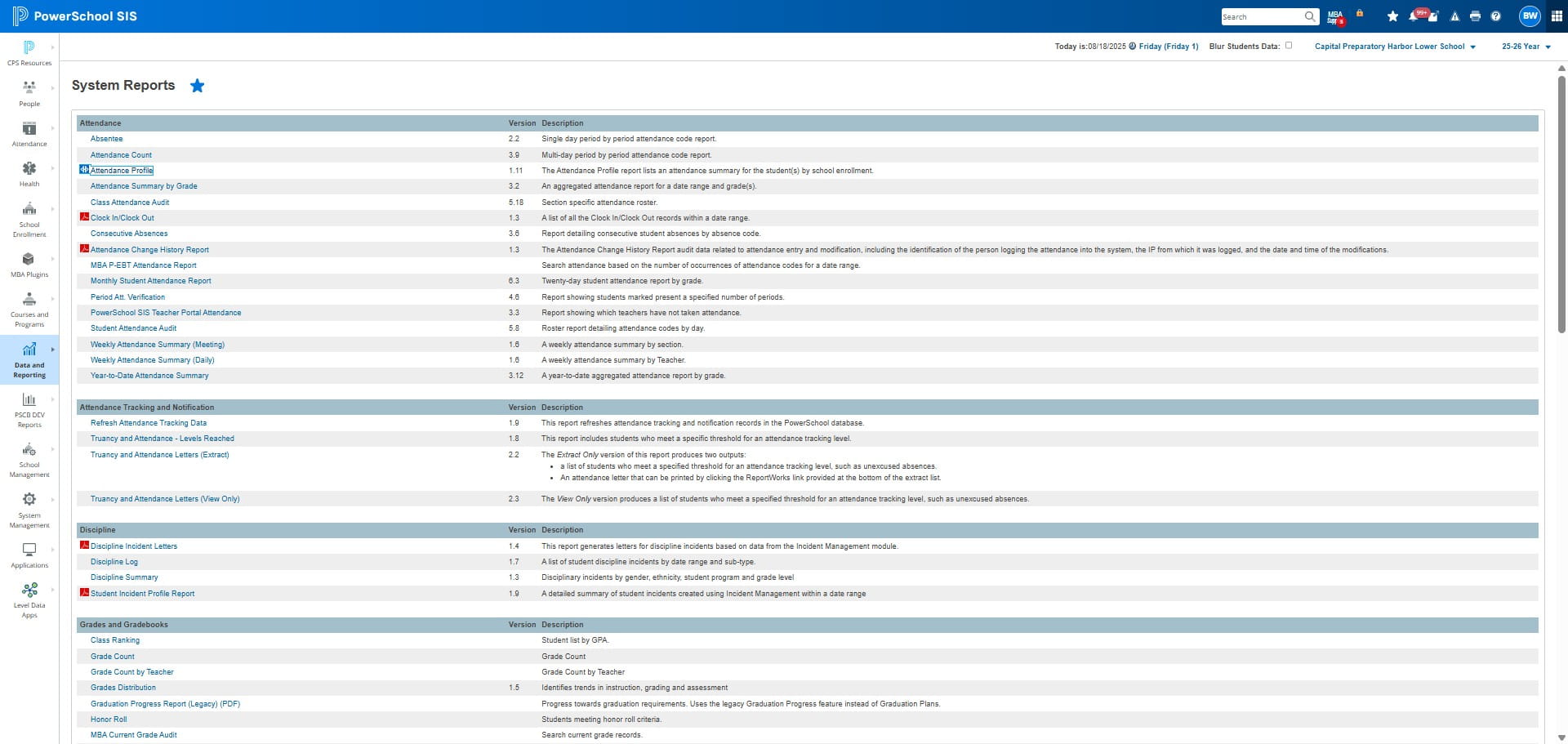
Click on Attendance Profile under the attendance heading
Make sure the "Include Reason Total/Summary" option is selected.
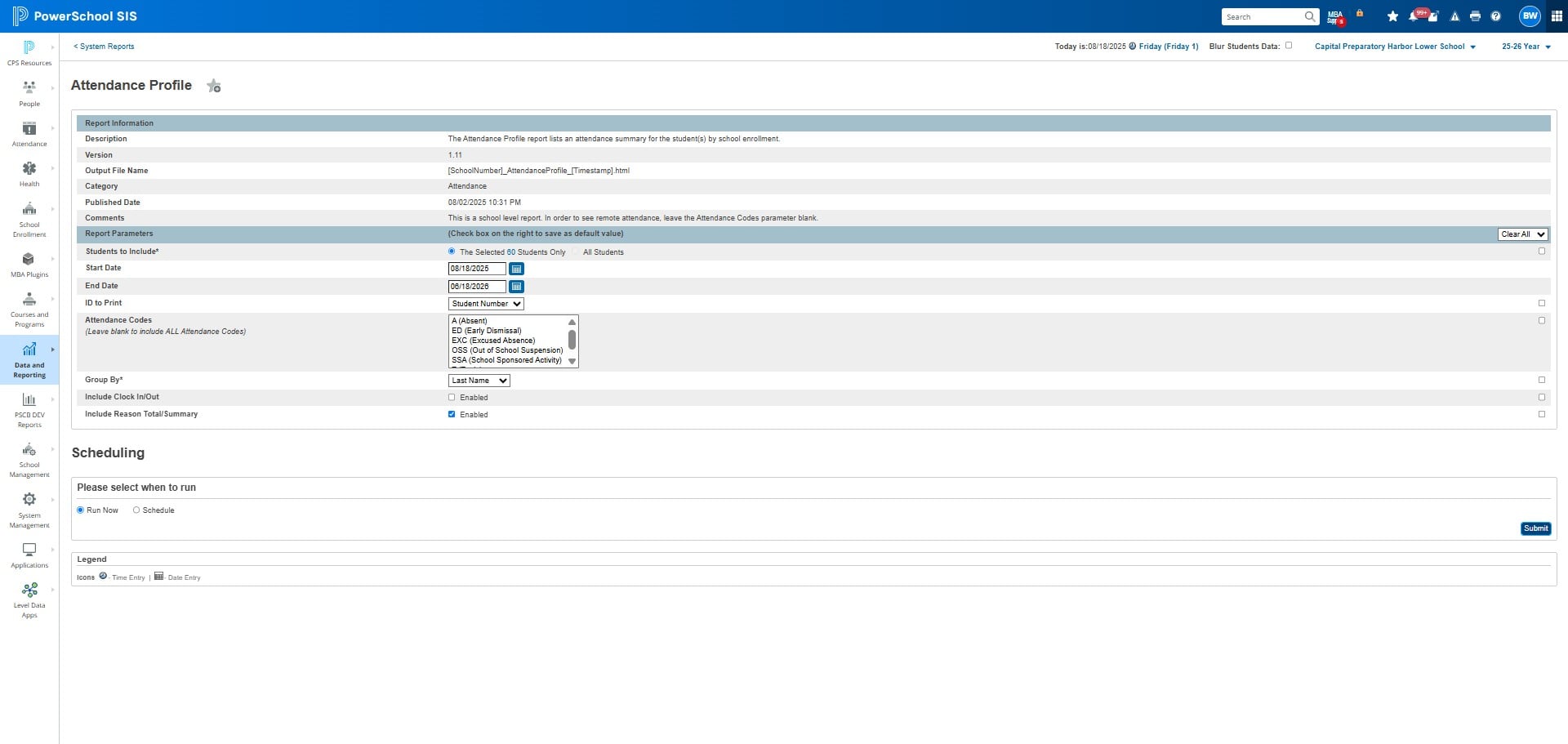
Click on "Submit"
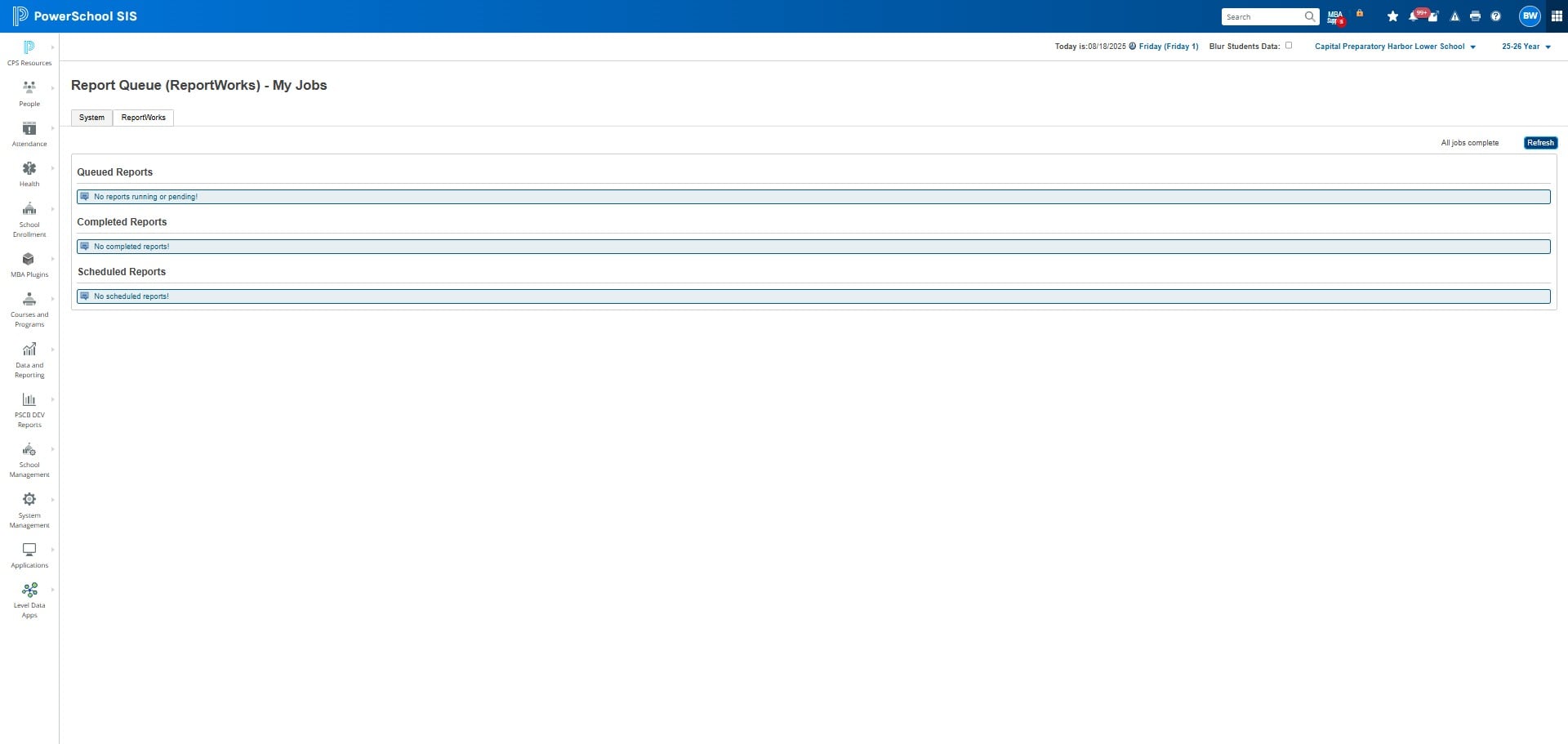
Click on "Refresh"
Click on "Completed"
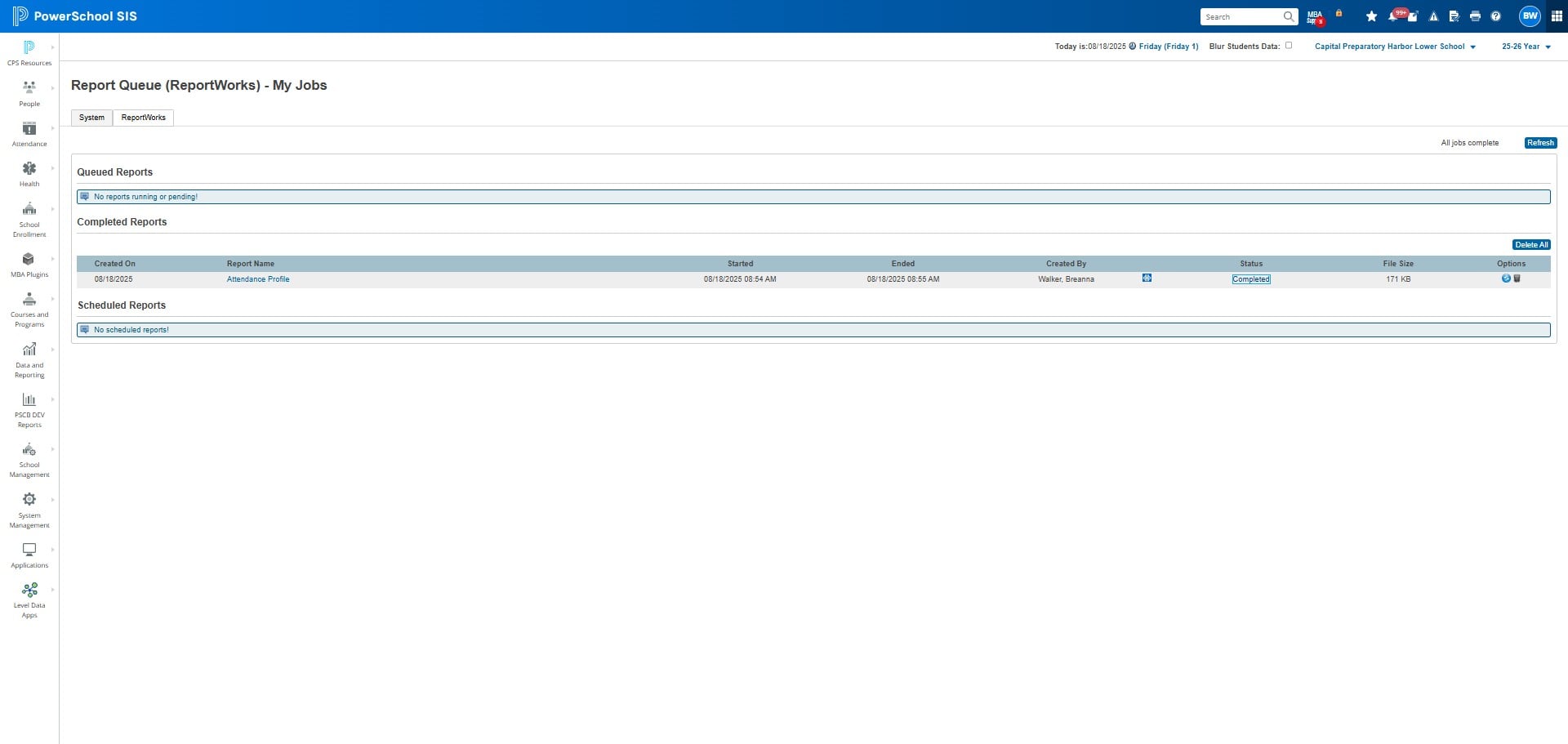
You can print or save the file as a PDF.
Note - if you do multiple kids, unfortunately it does not break up the document by student to be able to upload onto ParentSquare. You will have the fix the printer settings to print individually.
Option 3: Custom Student List with list of absent dates
Click on "People"
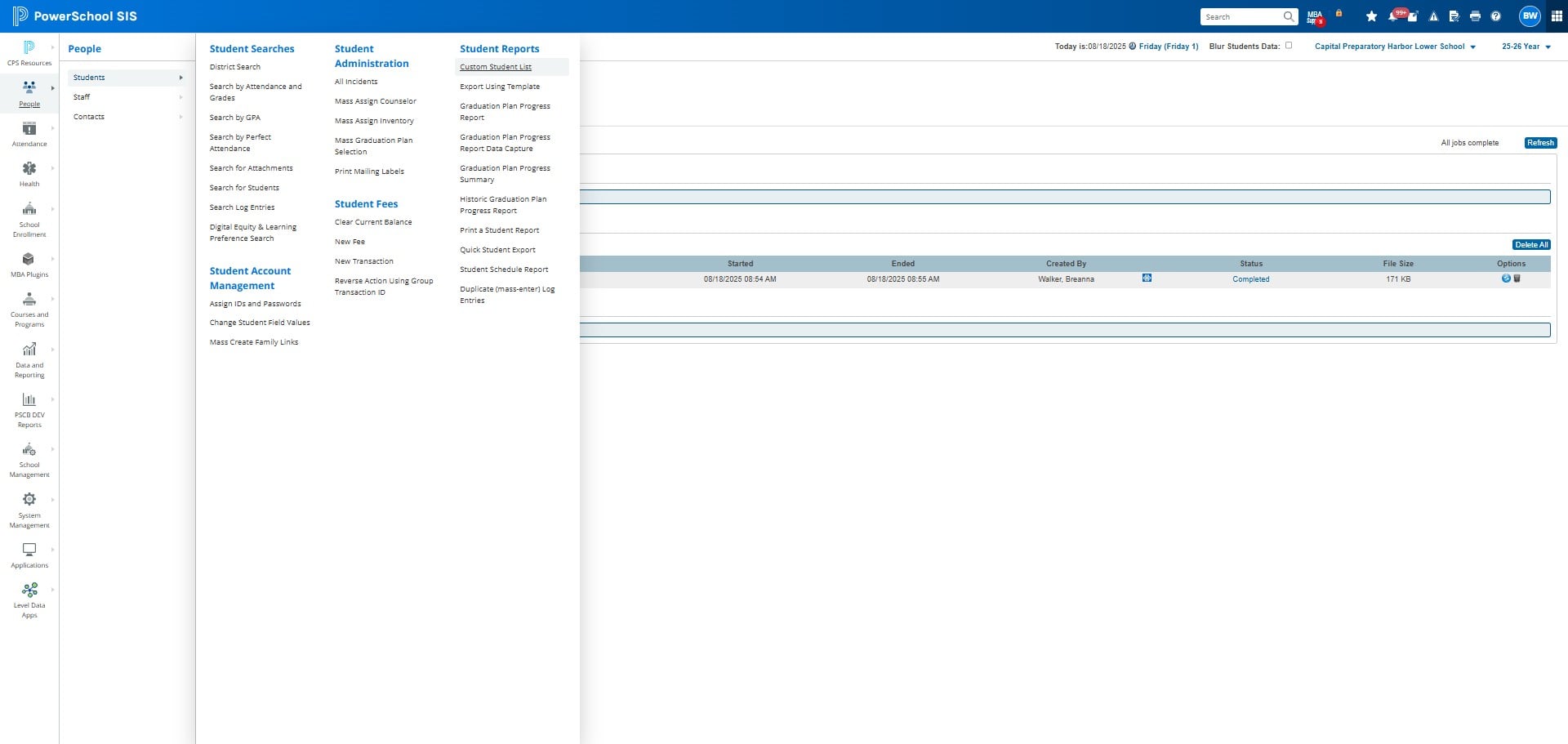
Click on "Custom Student List"
Click on the drop down menu
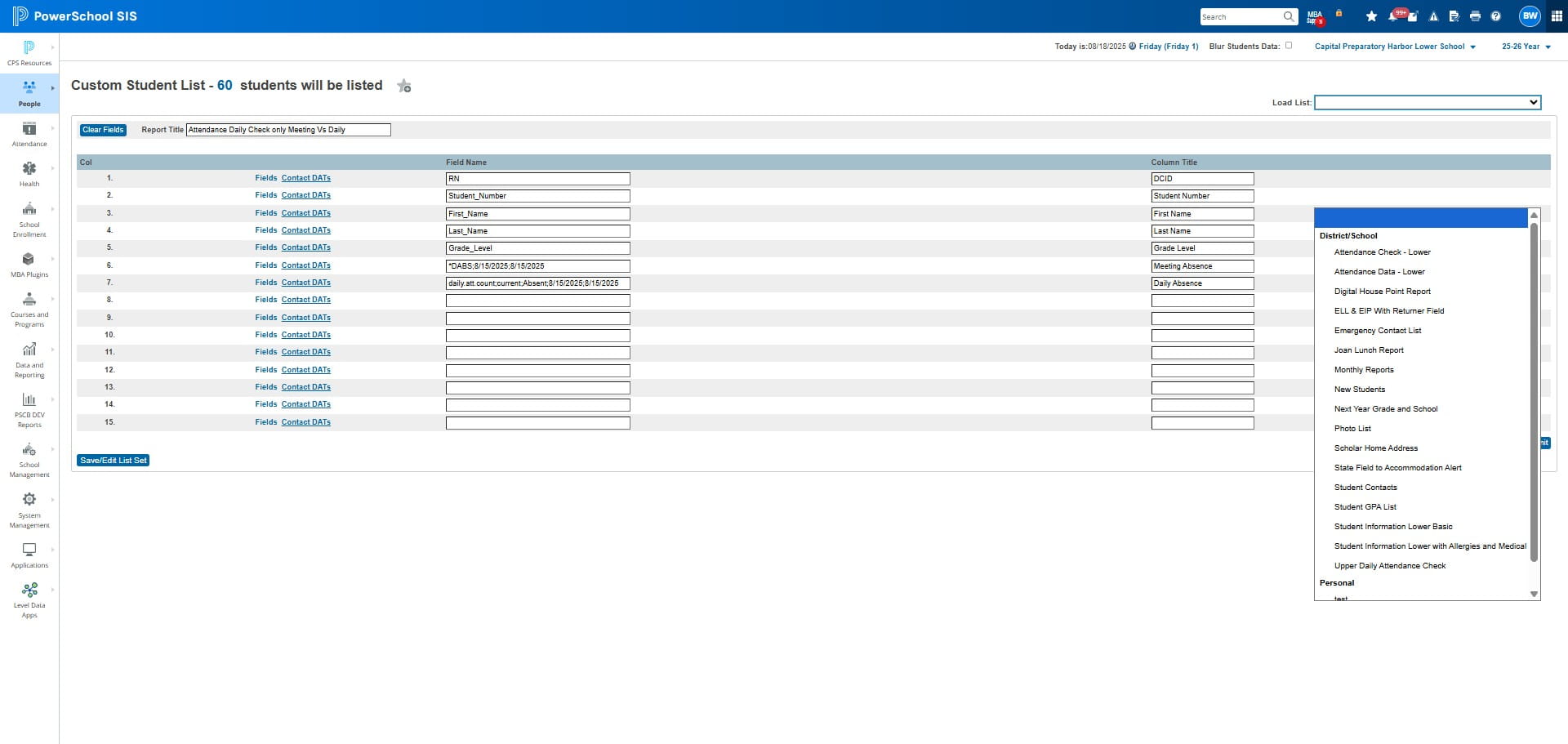
Select the drop down report called "Attendance Data"
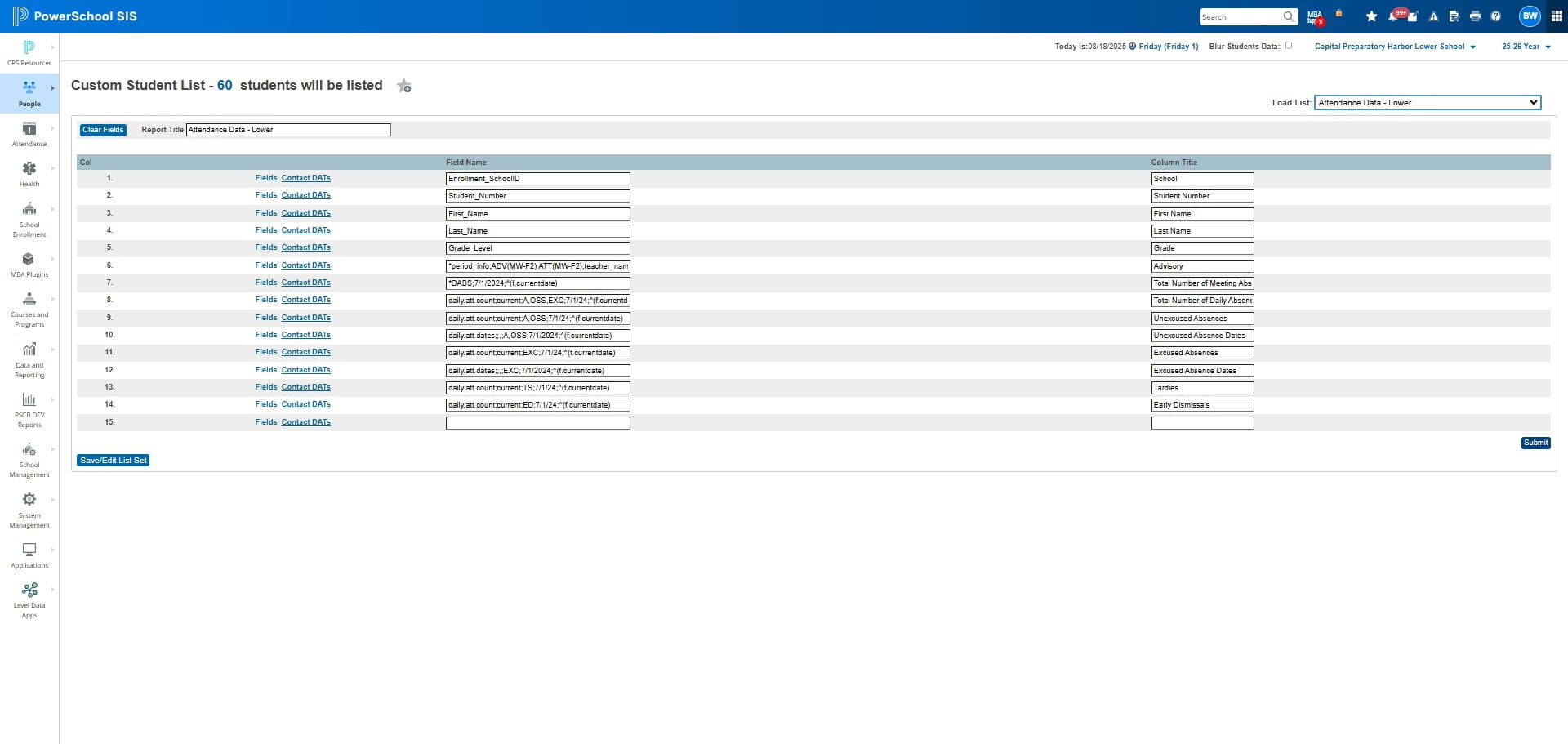
Click on "Submit"
Copy the information into an google sheet
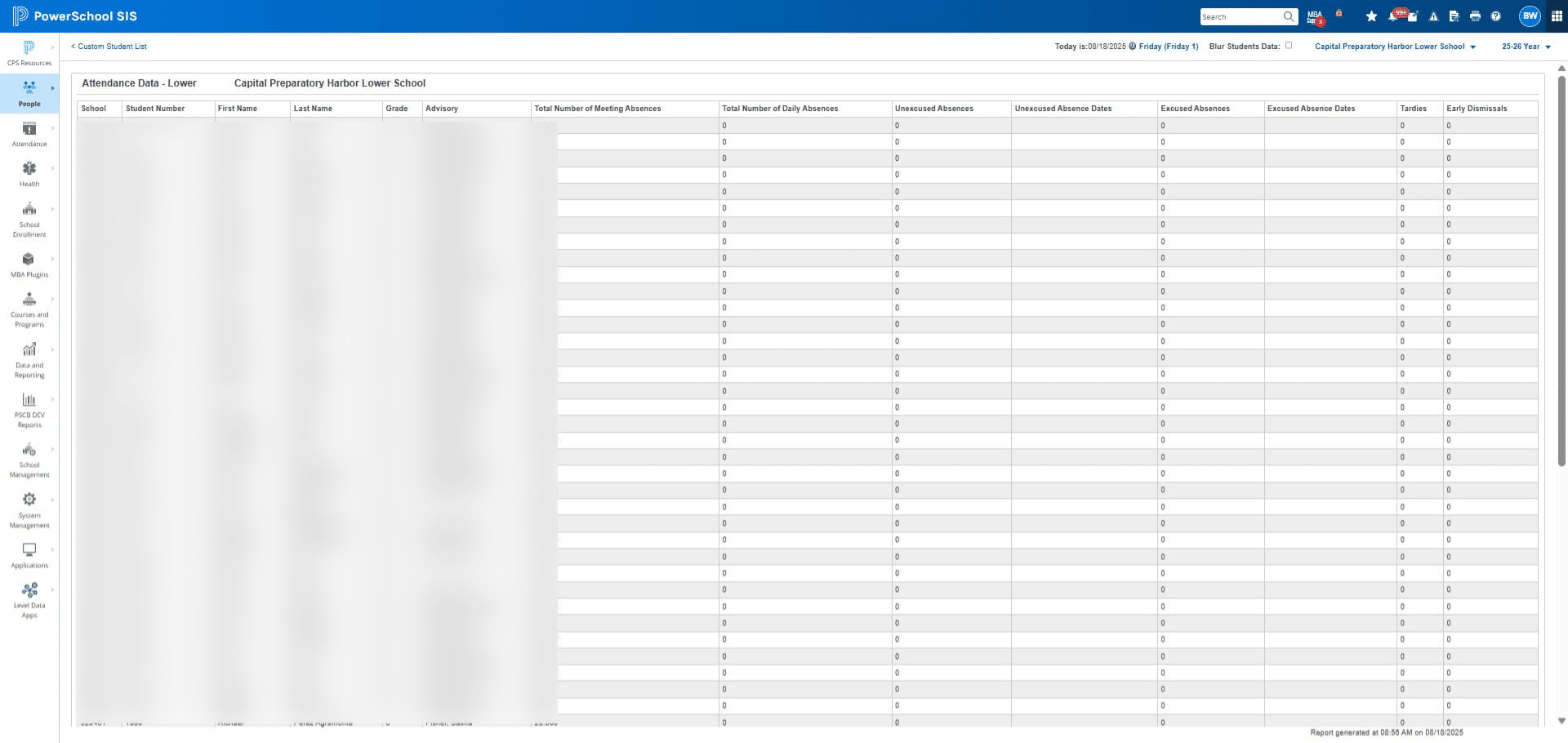
Press ctrl + v
Paste the information into your google sheet
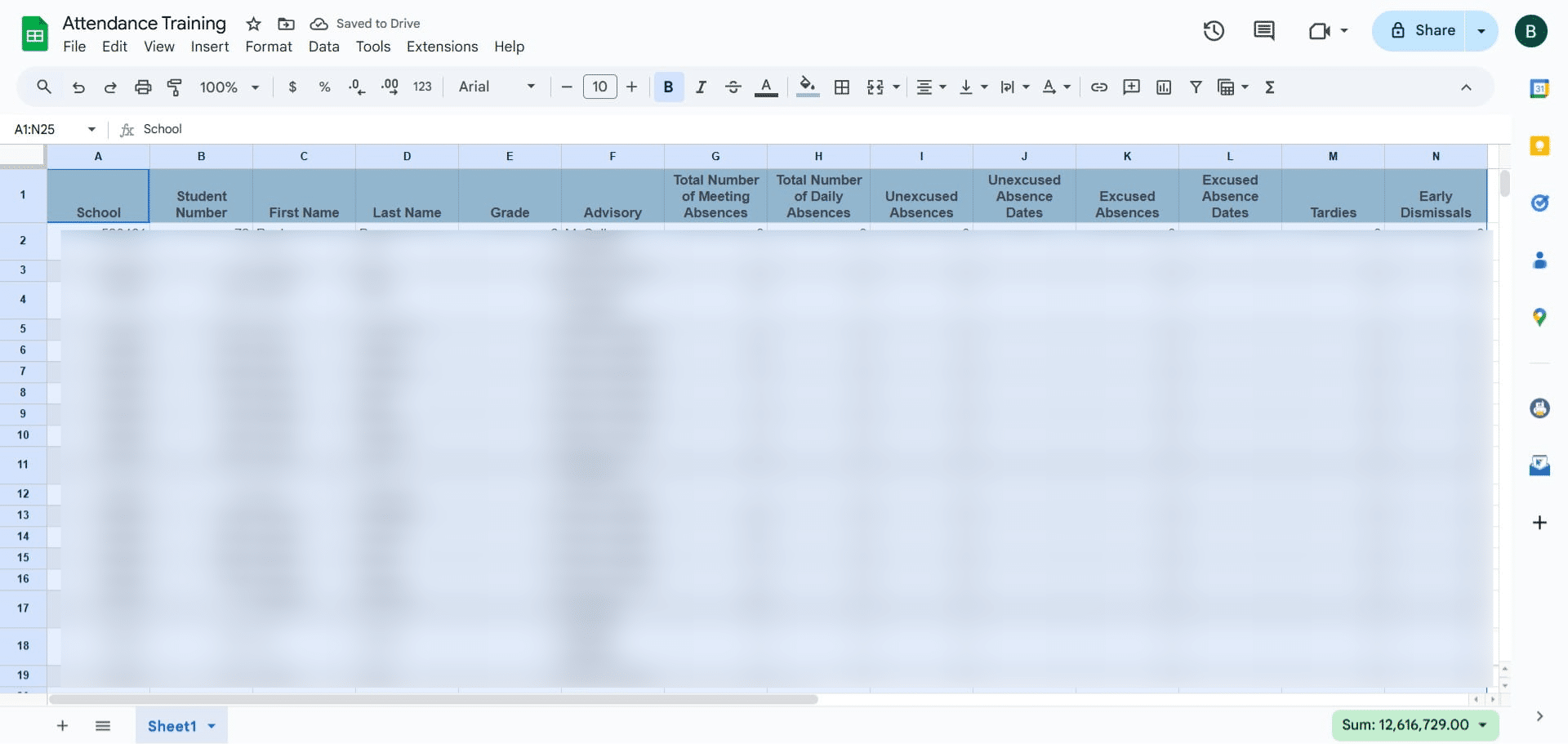
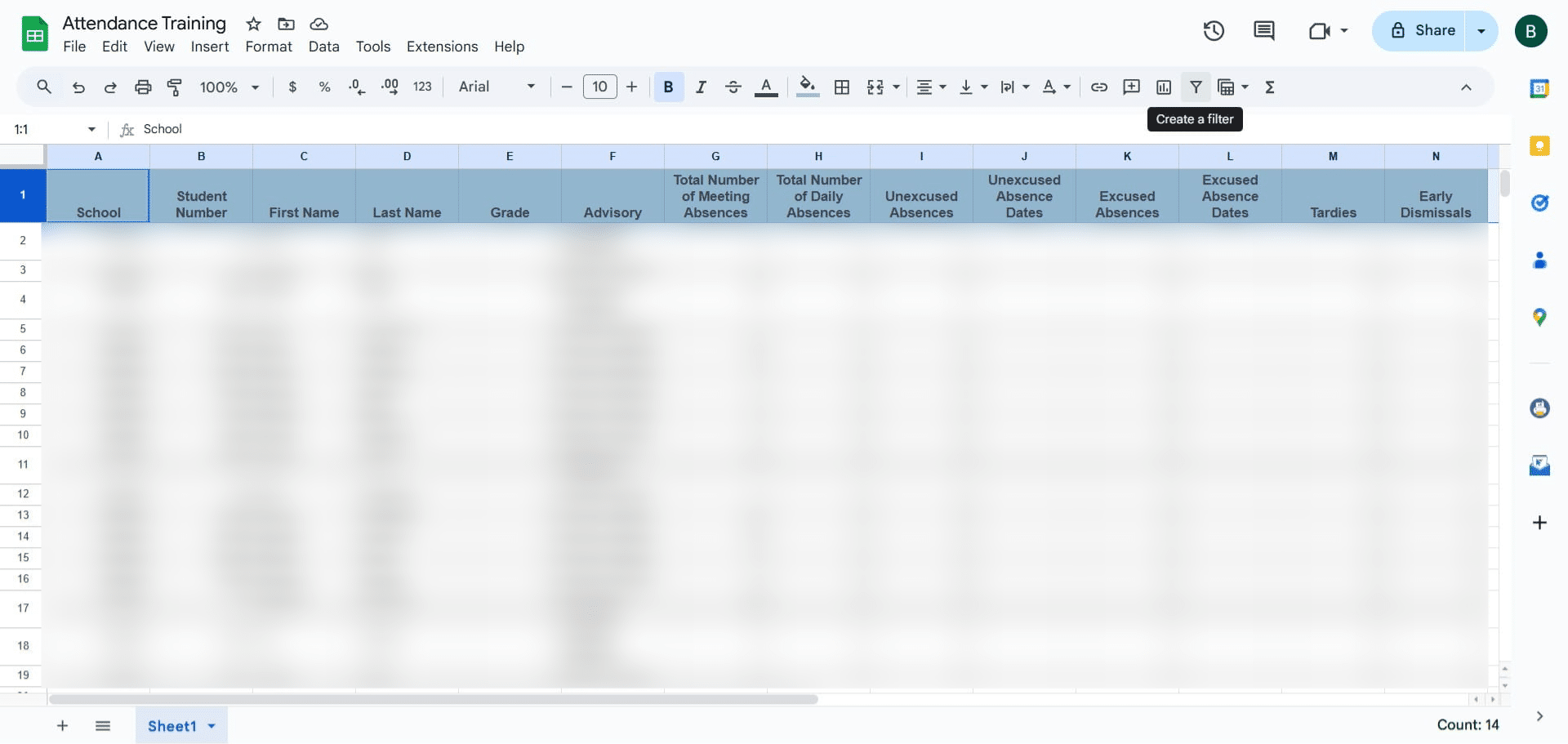
Filter the information -> Data -> Create a FILTER
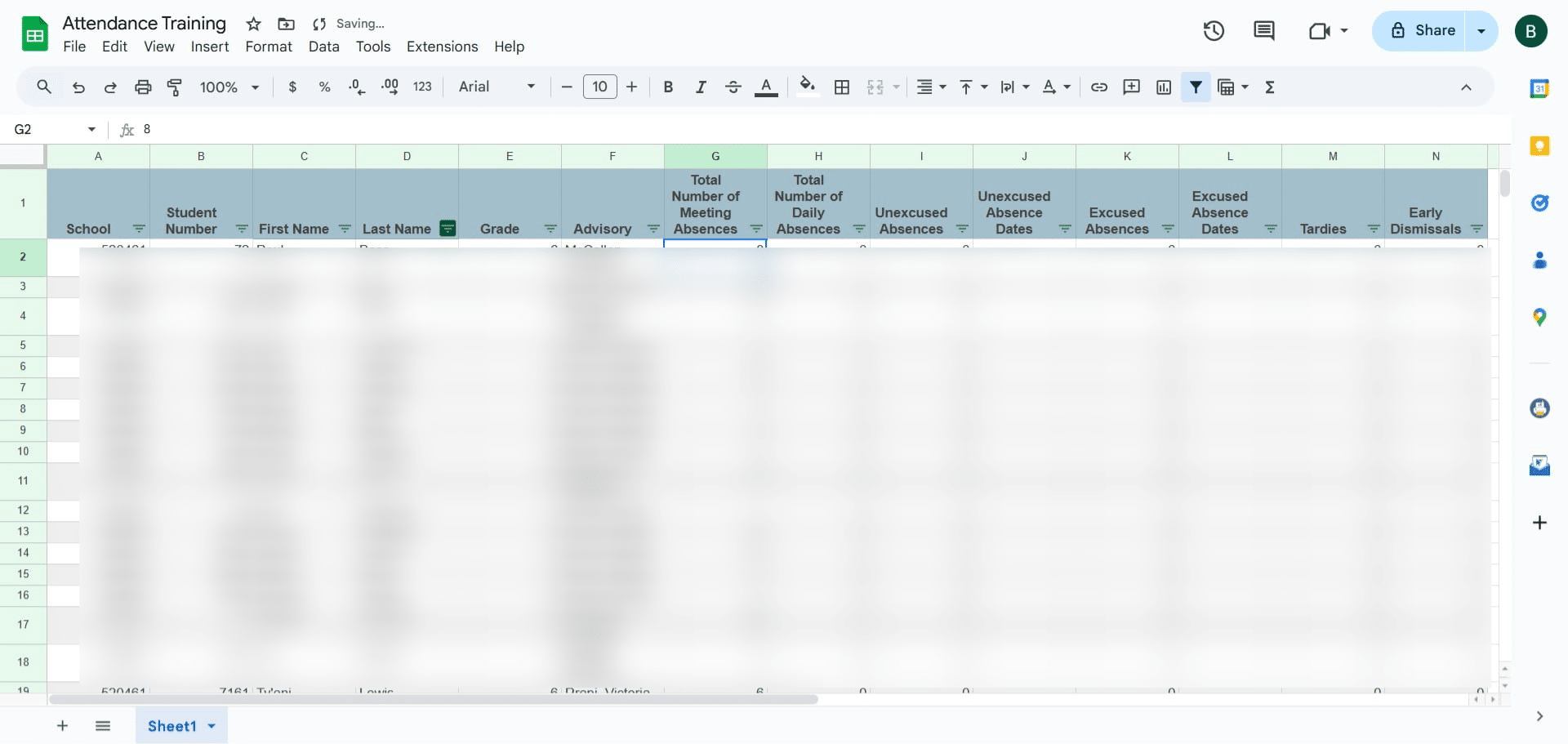
Filter by student (click the 3 lines next to either the first name or last name)
Click on "Clear"
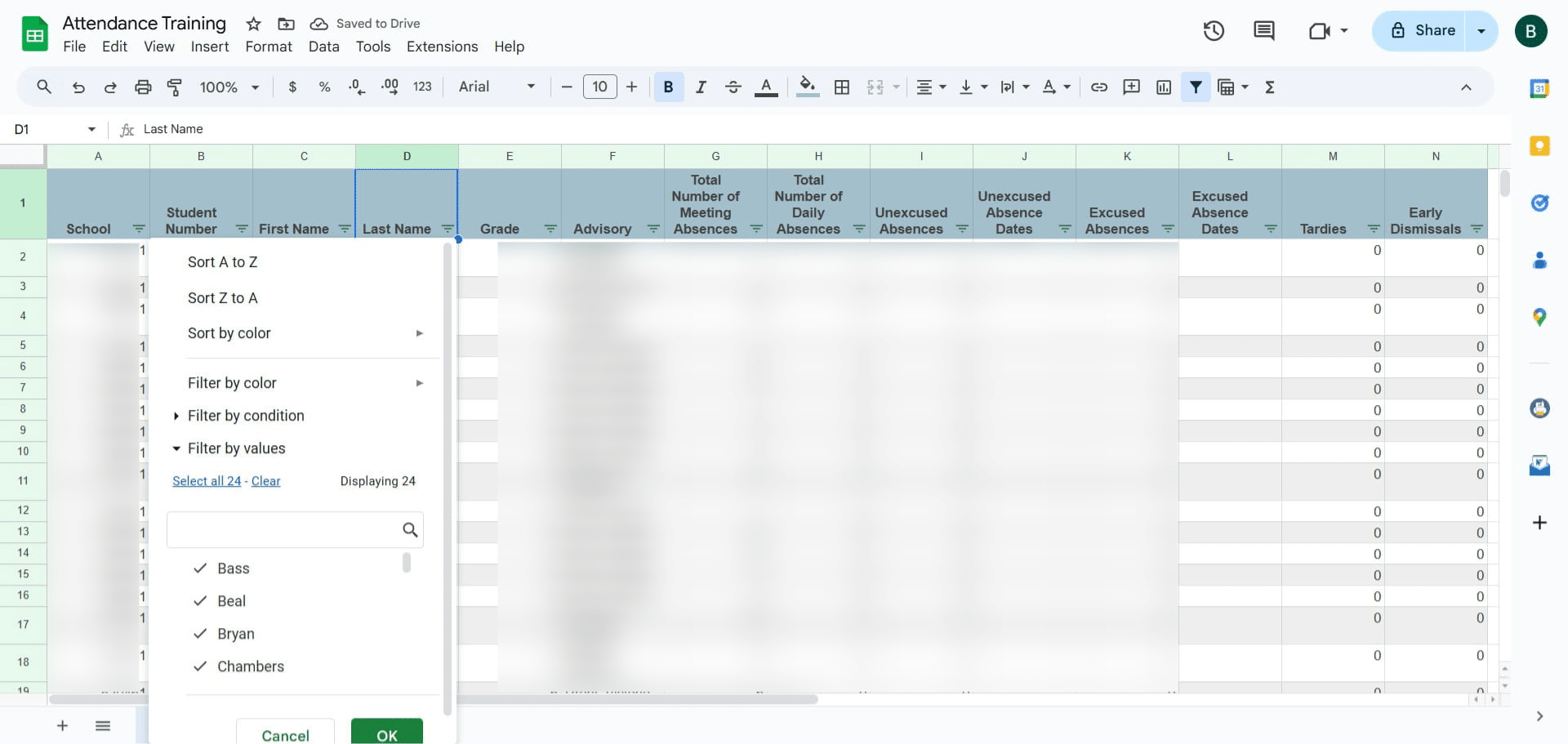
Type in the name of the student you are looking for
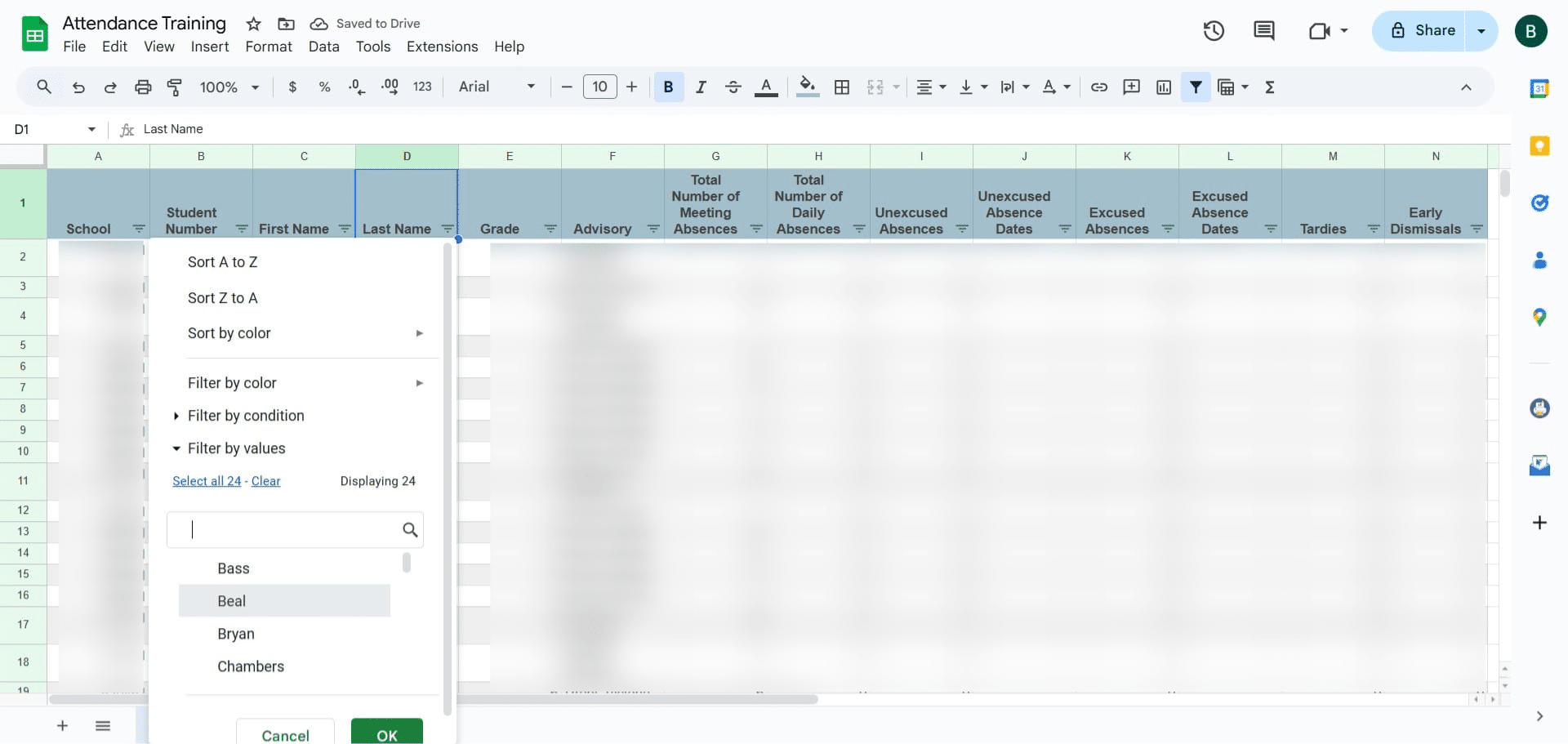
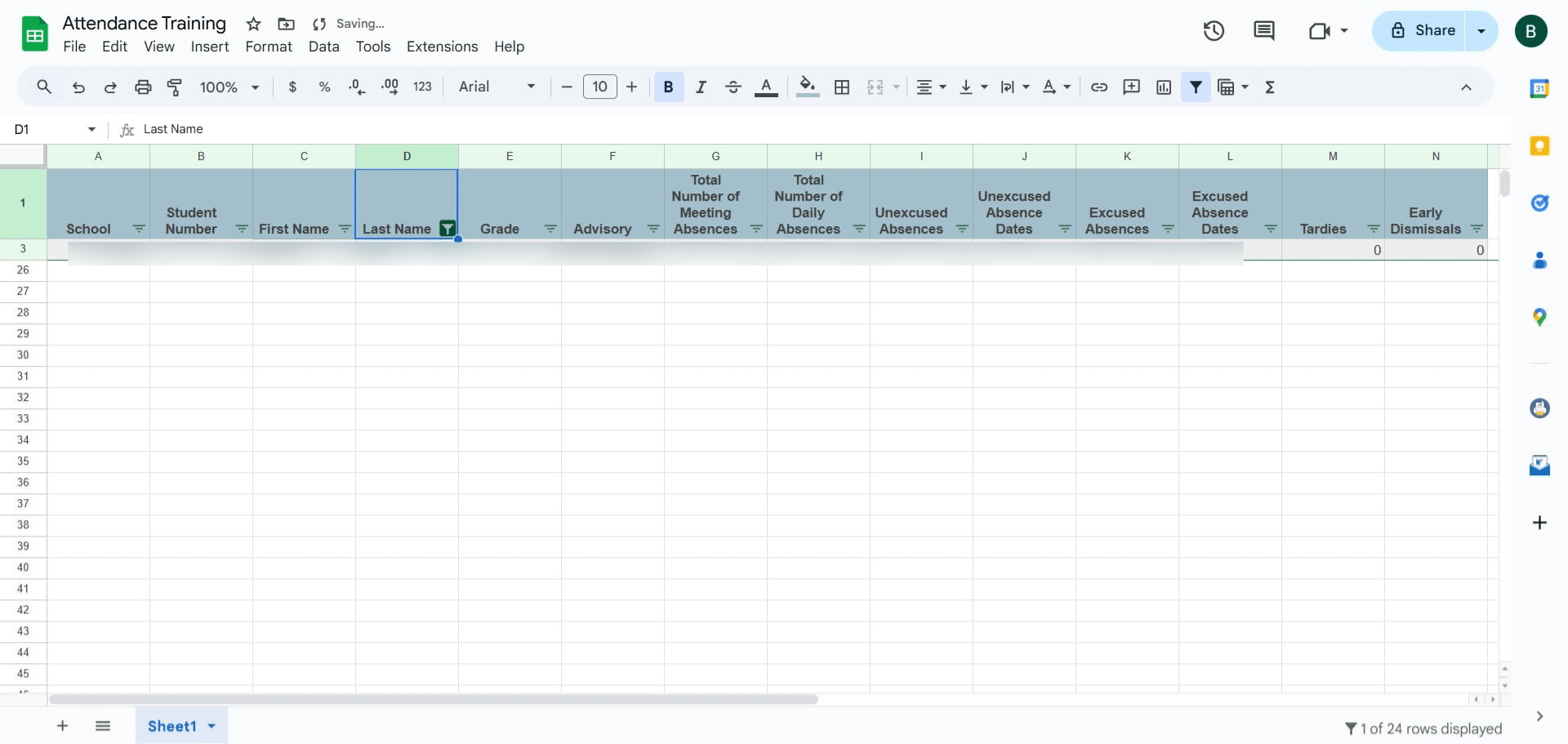
Click on "OK"
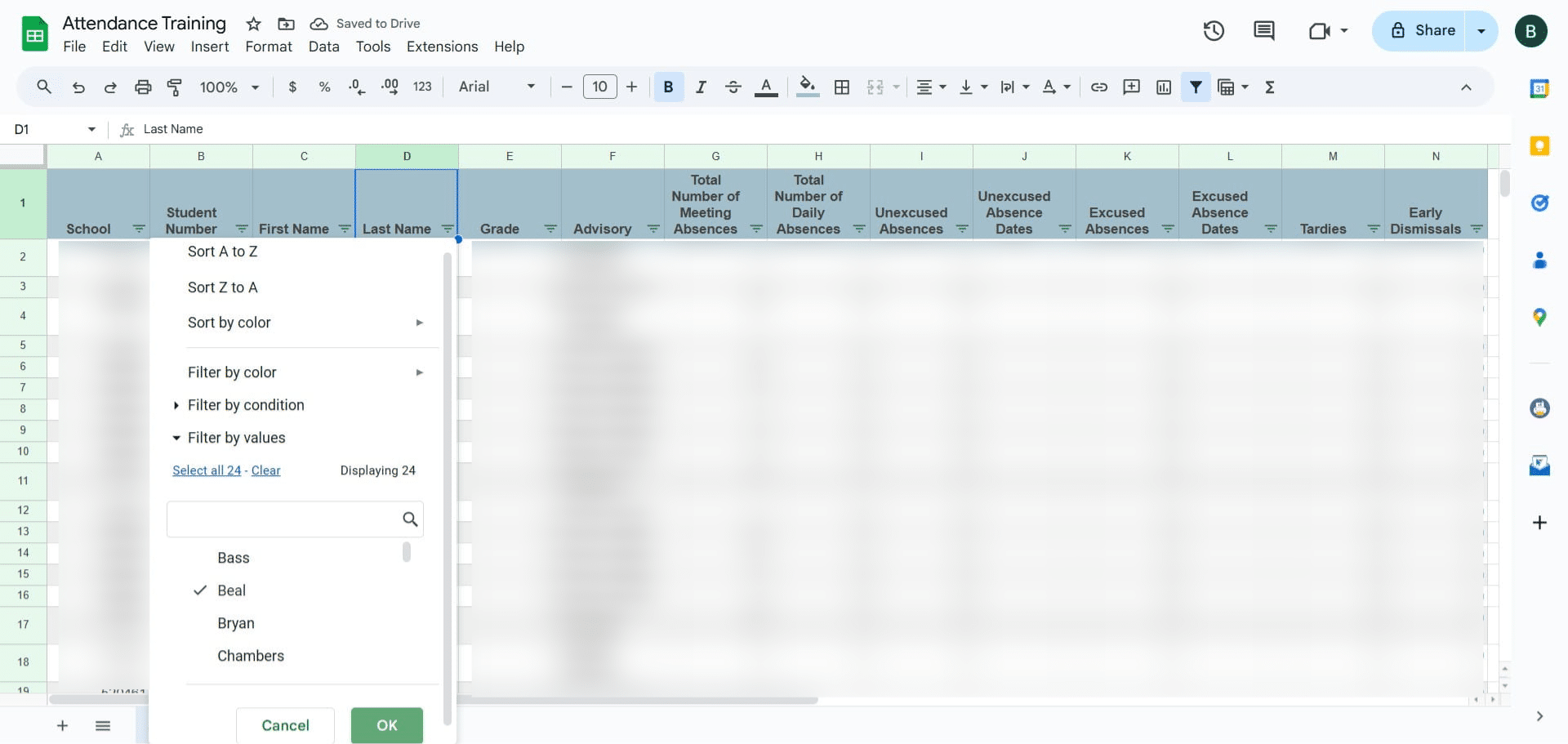
Copy the information
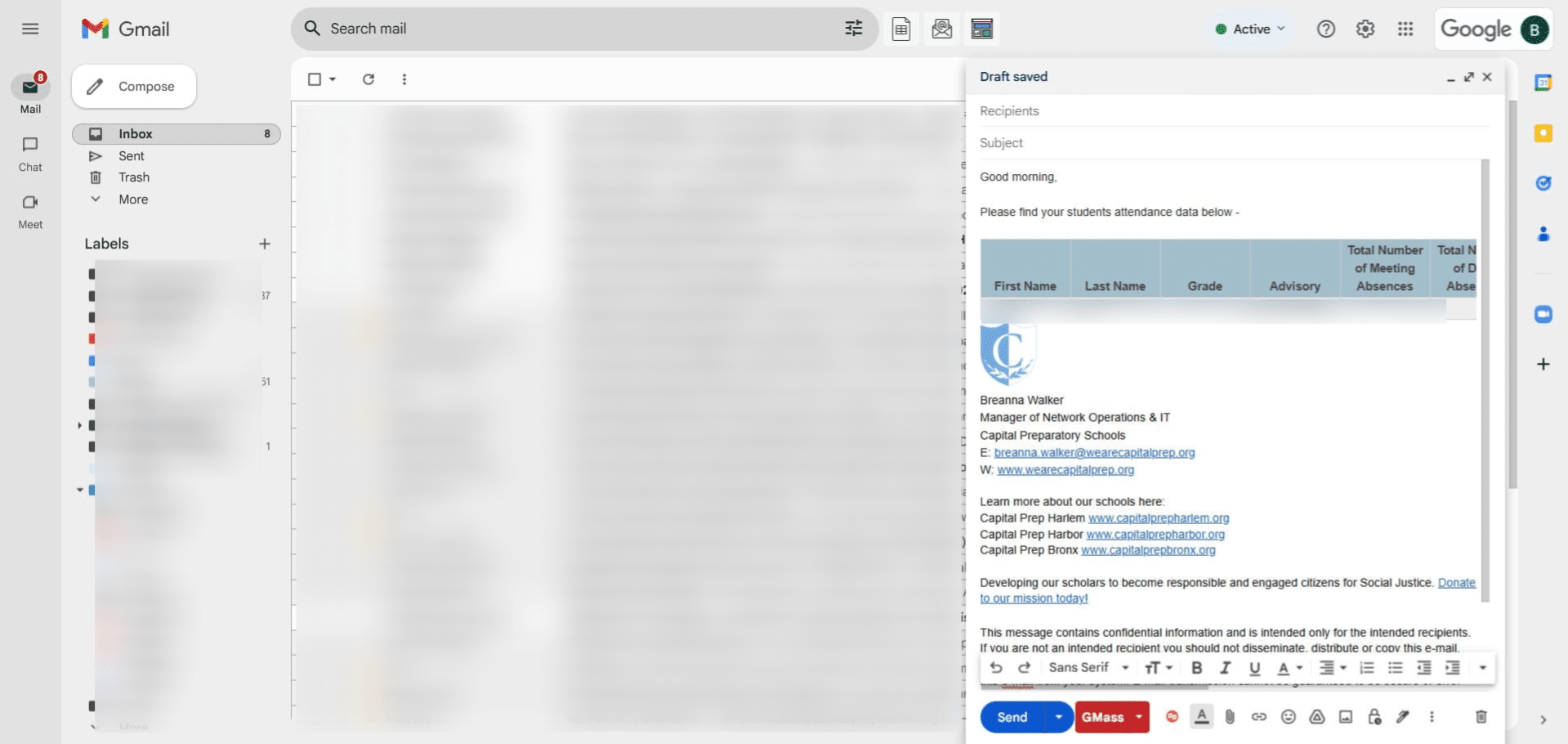
Press ctrl + v
You can copy the information into an email
Option 4: Review attendance information via the Student Profile
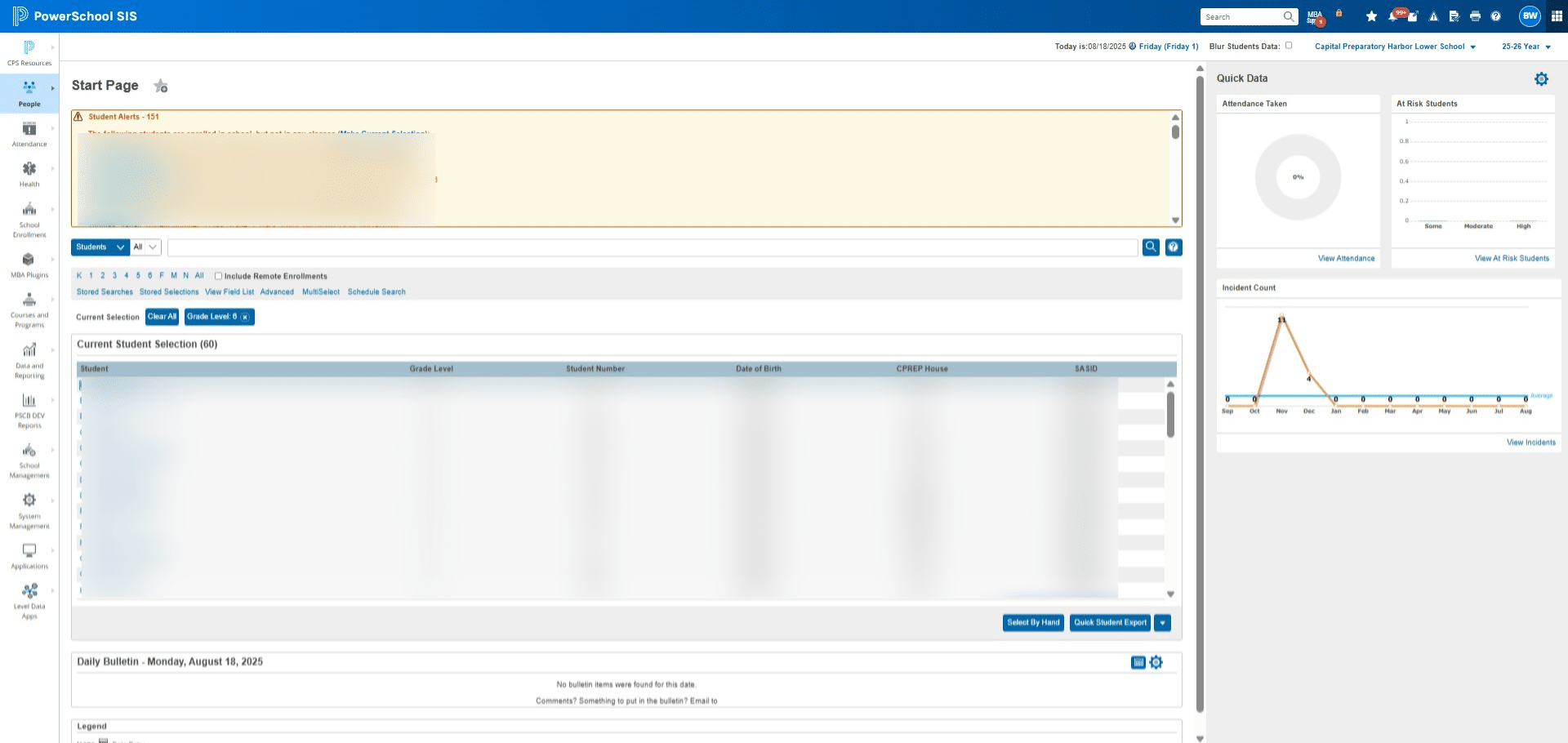
Click on the name of the student you want to pull attendance information for
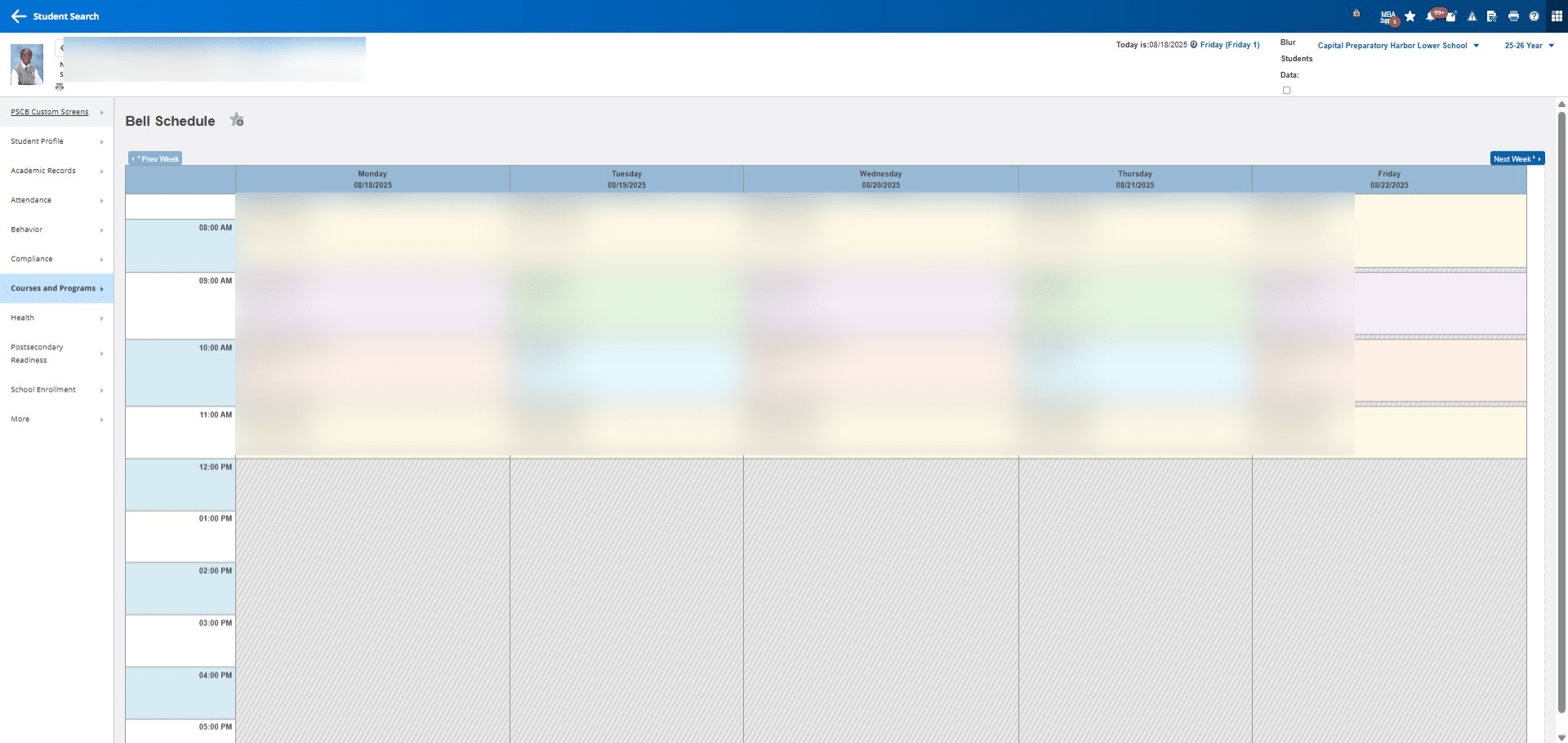
Click on "PSCB Custom Screens"
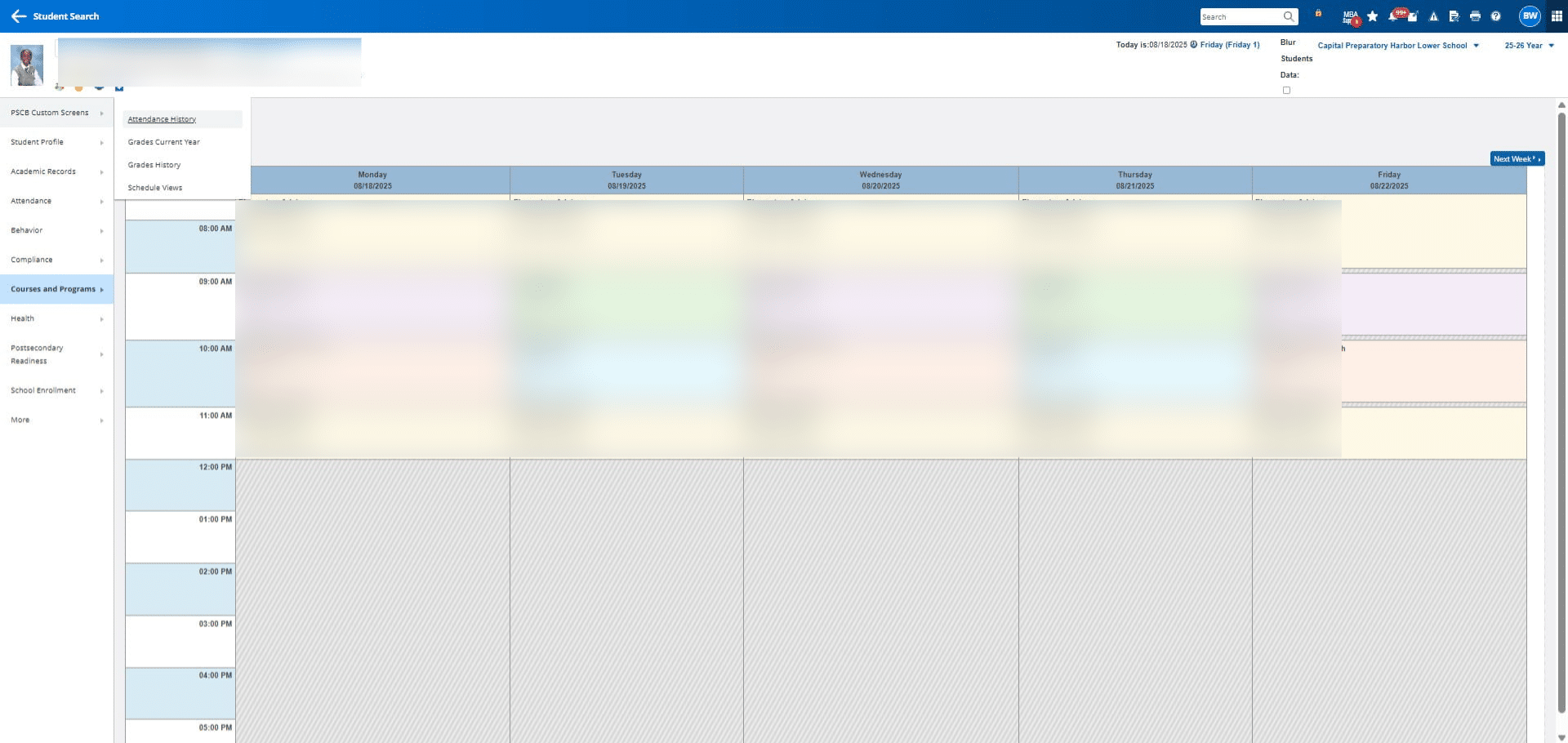
Click on "Attendance History"
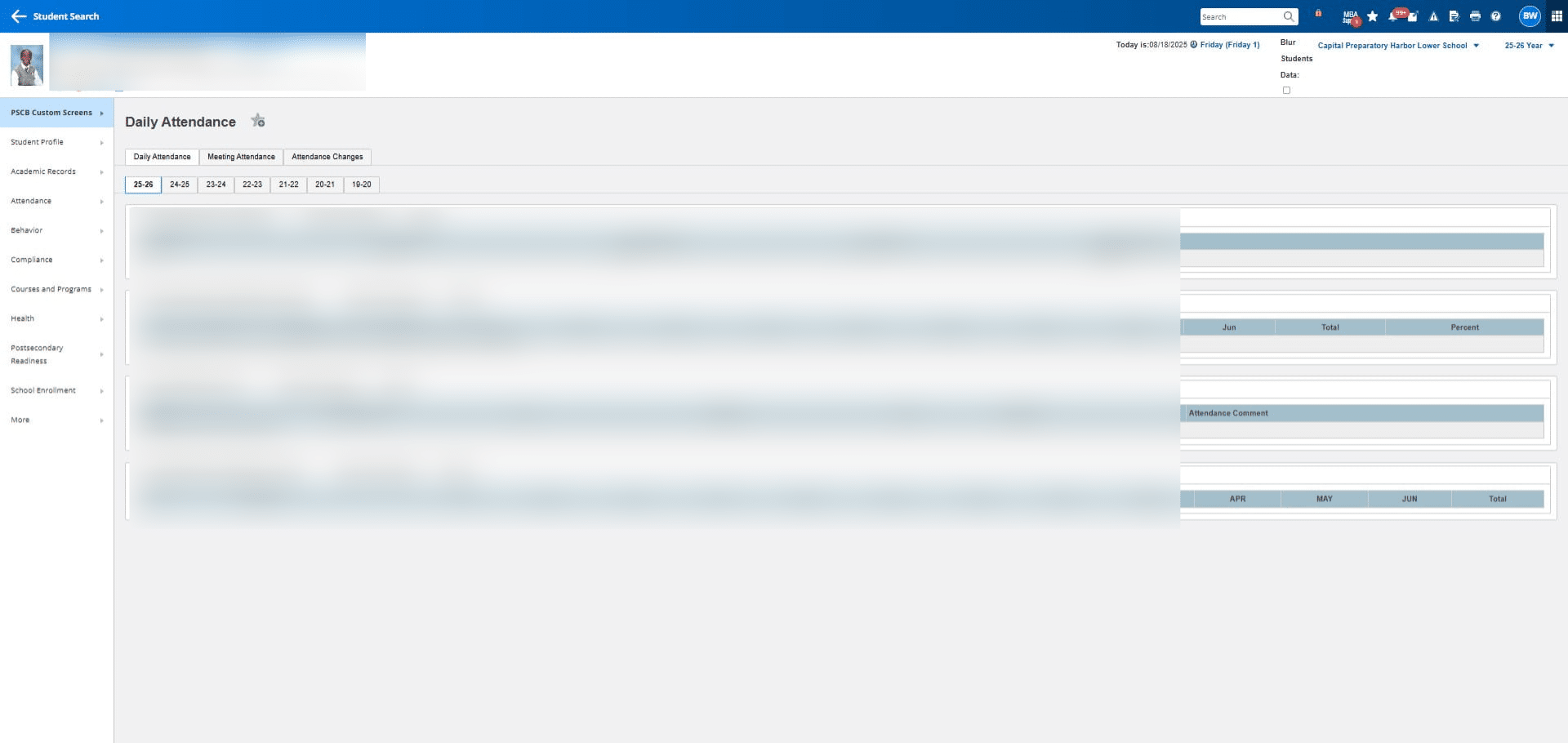
Click on "25-26"
Option 5: Download the # of YTD Absences/Tardies Report
Click on "Data and Reporting"
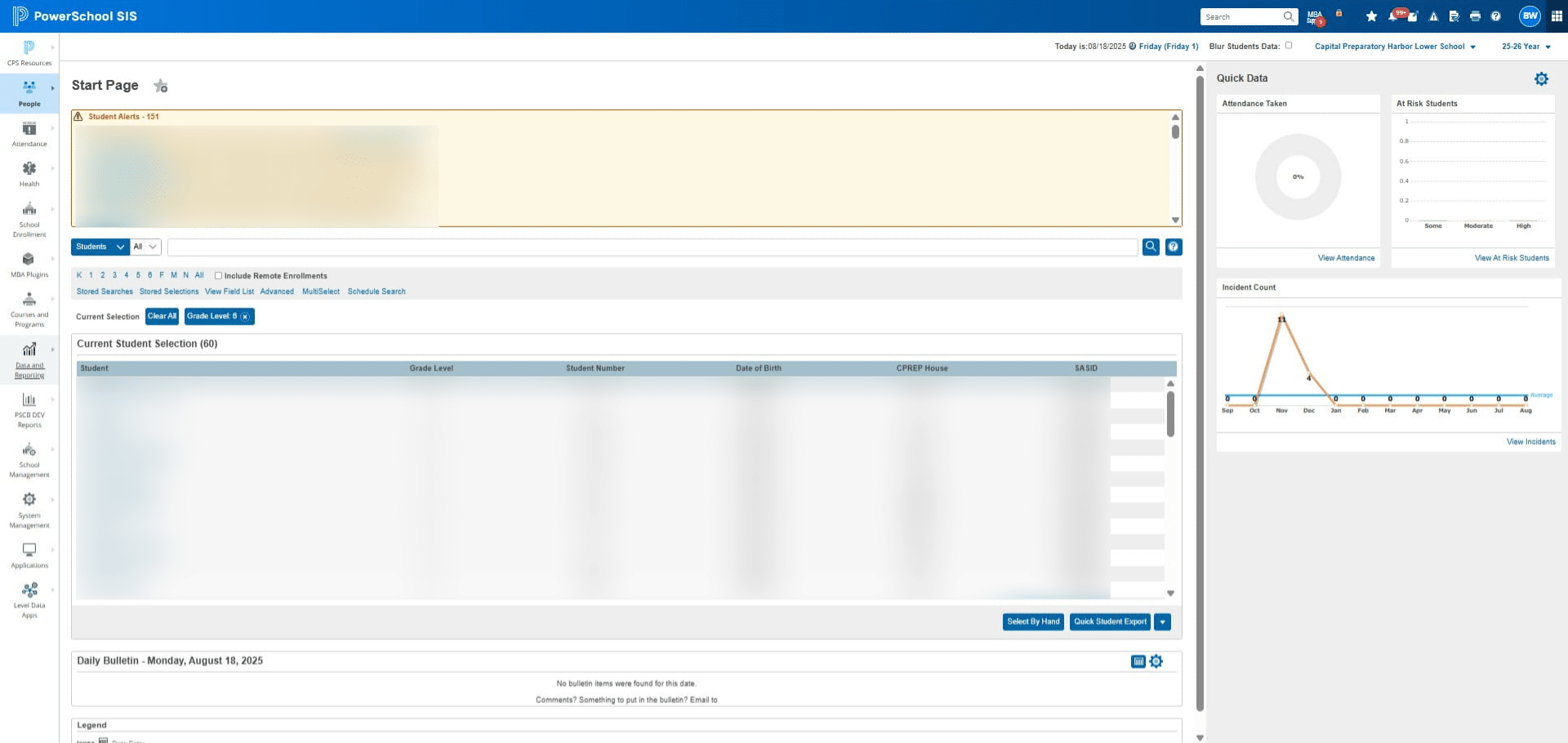
Click on "Reports"
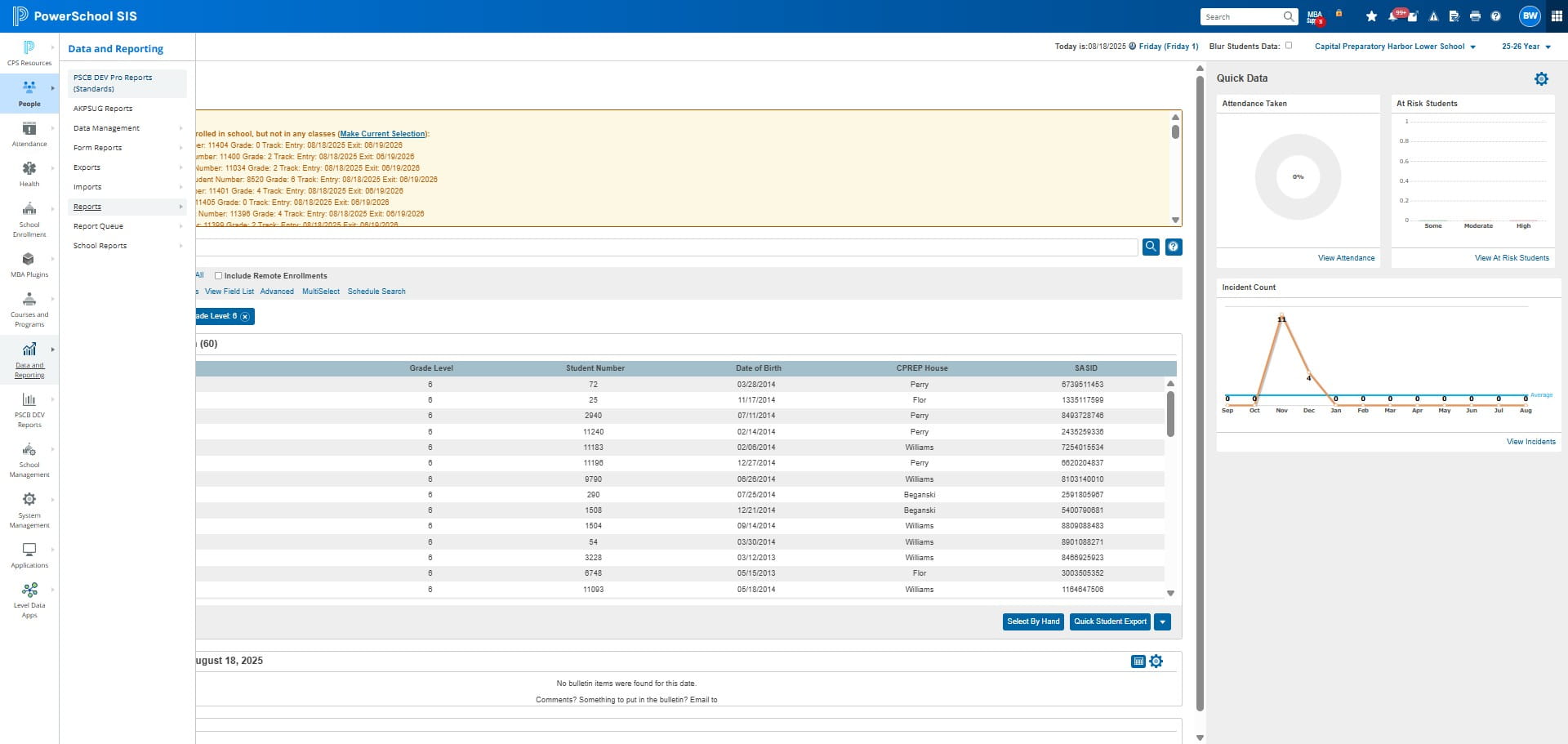
Click on "sqlReports"
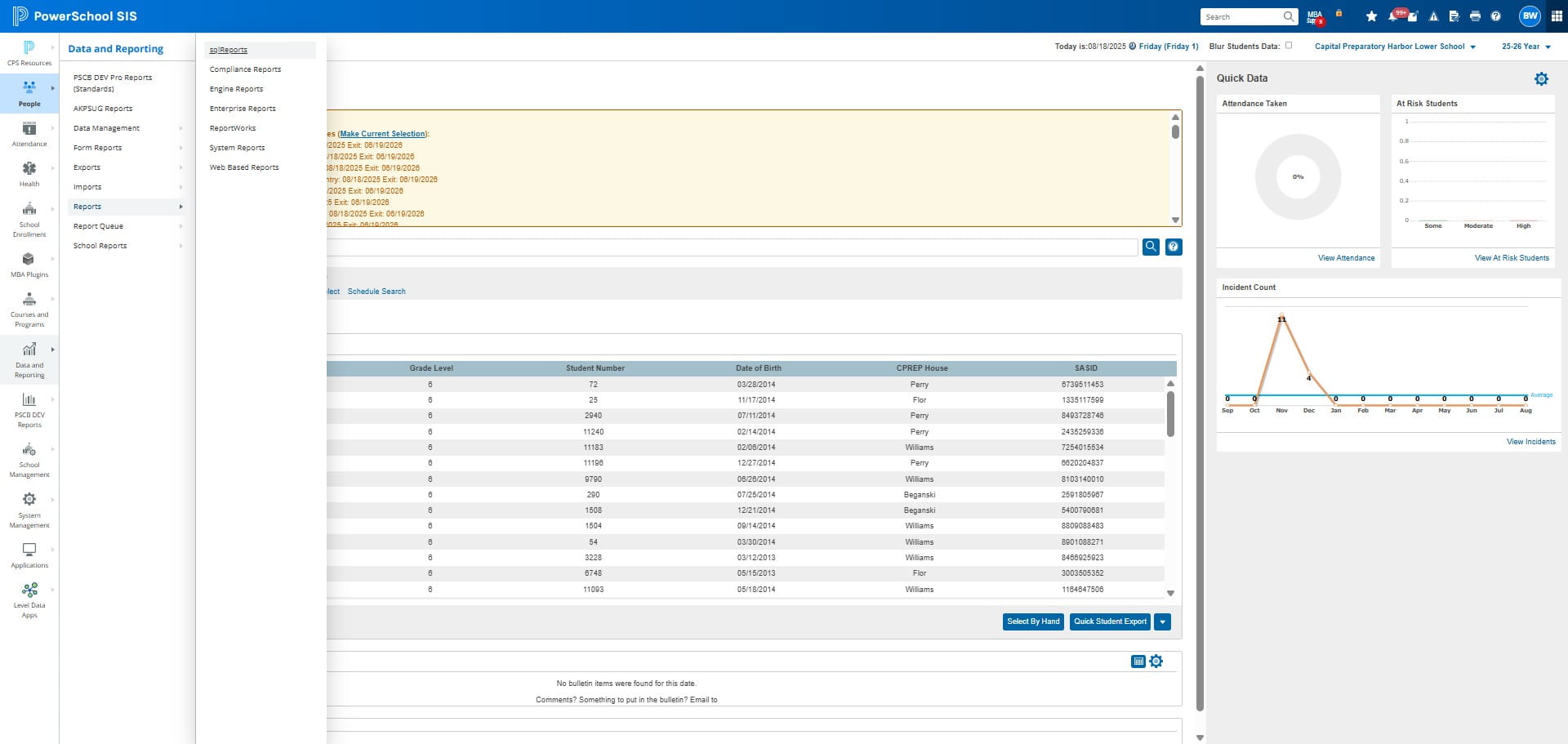
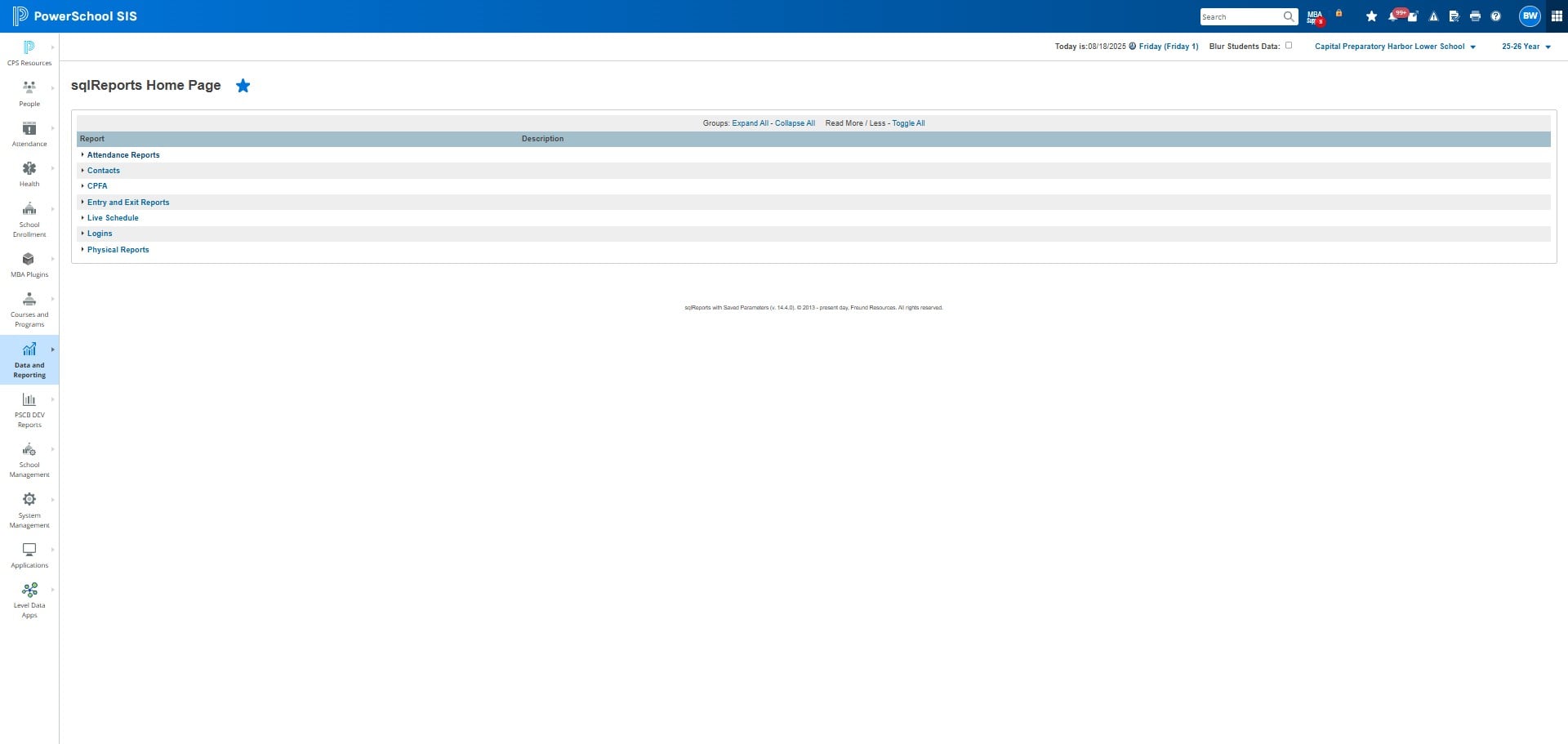
Click on "Attendance Reports"
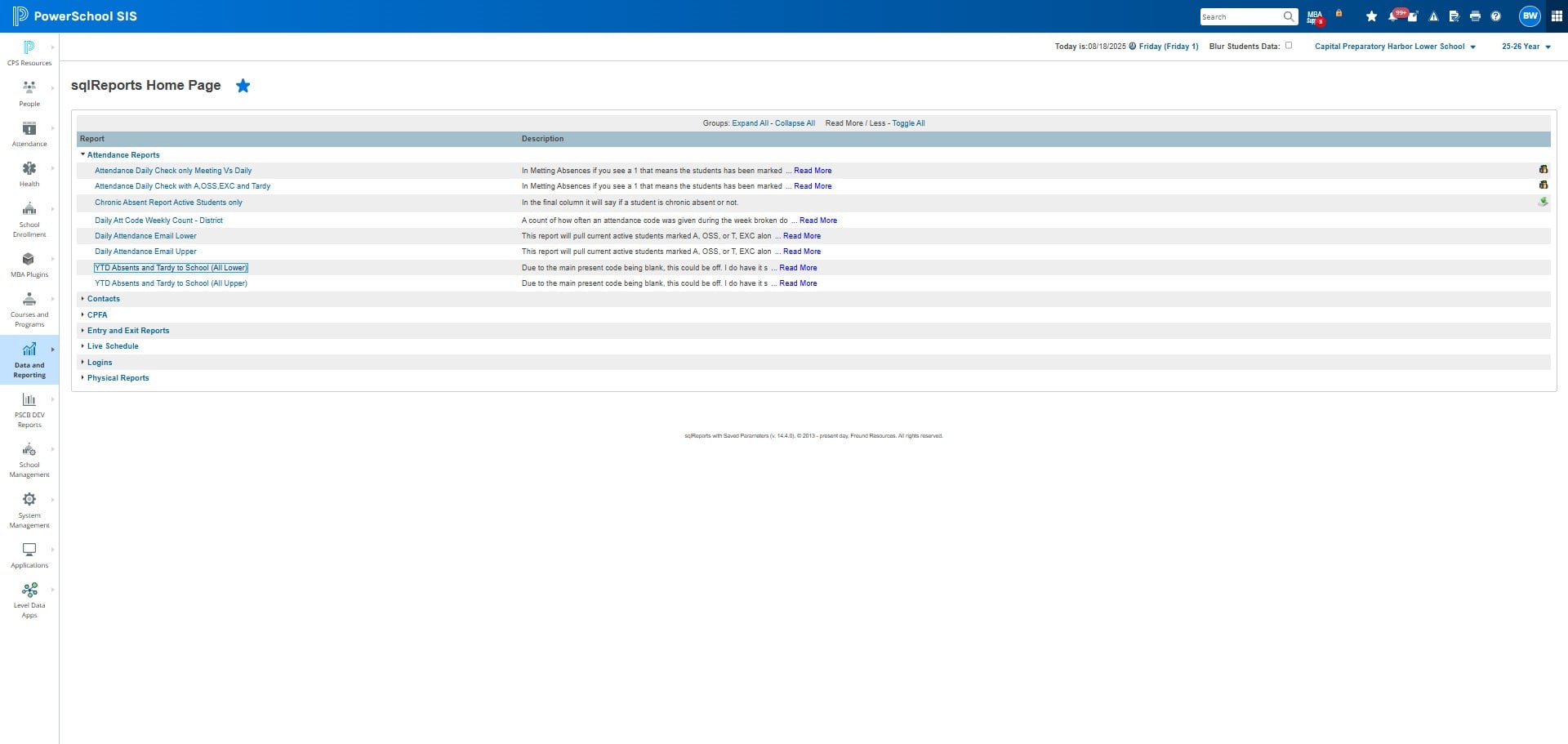
Click on "YTD Absents and Tardy to School (All Lower)"
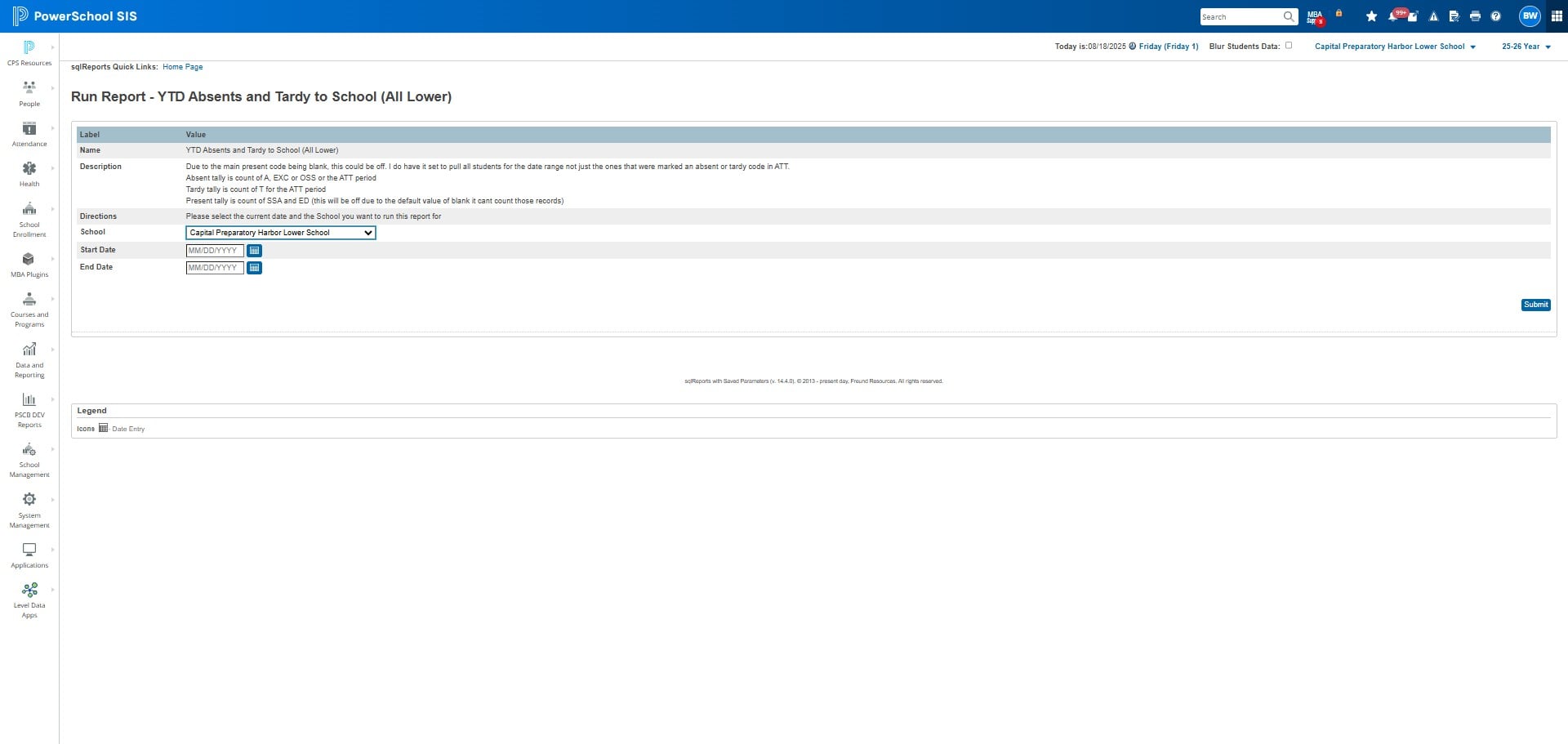
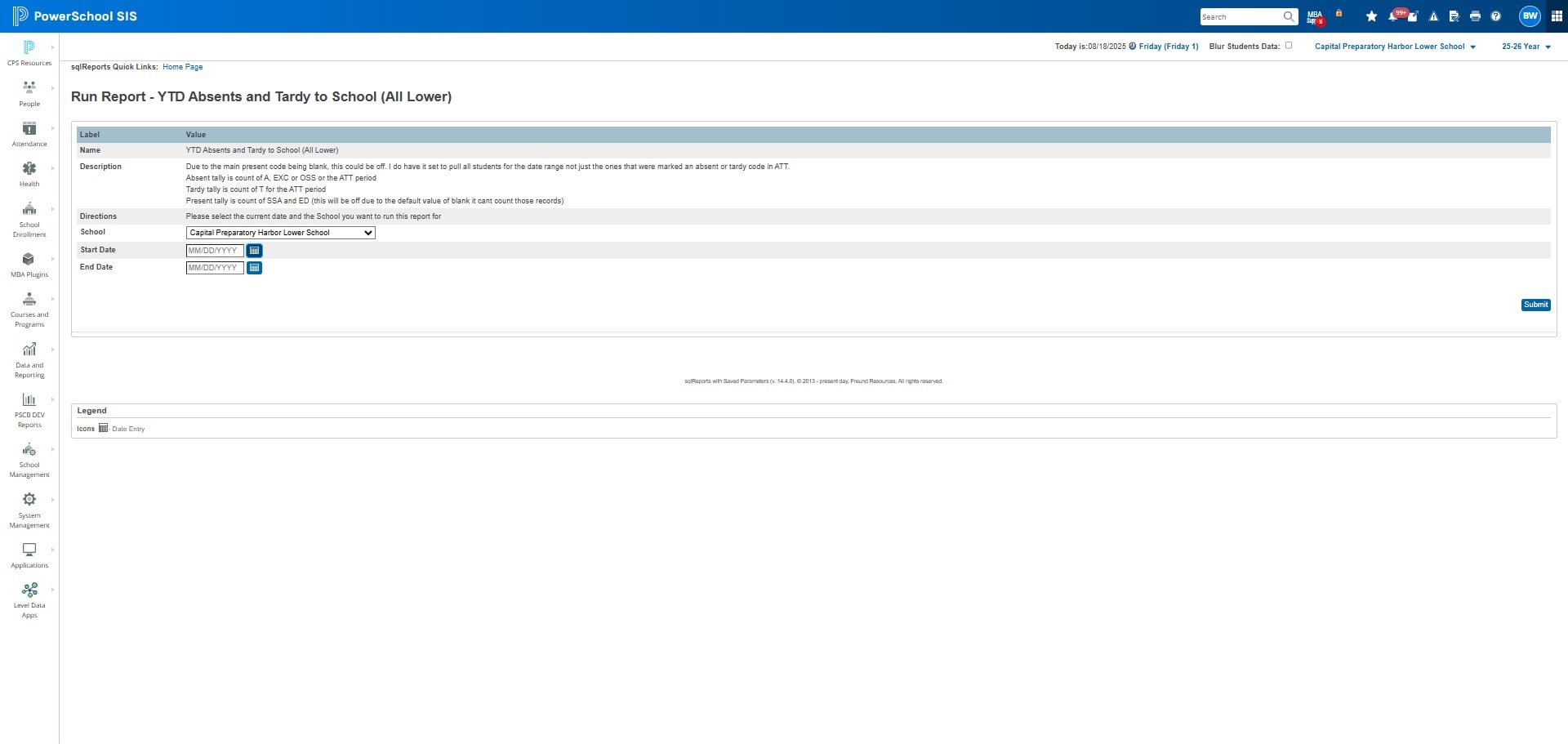
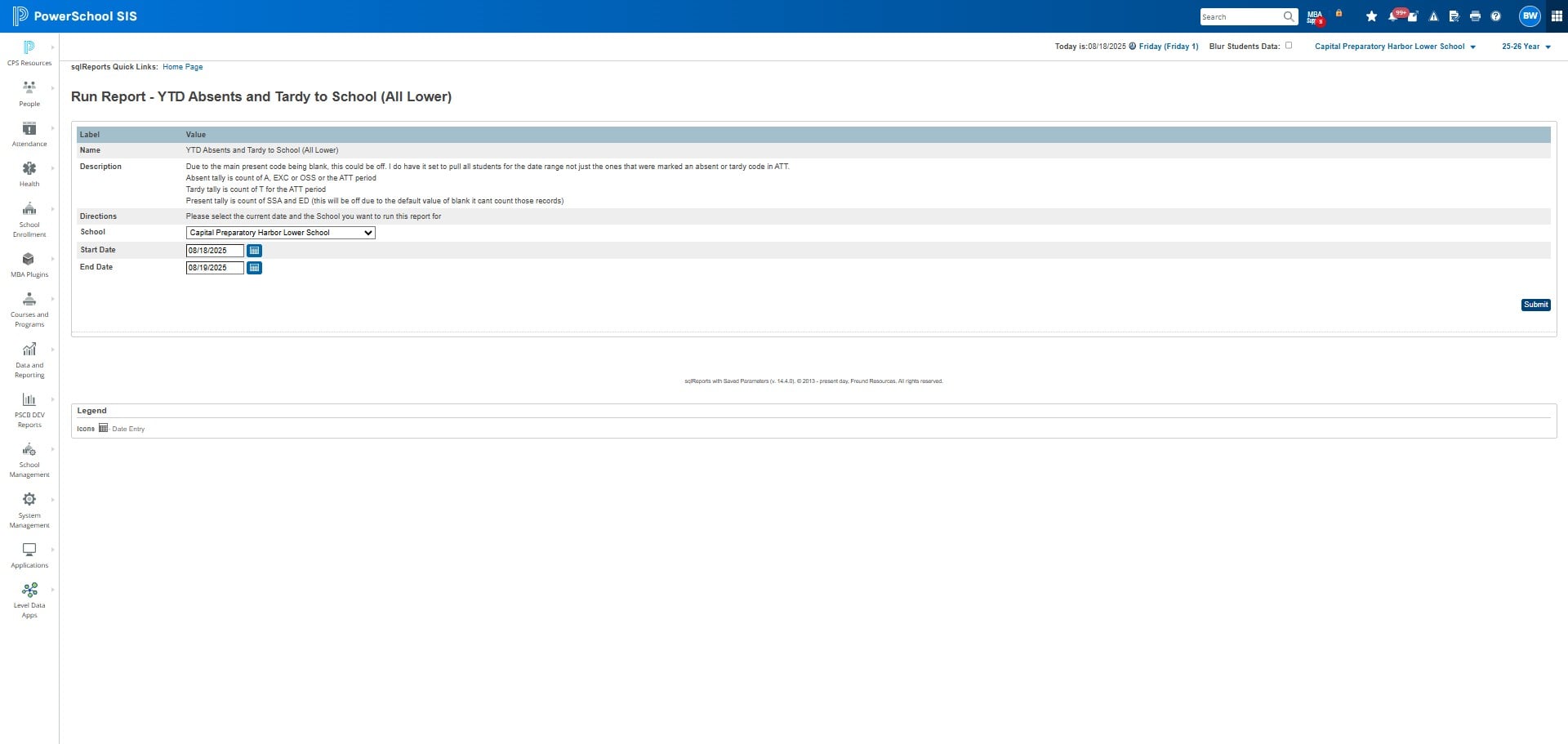
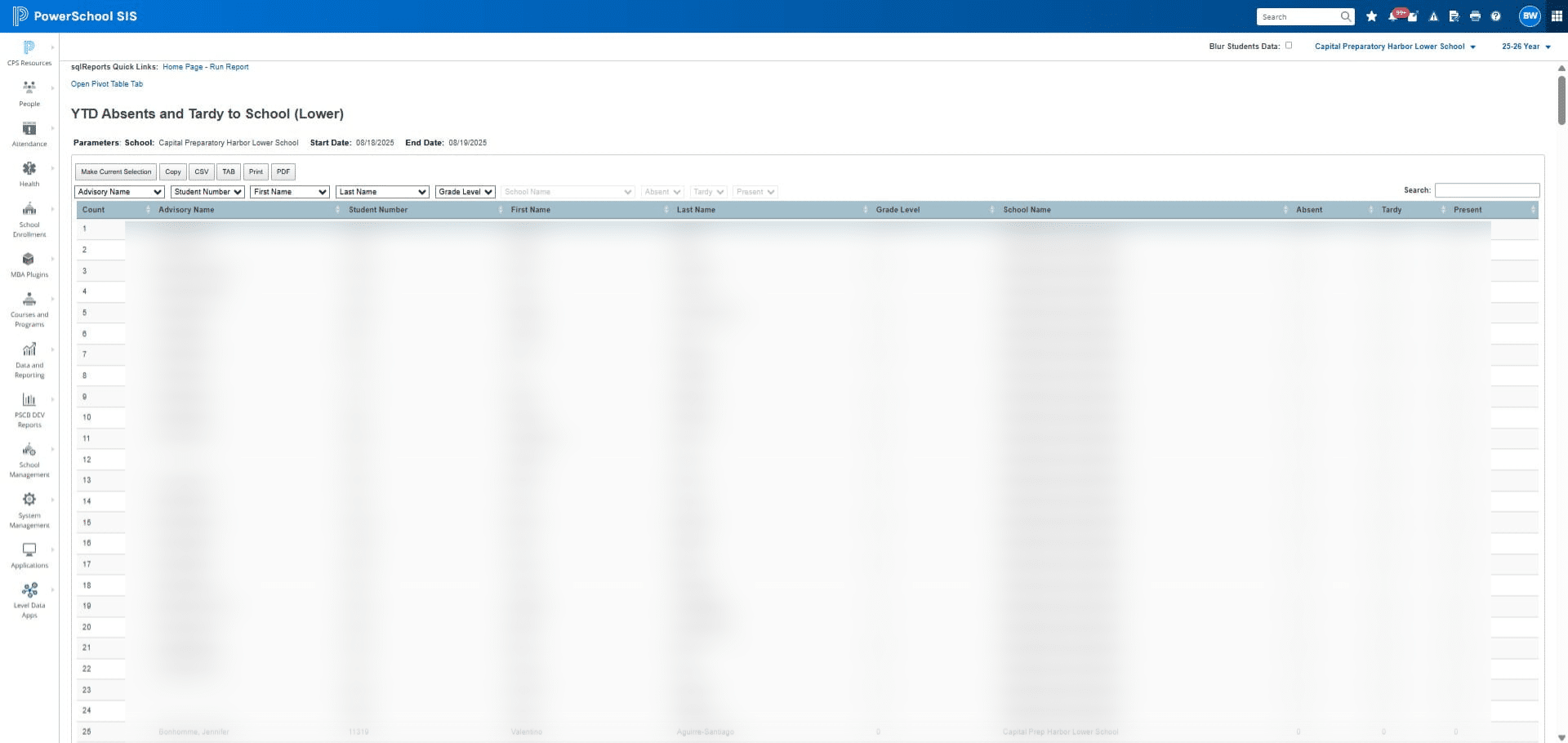
Choose the school from the dropdown menu. Then, set the start date to the first day of the school year and the end date to the date you're generating the report.
Click here
Click on "Submit"
Select what you want to do:
- Make Current Selection
- Copy the information into a google sheet
- Download the report as a CSV
Frequently Asked Questions
- Why is it important to select students in batches of 50 or fewer when printing attendance reports?
To prevent the system from crashing due to large amounts of data, it is recommended to select students in batches of 50 or fewer when generating attendance reports.
- What should I do after submitting the attendance profile report?
After submitting the report, click "Refresh" and then "Completed" to access the generated report file.
- How do I print individual attendance reports when generating a report for multiple students?
When printing attendance reports for multiple students, the document may not be separated by student. You may need to adjust the printer settings to print each student's report individually.
- What are the steps to find a specific student's attendance data using the Custom Student List option?
After selecting "Attendance Data" from the dropdown menu, you will need to copy the information into a Google Sheet, create a filter, and then filter by student name to isolate the attendance data for a specific student.
- When generating the YTD Absences/Tardies Report, what date range should I select?
When downloading the YTD Absences/Tardies Report, ensure you set the start date to the first day of the school year and the end date to the current date for accurate reporting.