
CT: Daily Attendance Corrections
This guide outlines the process for identifying and correcting discrepancies in daily attendance records, ensuring accurate attendance data.
This process should only be done at the end of the day or when a majority of period attendance has been taken!
This report is updated daily and is only valid for correcting attendance on the same day.
Daily Attendance Reconcilation
Daily Attendance Corrections
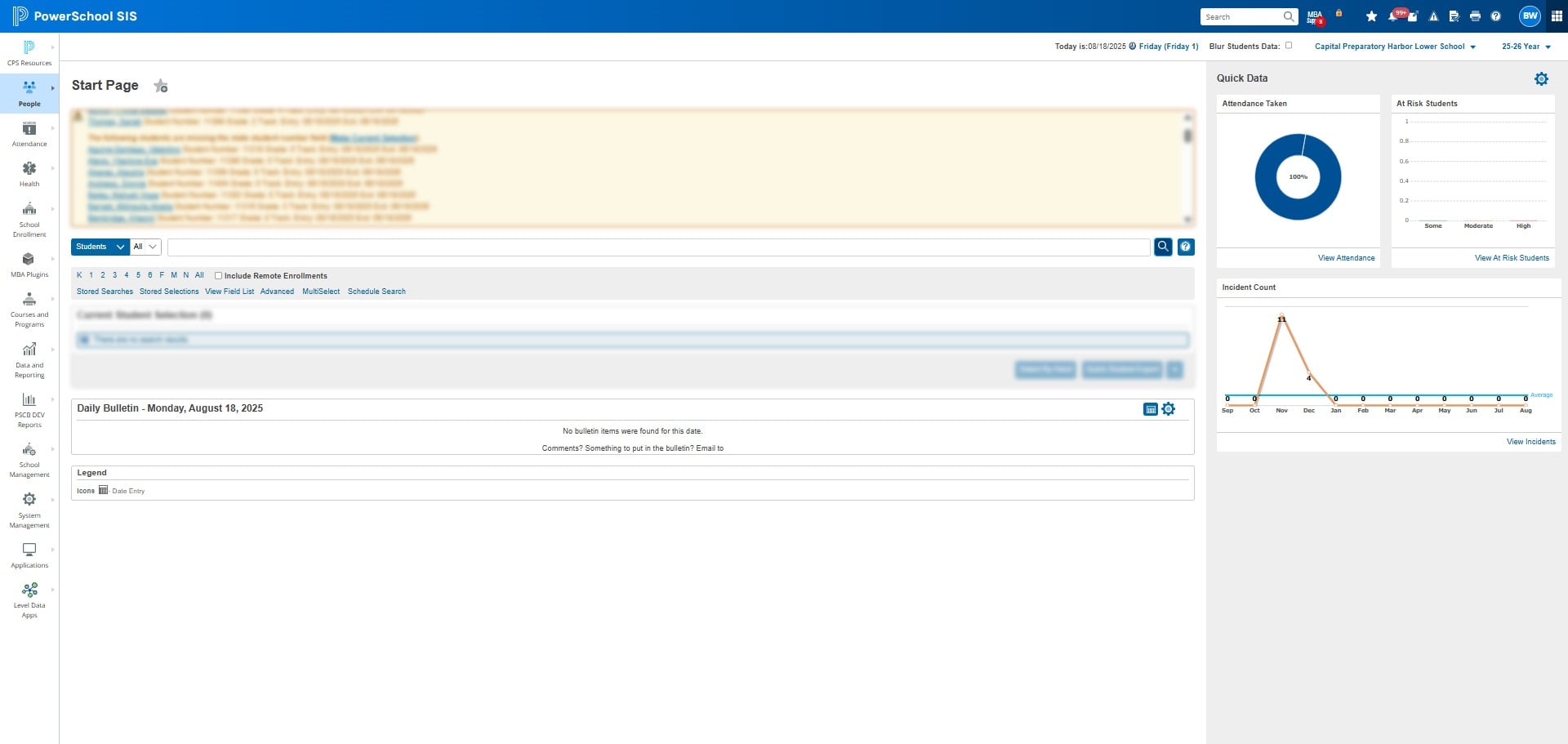
Click the magnifying glass to select all students
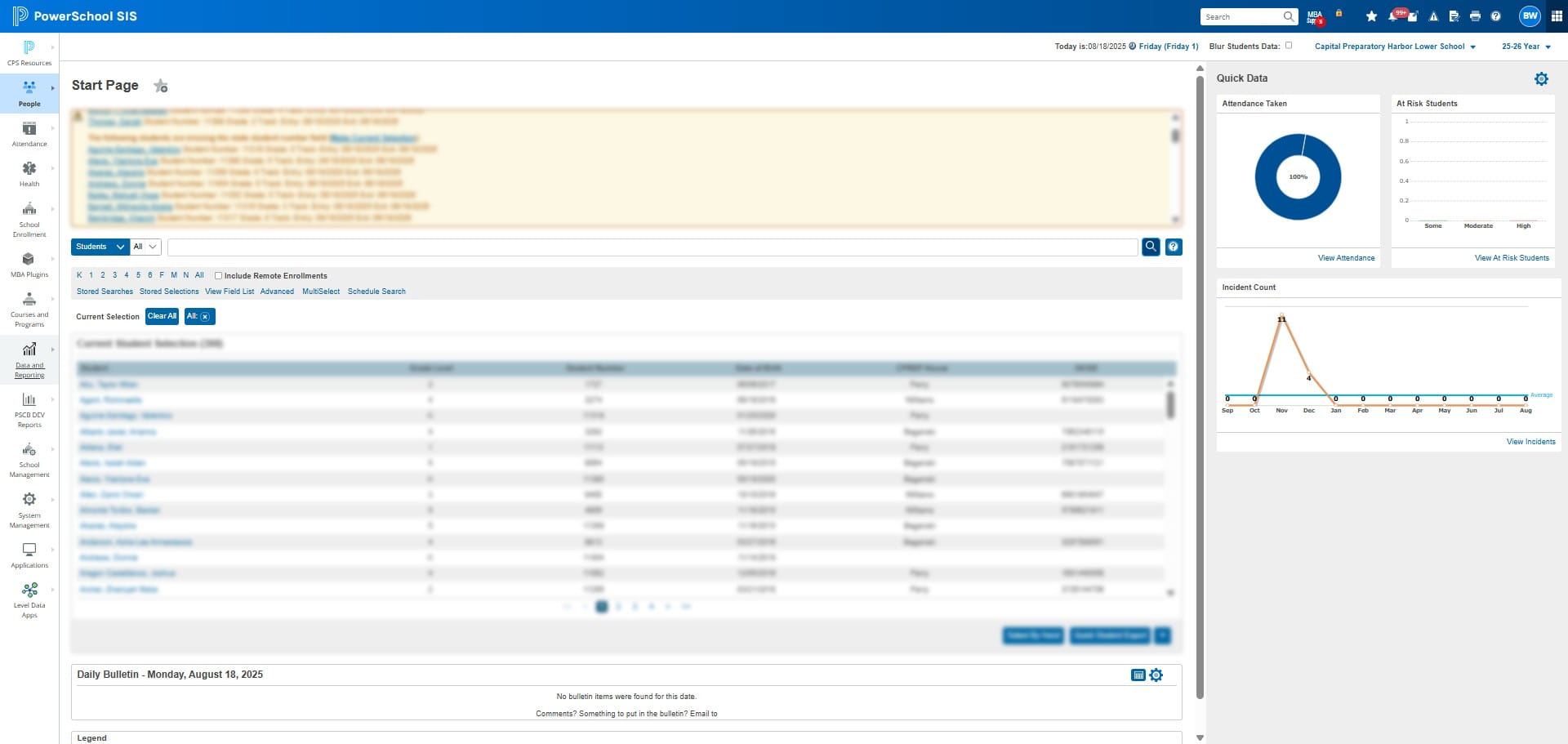
Click on "Data and Reporting"
Click on "Reports"
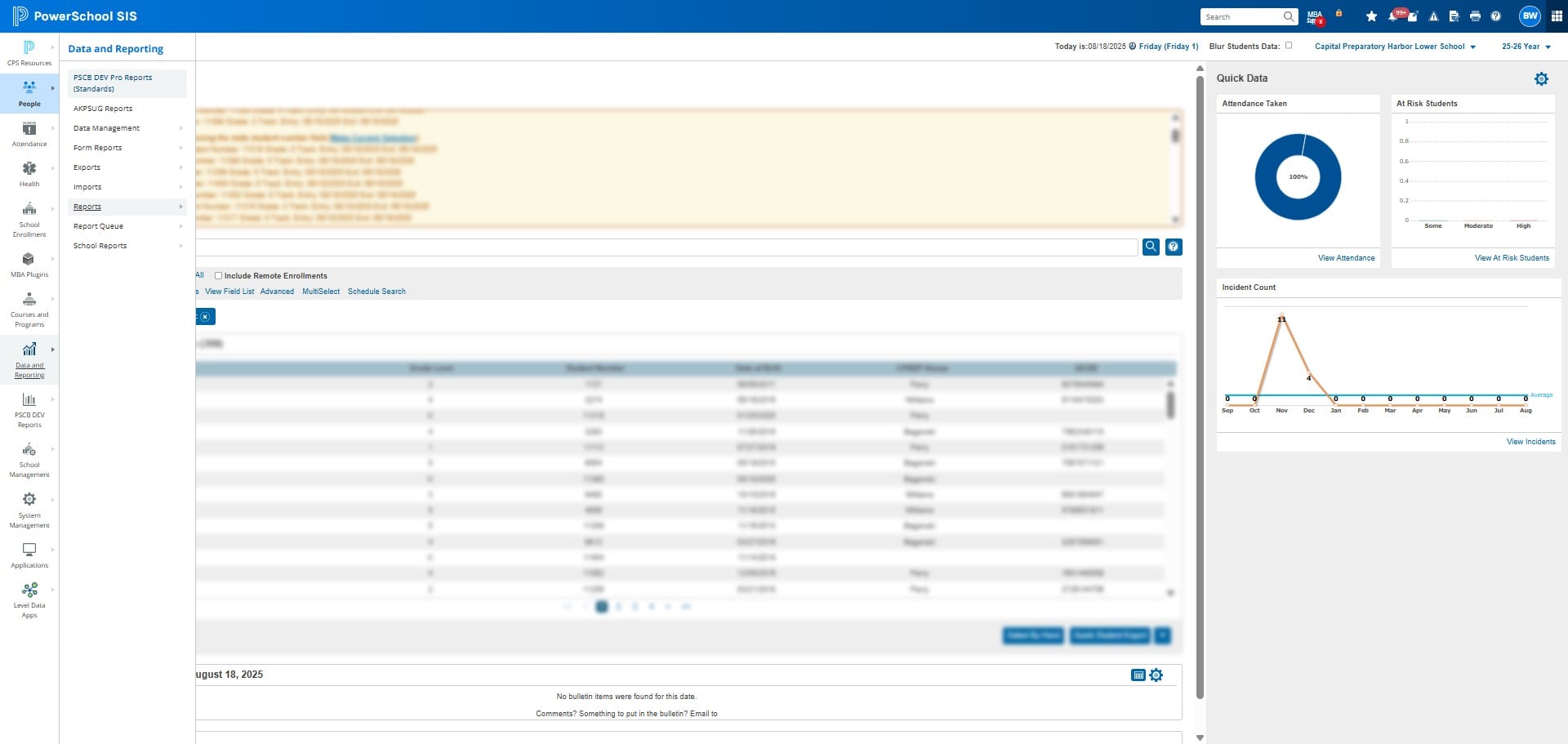
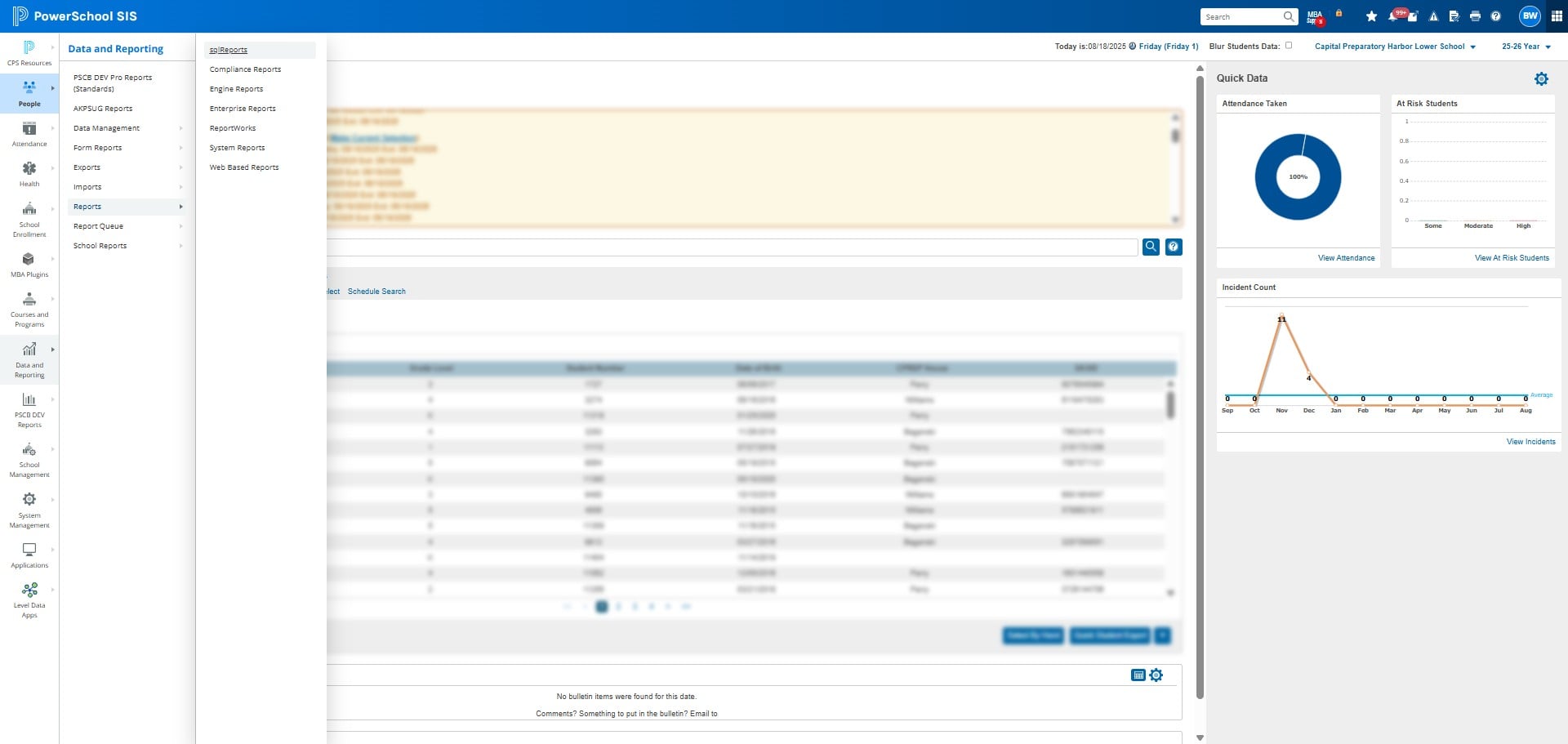
Click on "sqlReports"
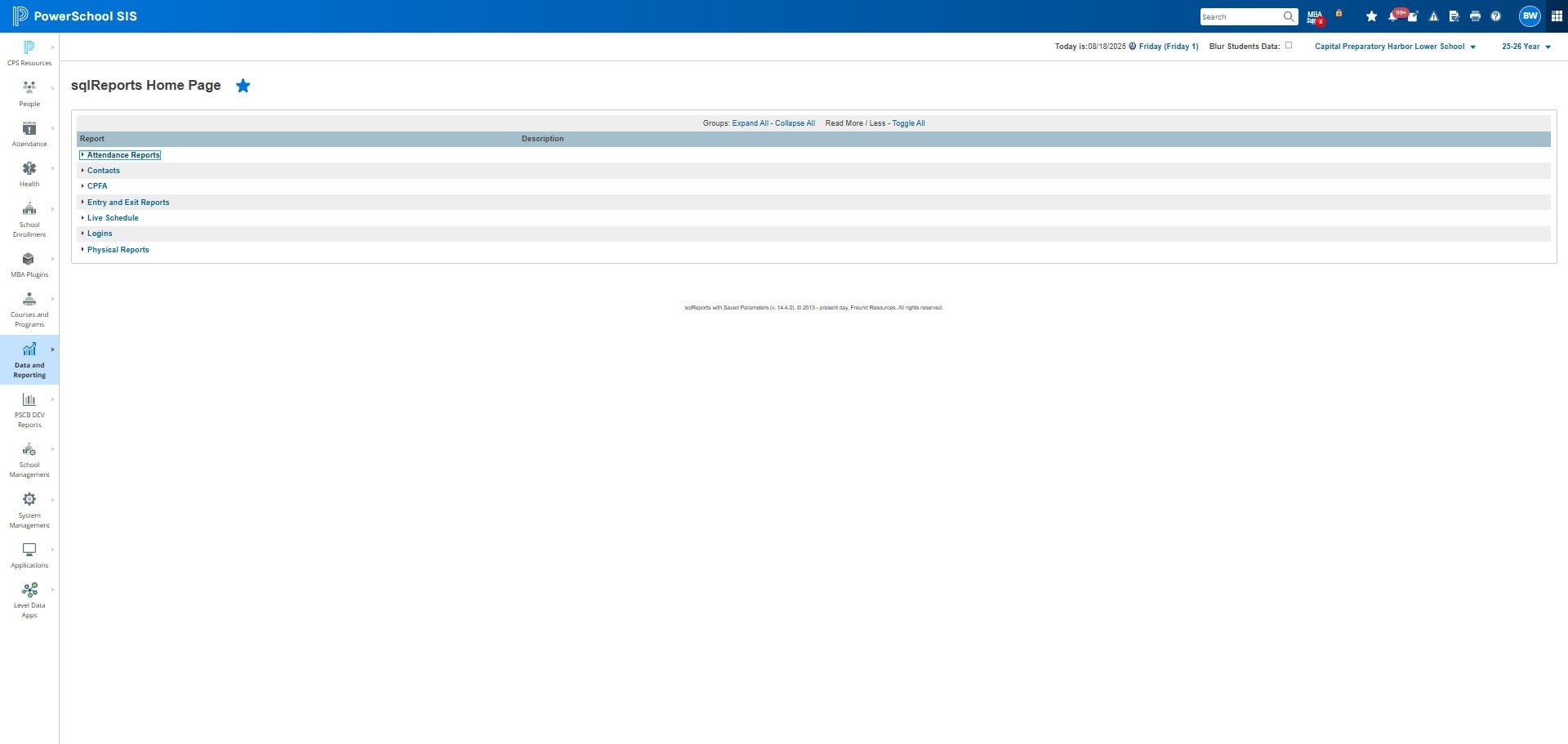
Click on "Attendance Reports"
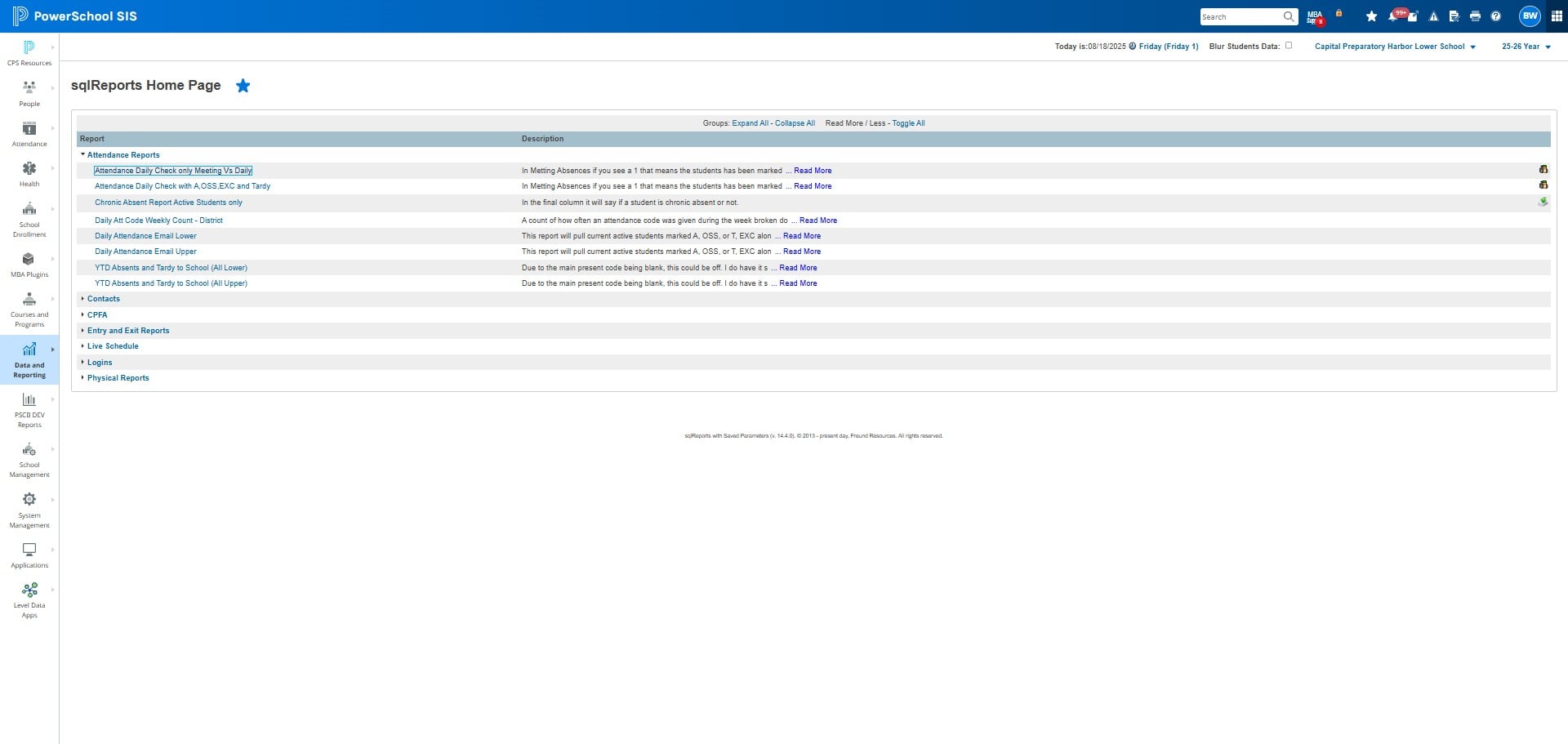
Click on "Attendance Daily Check only Meeting Vs Daily"
Click on "Submit"
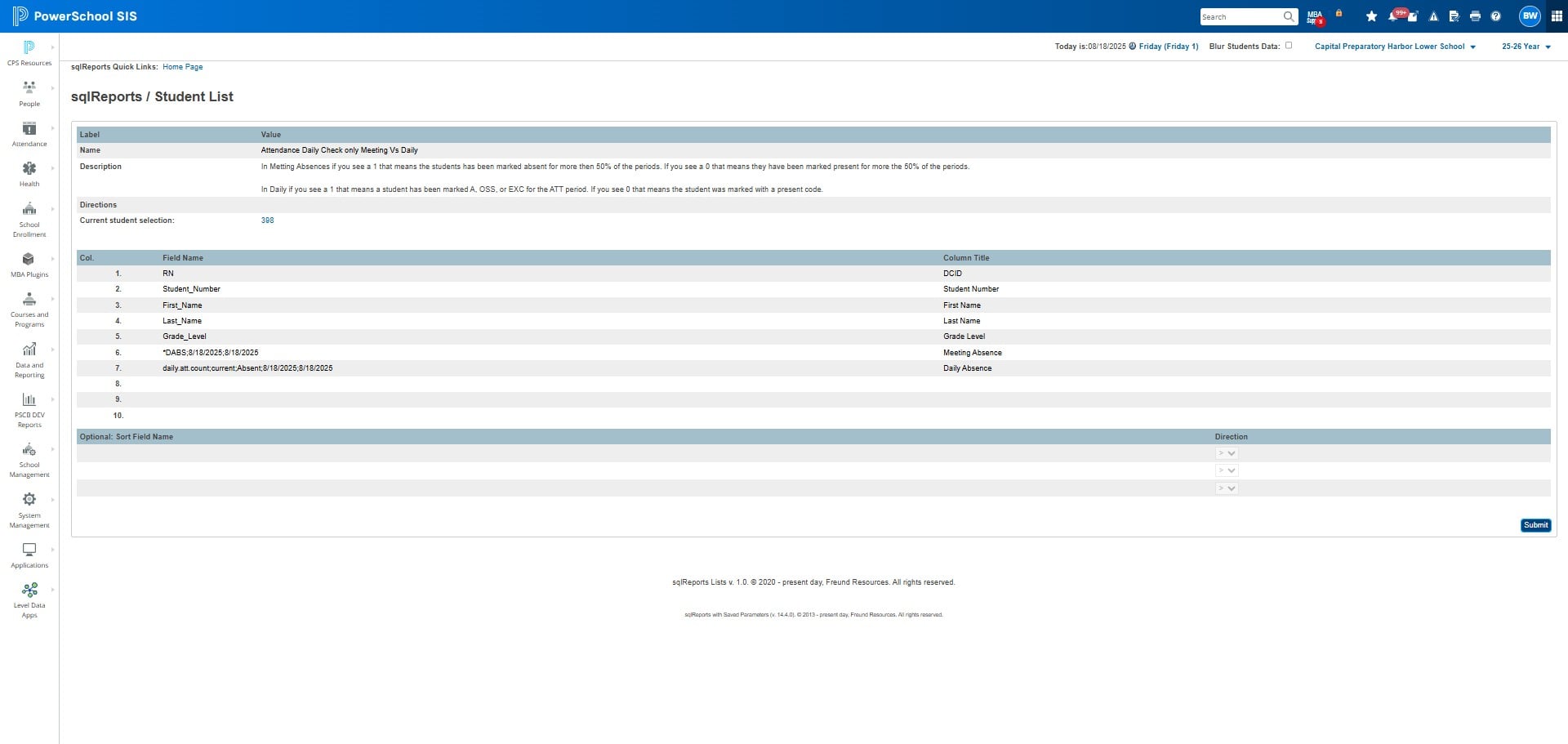
Meeting = 0, daily must = 0
Meeting = 1, daily must = 1
Copy the information into the CT: Daily Attendance Corrections google sheet
 google sheet](https://assets.guidejar.com/uploads/33018c70-ee62-42ef-9a81-887e0881d927/iFdfFaA1gOMgnnHI5tv5Oik5Ya33/4bd74ee1-0b5d-4685-bba9-433702abcad1/1755529518223.jpeg)
Click on your schools' tab
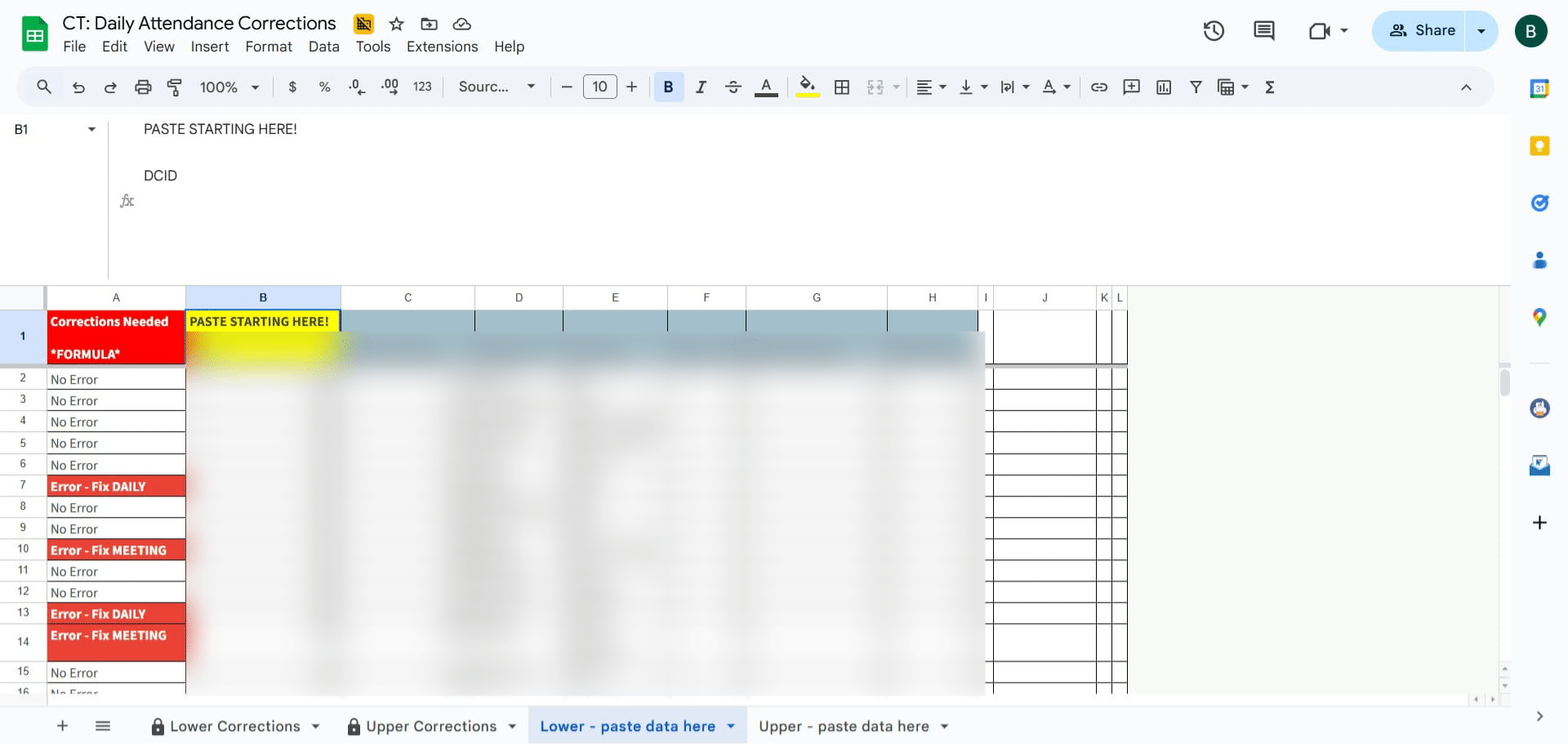
Click into Column B row 1
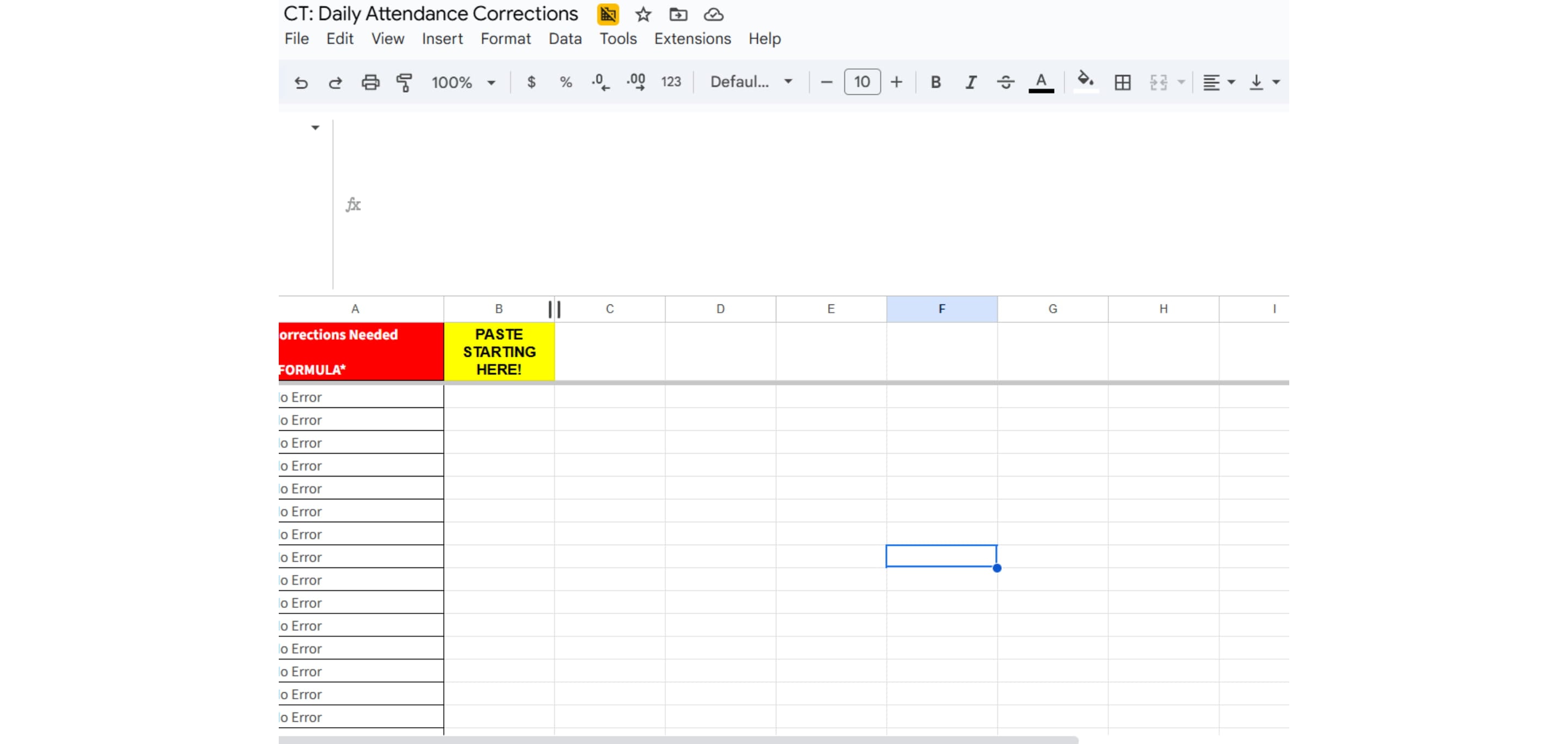
Click on "Paste"
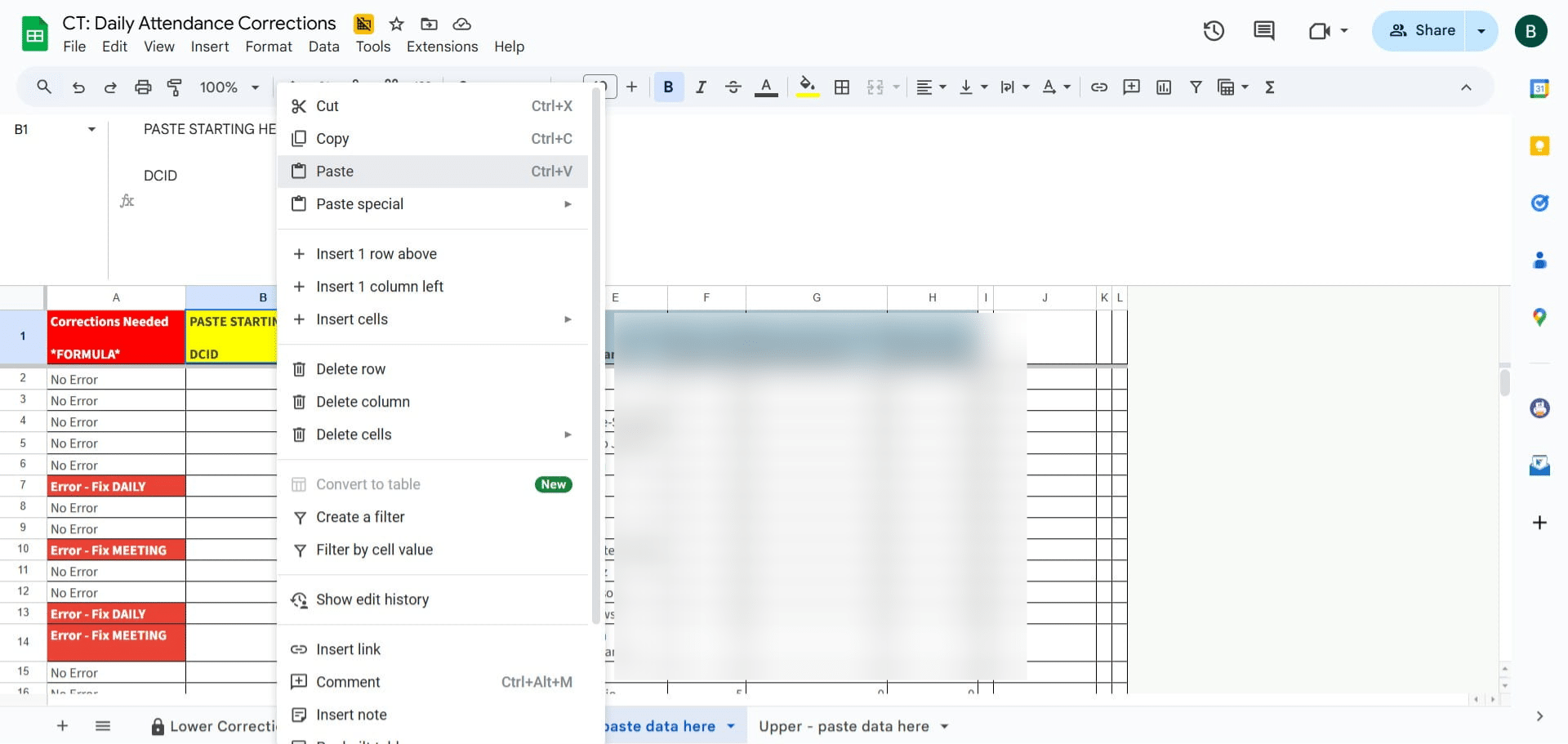
Once it is pasted click on your schools' corrections tab
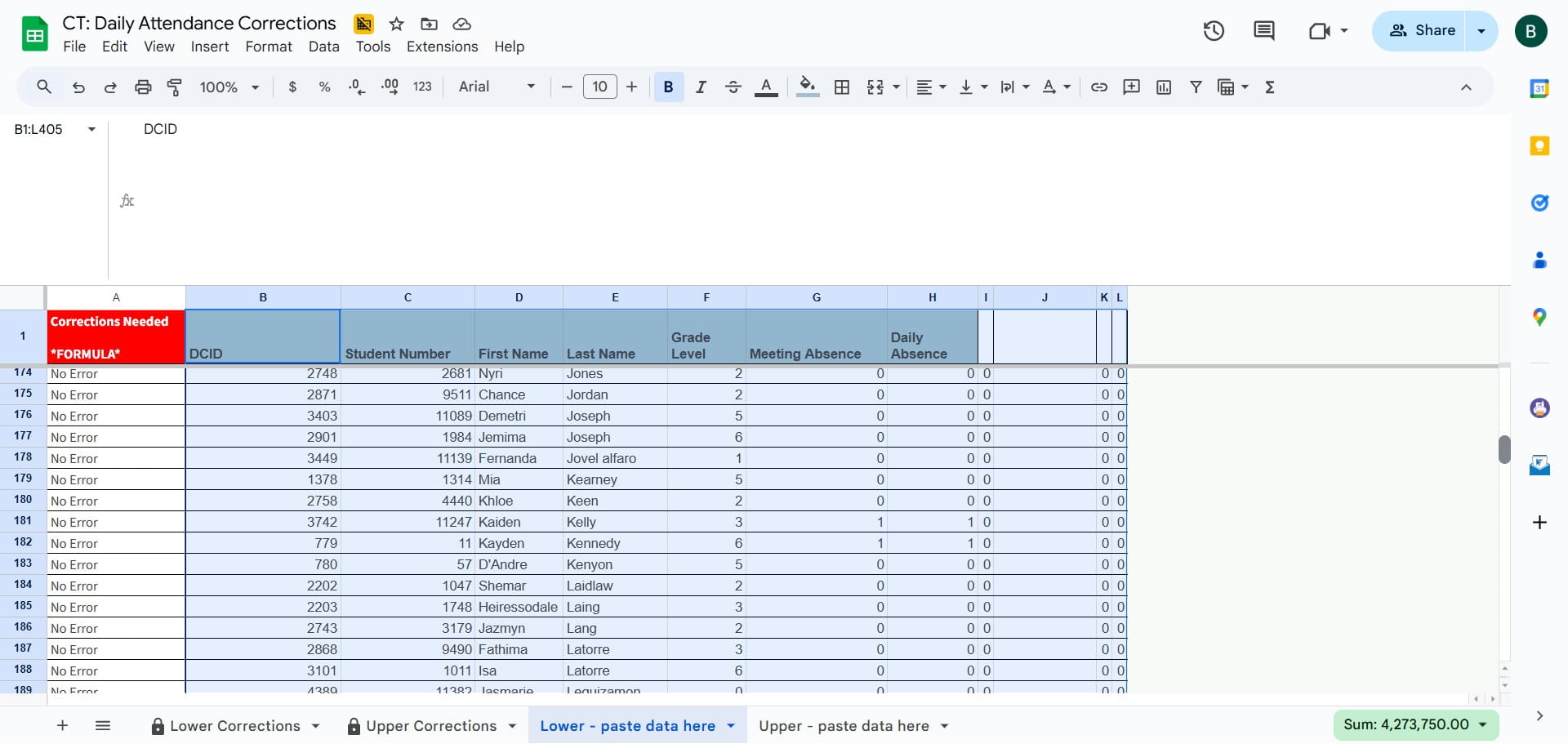
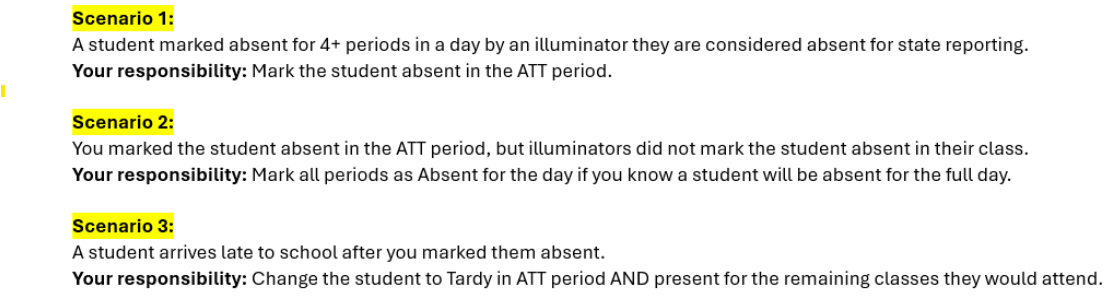
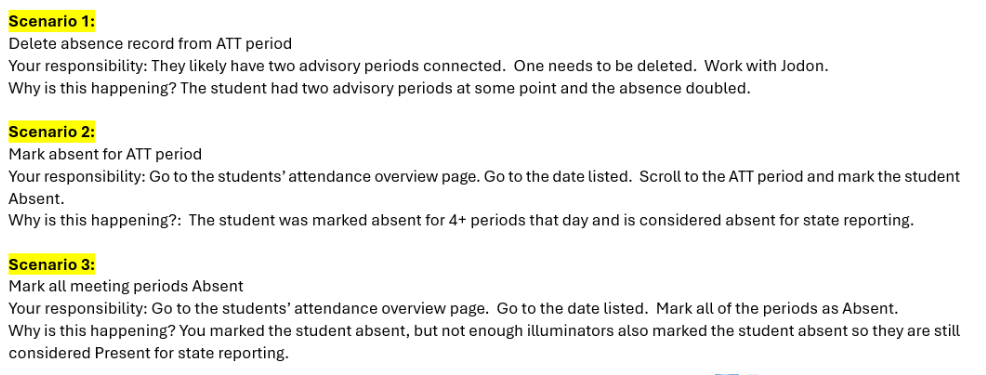
If there are errors under MEETING ERRORS, you must fix ALL periods for the day.
If there are errors under DAILY ERRORS, you must fix the ATT period for the day.
FIX DAILY (ATT) PERIOD
If there are errors listed, copy Columns F
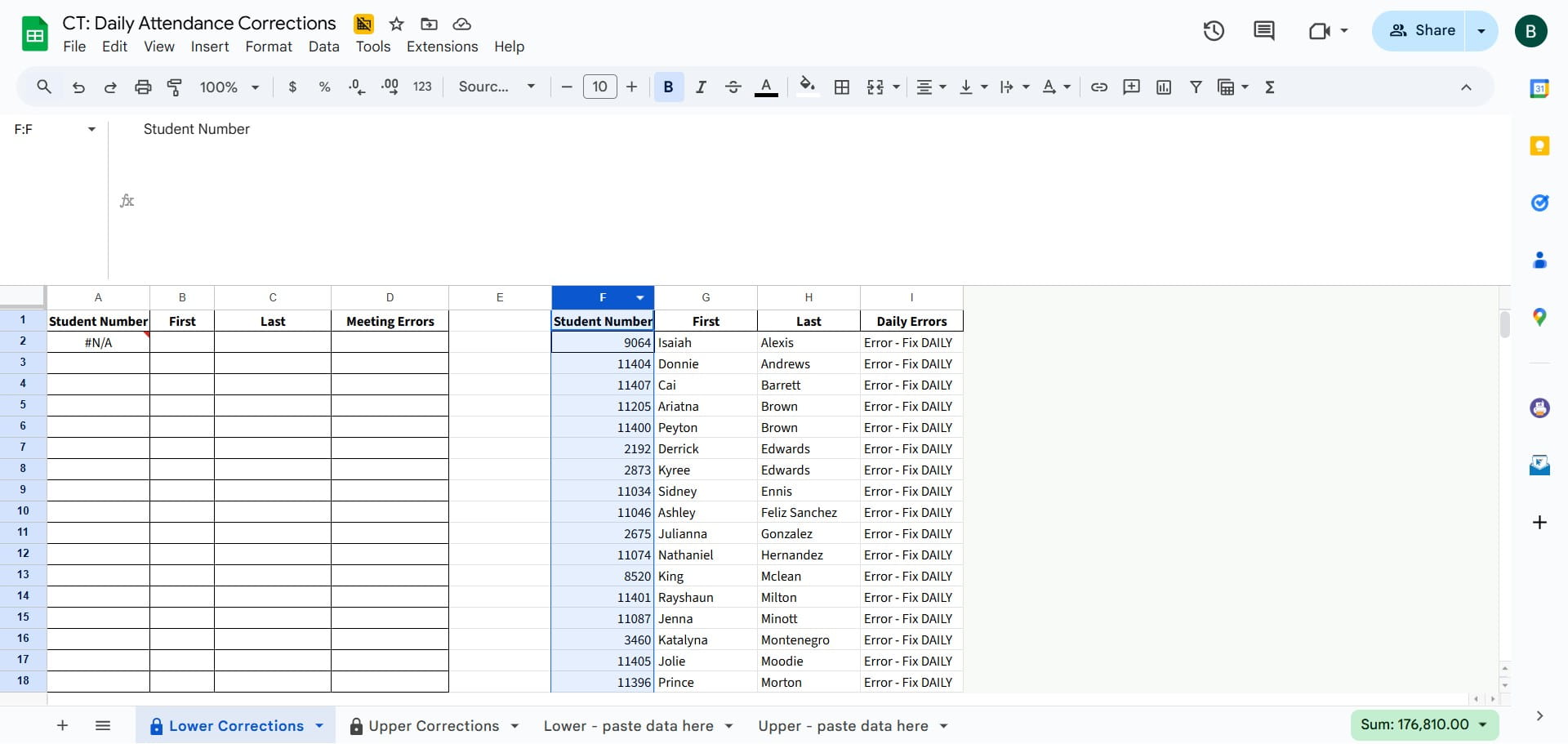
Click copy
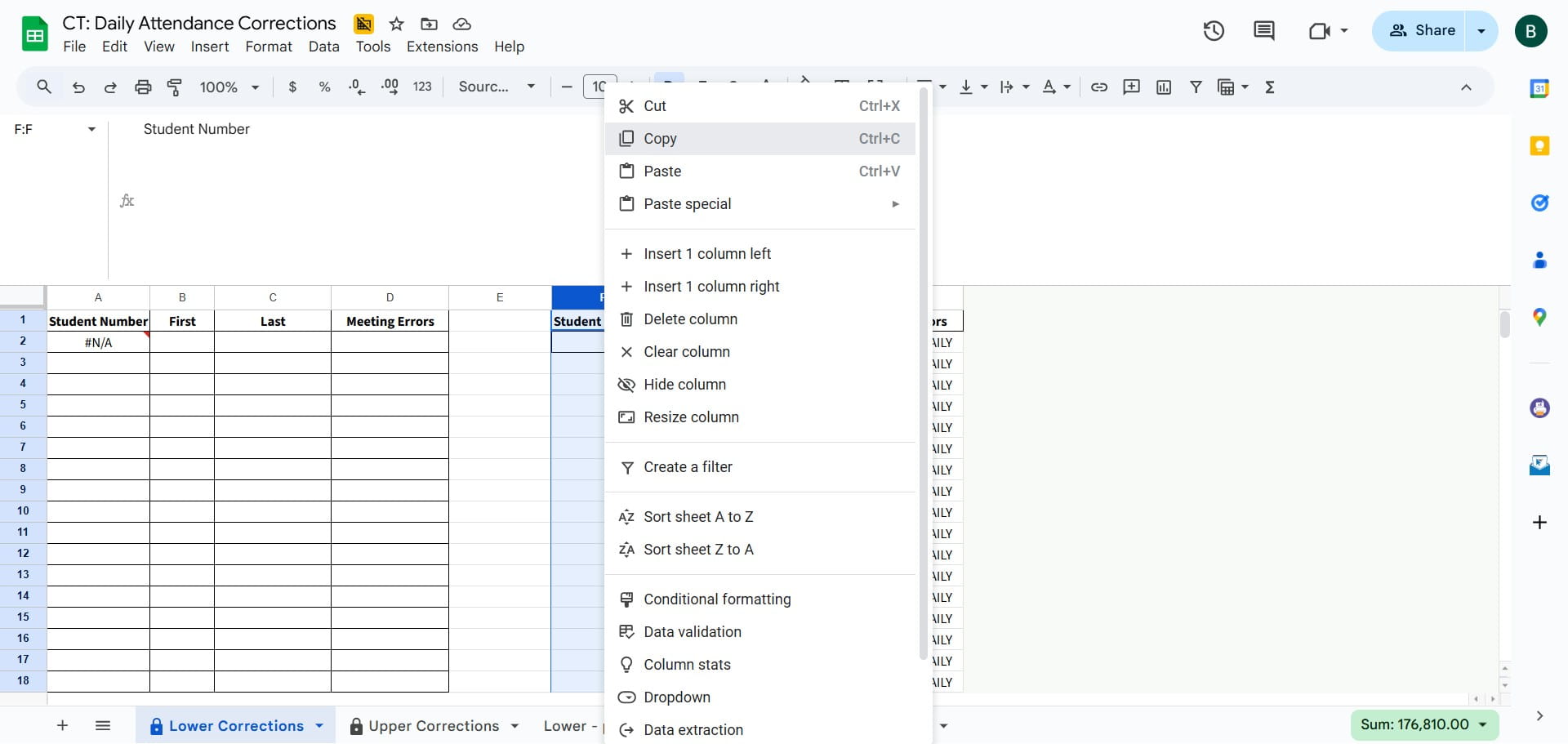
Regarding meeting absences, a "1" indicates the student has been marked absent for more than 50% of the periods. Conversely, a "0" indicates they have been marked present for more than 50% of the periods.
Click on "Clear All"
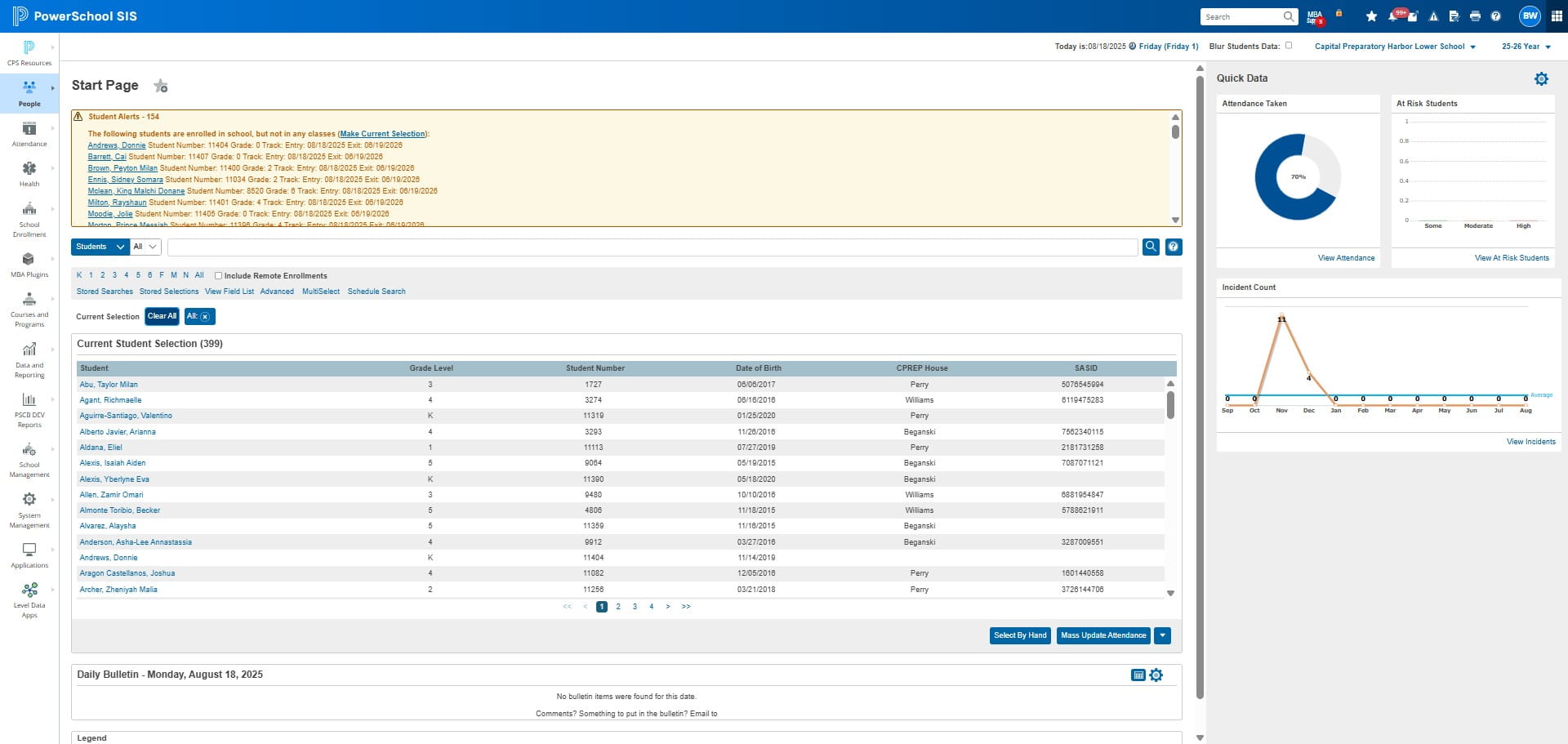
Click on "MultiSelect"
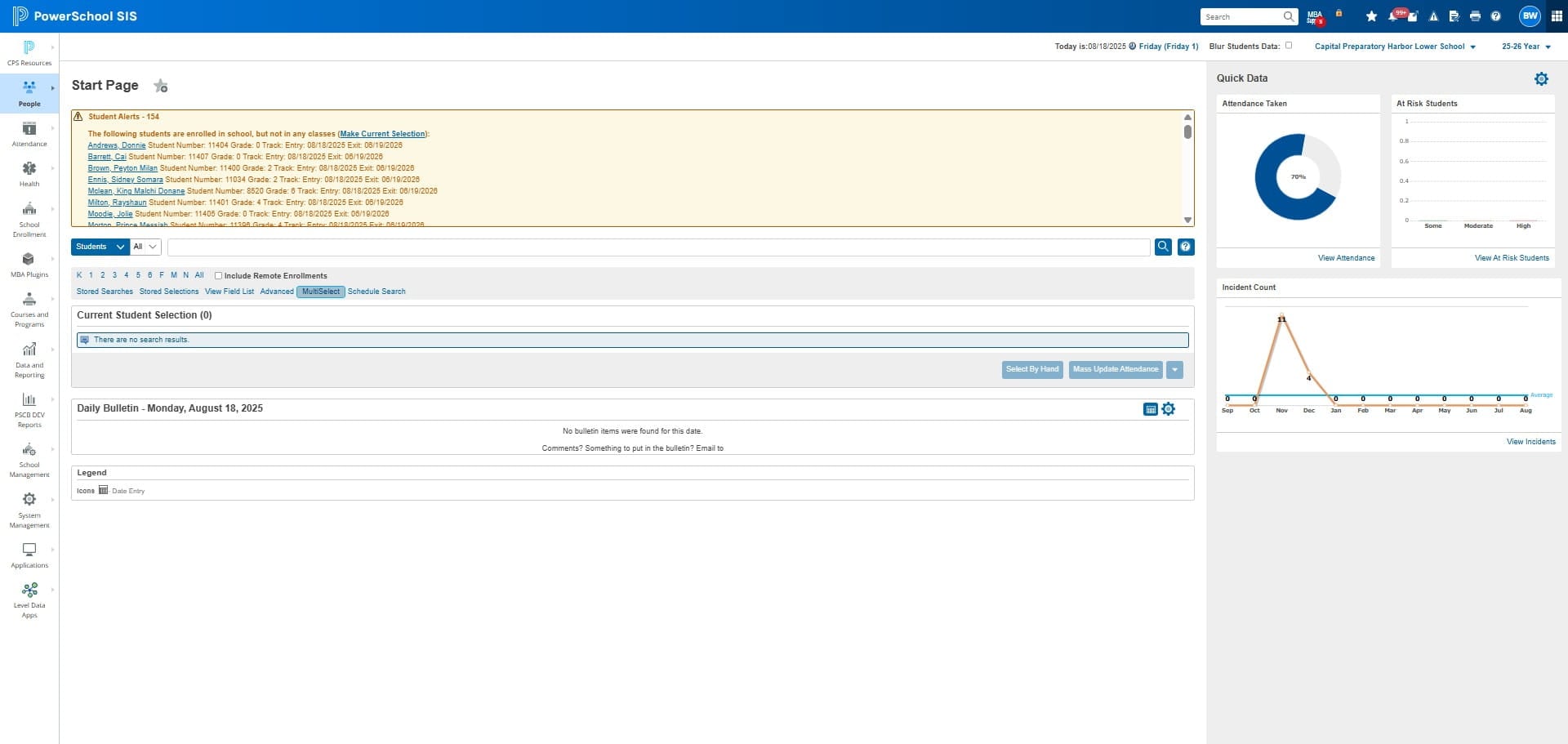
Right click and click on PASTE
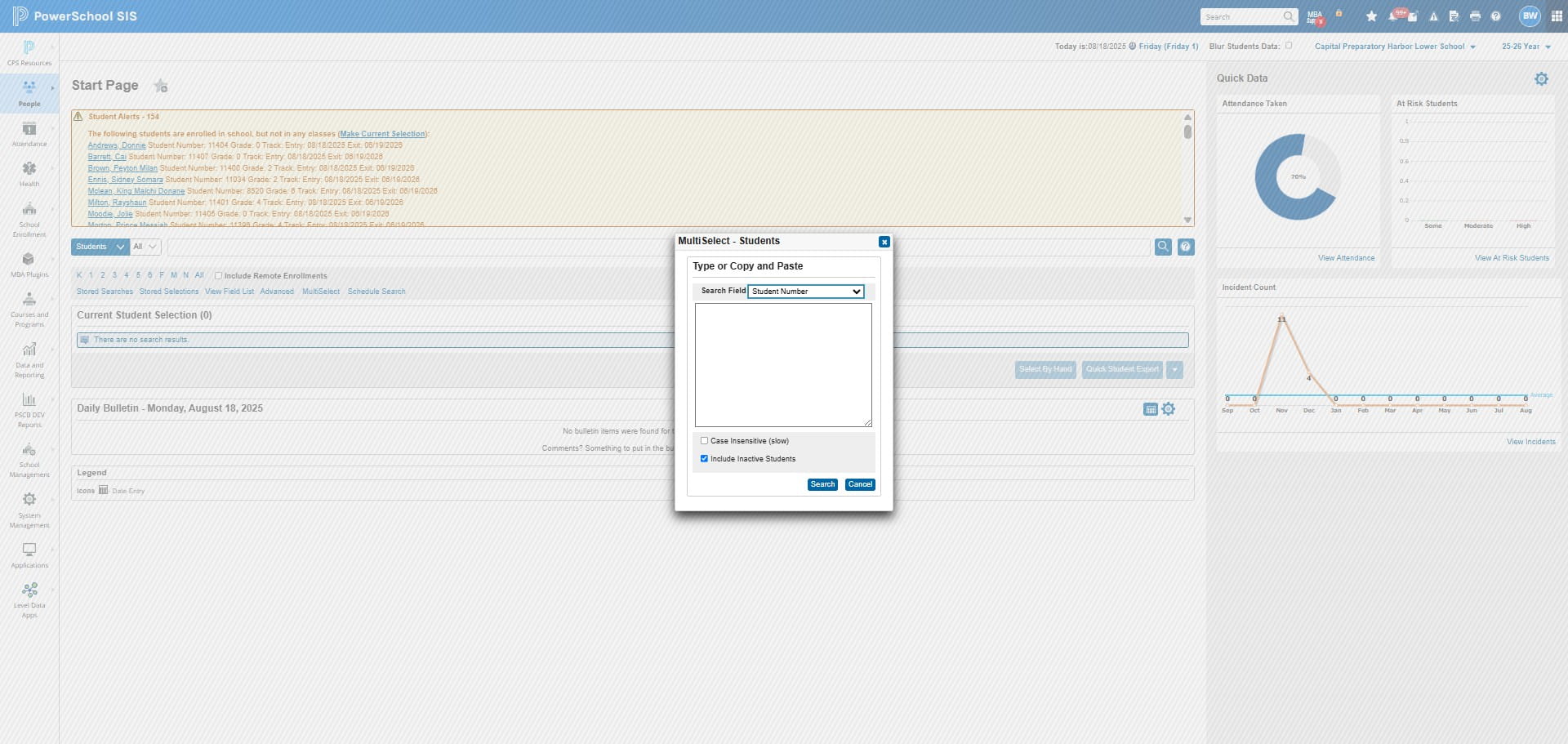
Click on "Search"
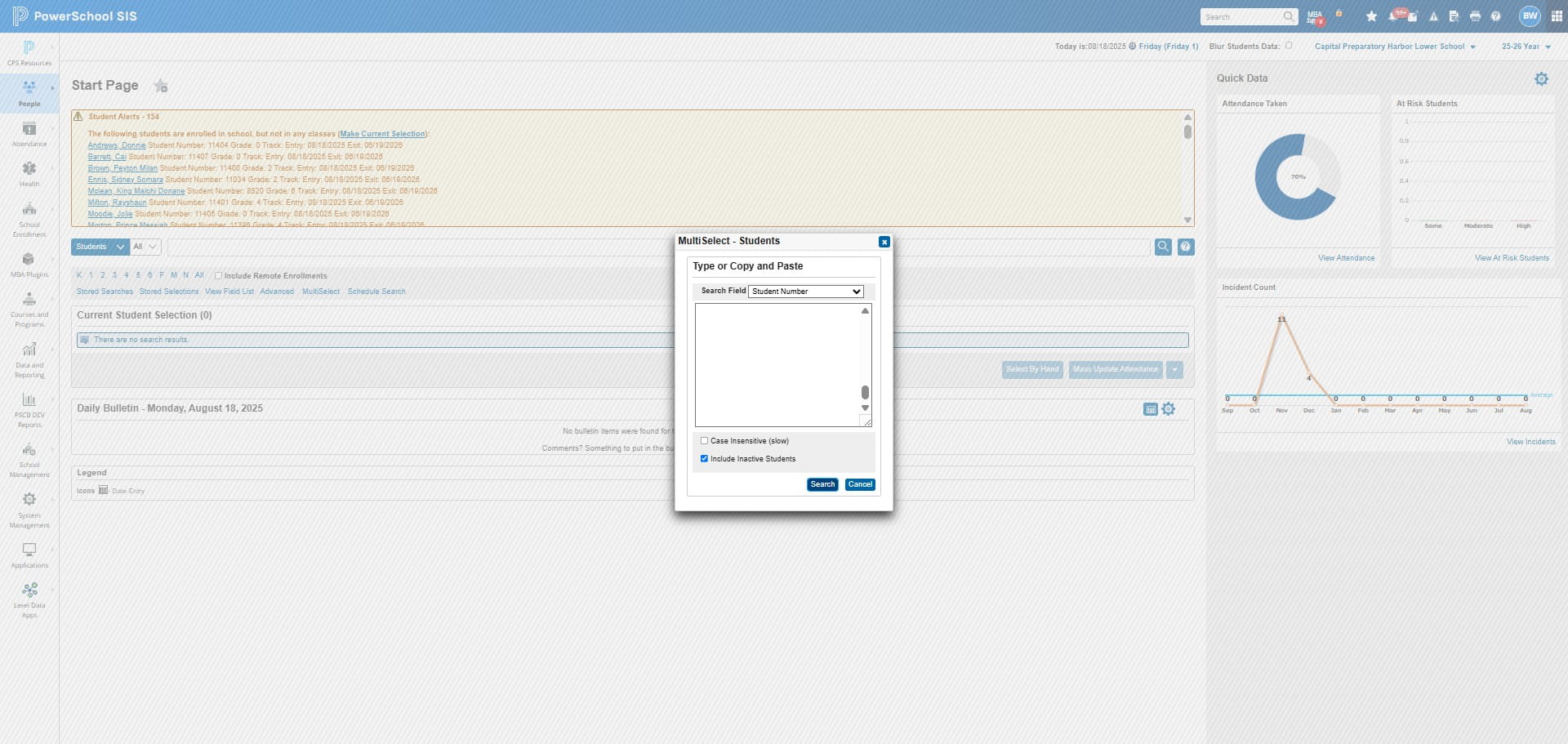
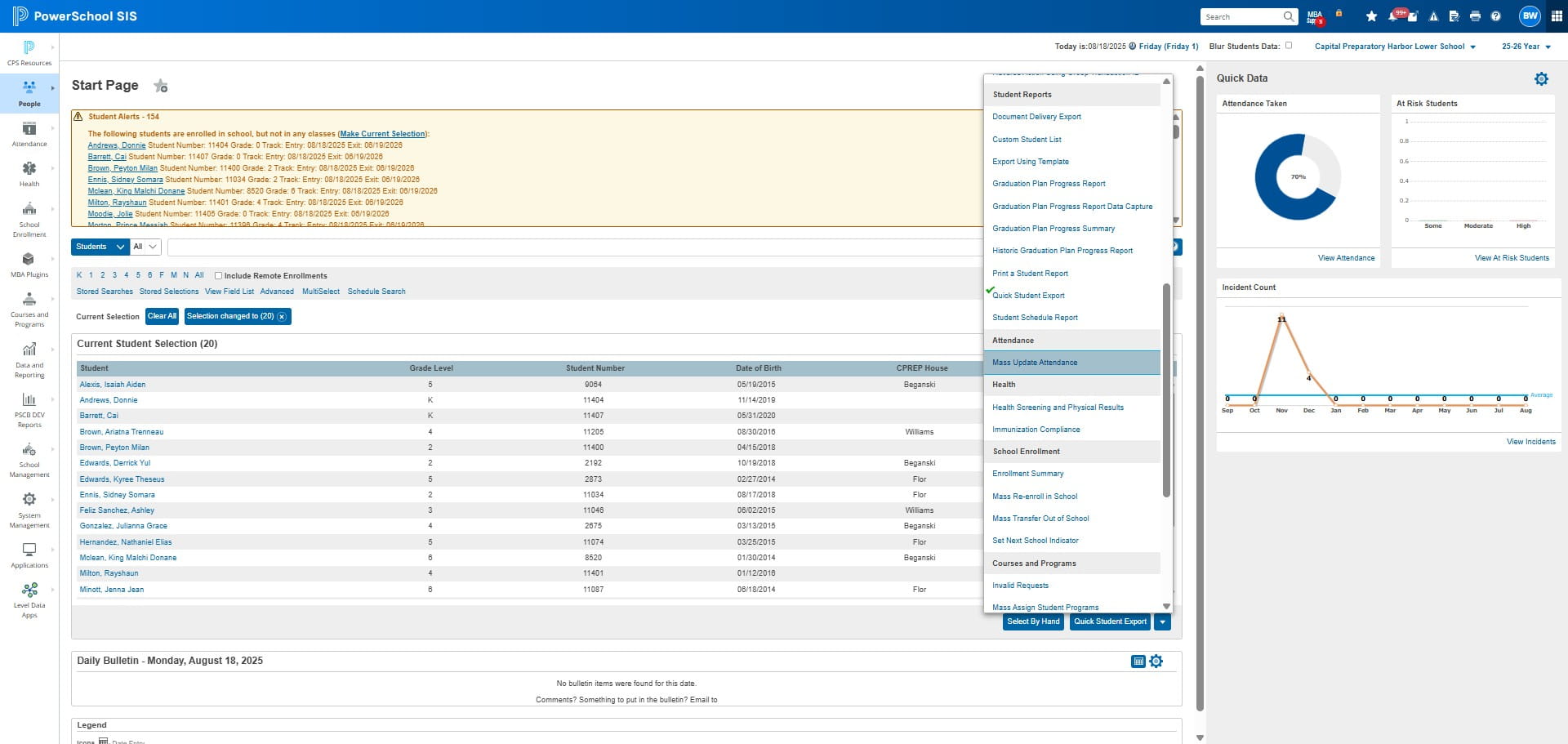
Click on "Mass Update Attendance"
Click on "Daily"
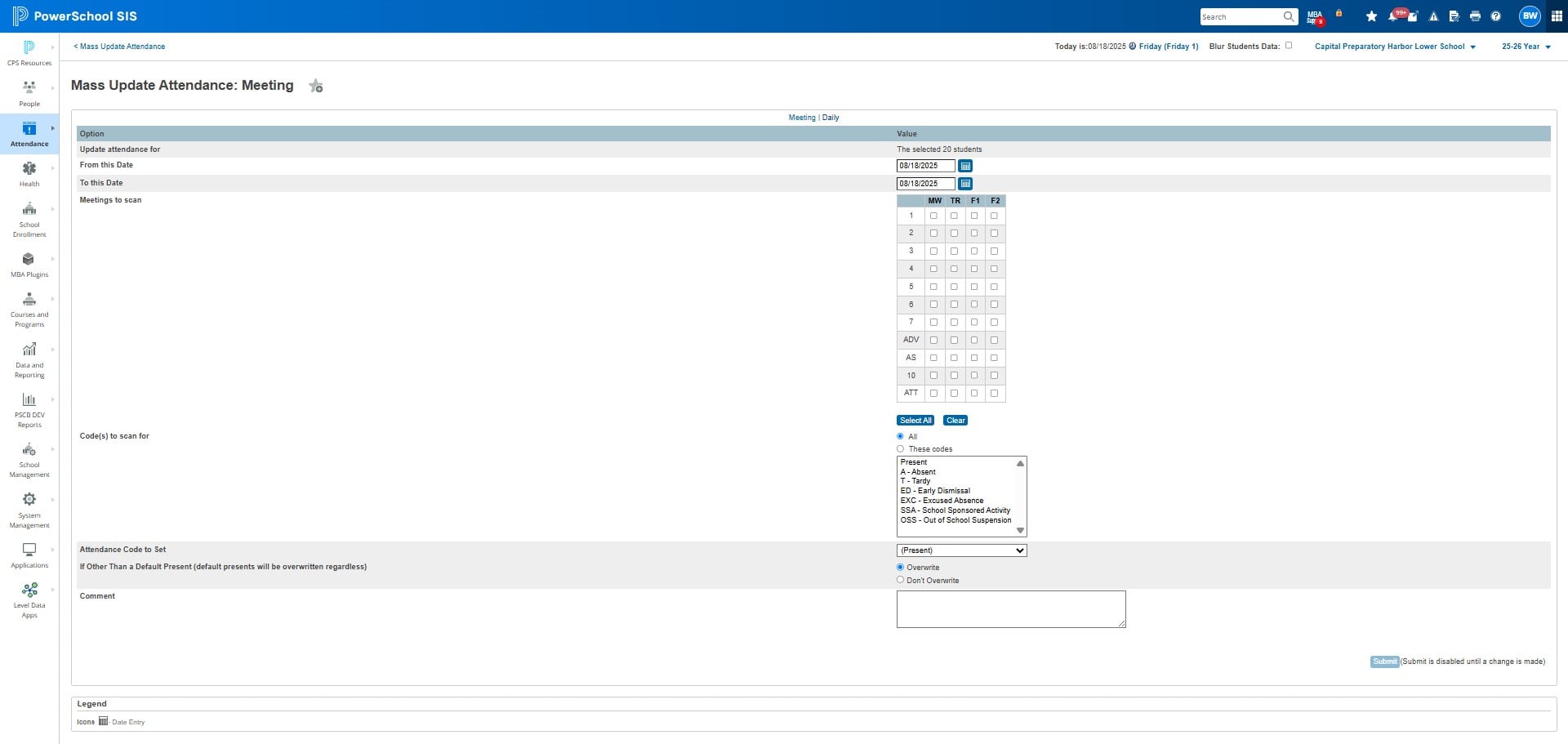
Click on "(Present)"
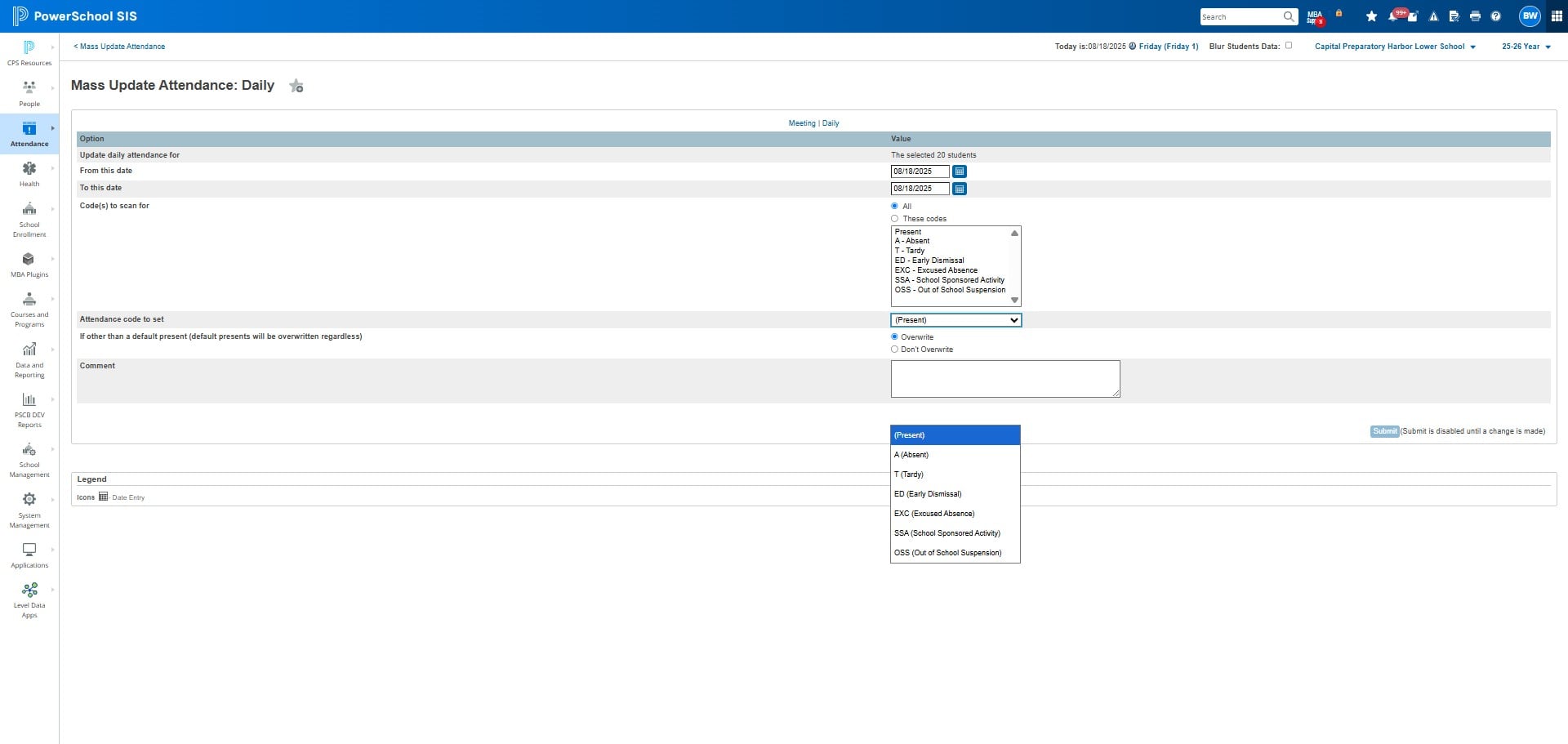
Change PRESENT to ABSENT
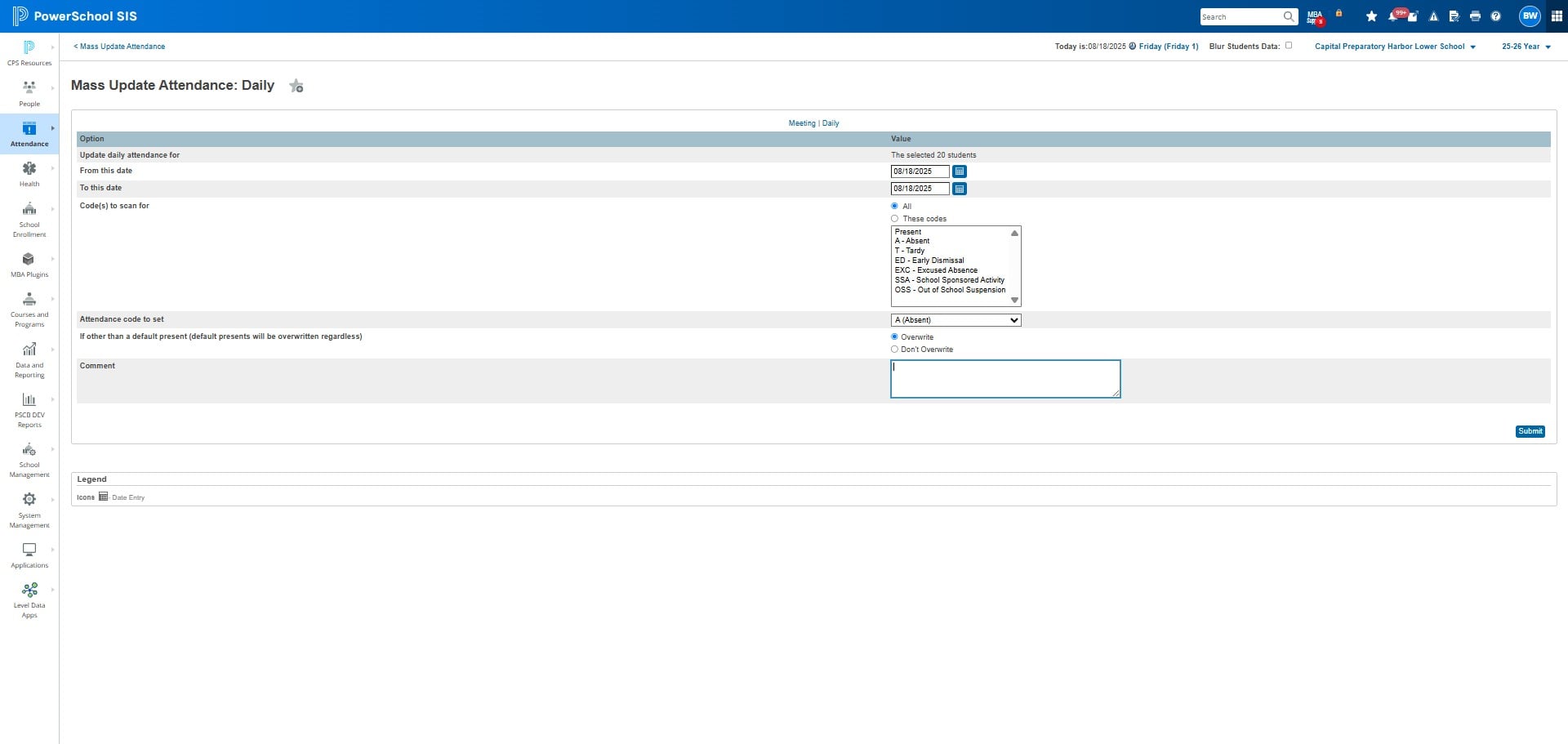
Click on "Submit"
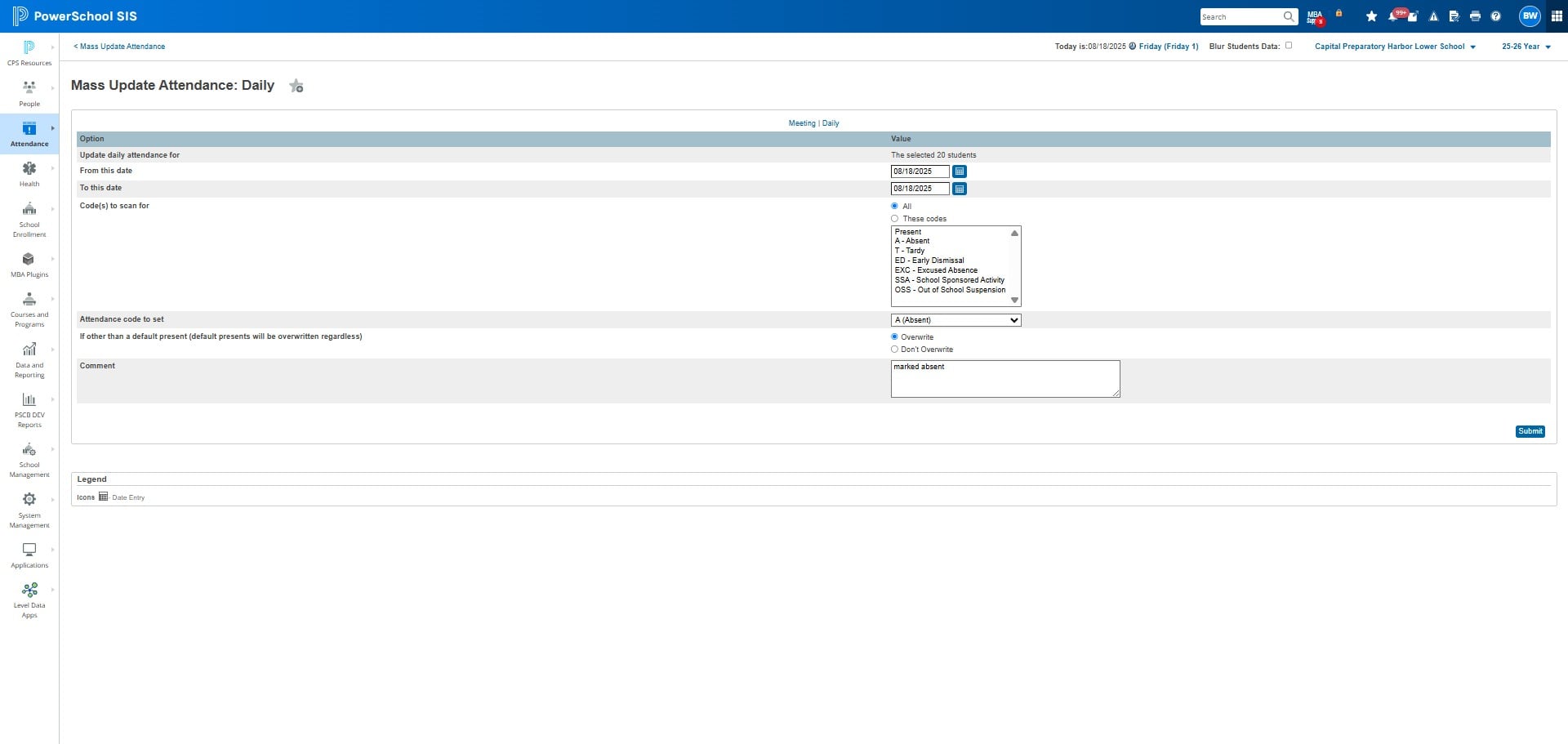
Fix MEETING (all) PERIODS
In the Daily attendance report, a "1" indicates that a student was marked as Absent (A), Out-of-School Suspension (OSS), or Excused (EXC) for that attendance period. A "0" indicates the student was marked with a present code.
If there are errors listed, copy Columns A
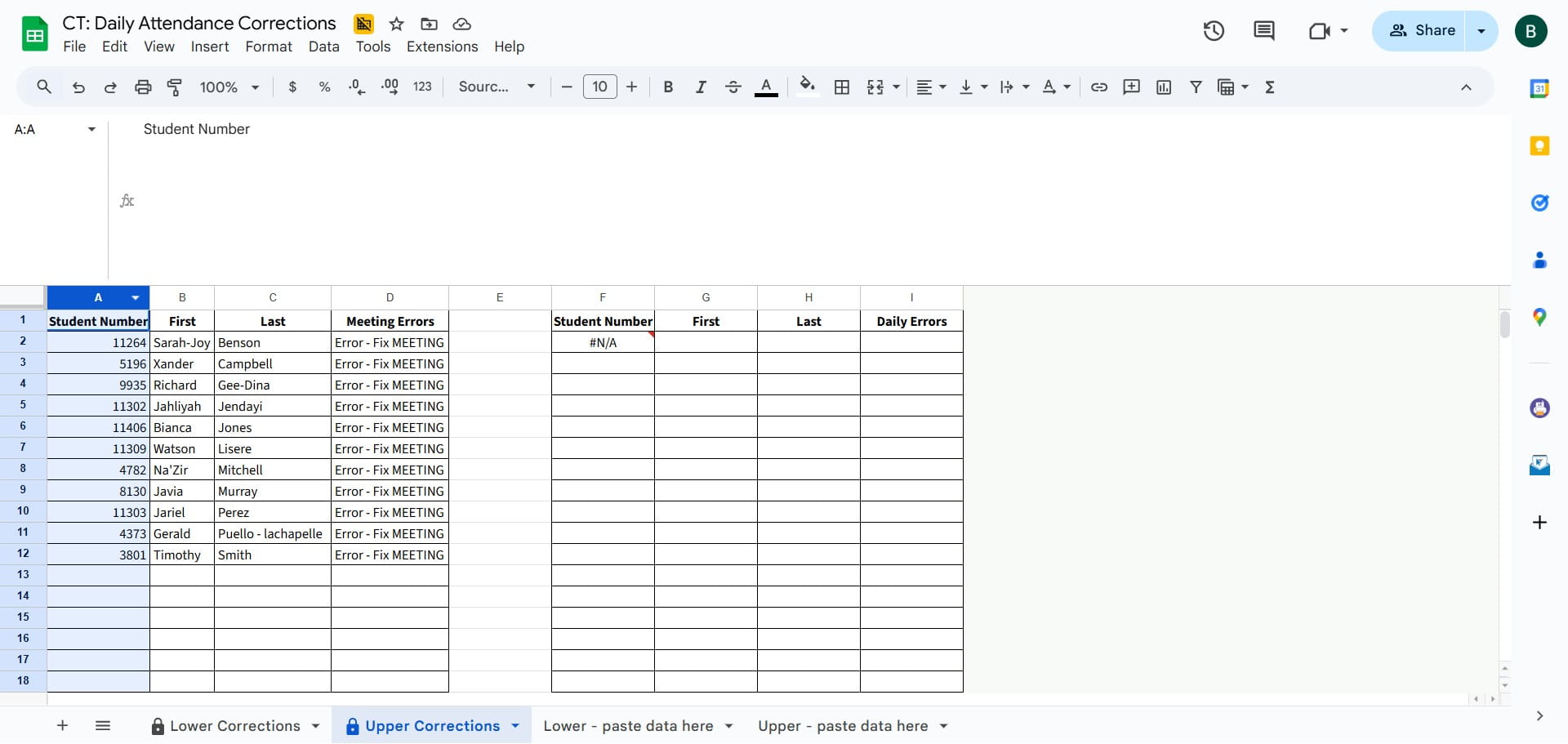
Click here
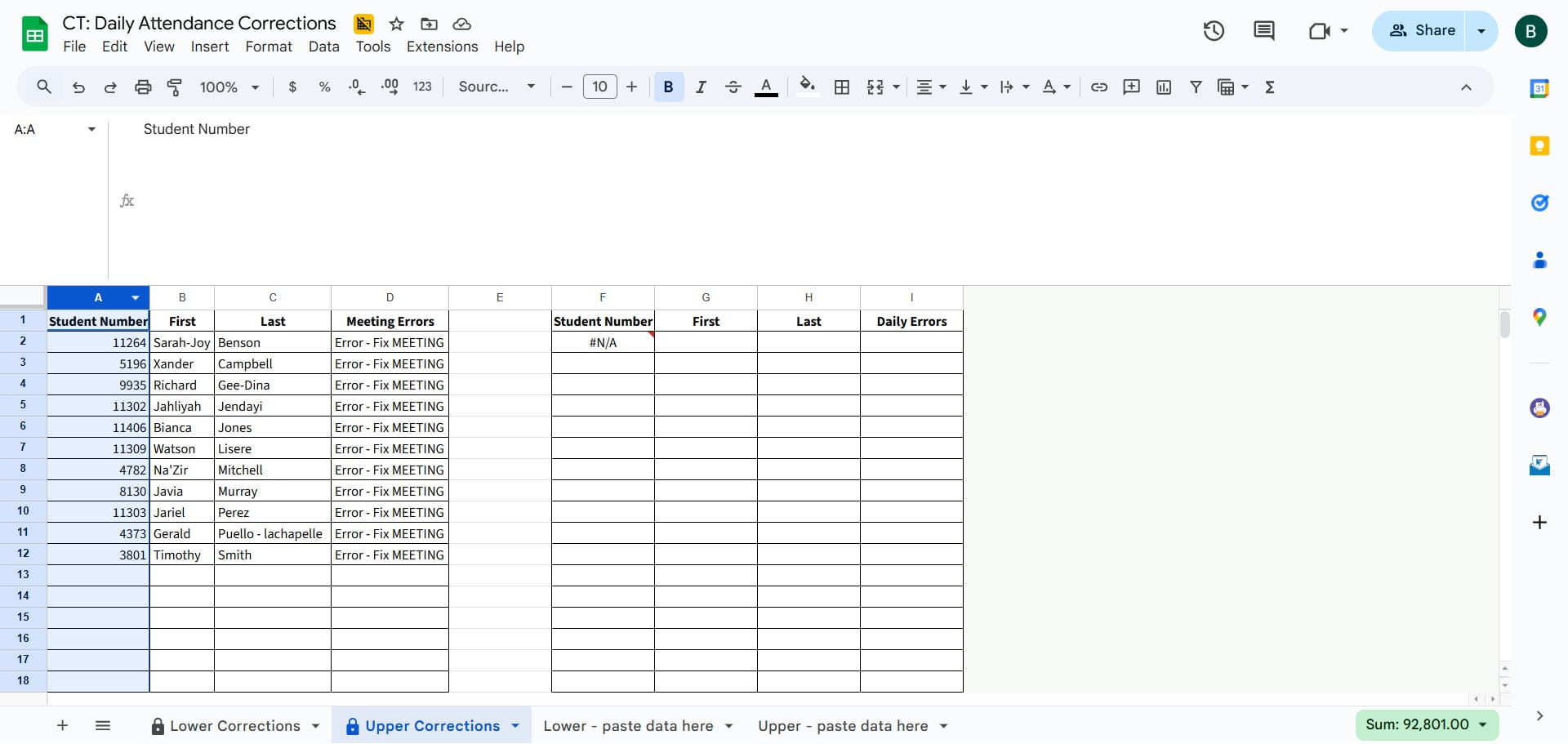
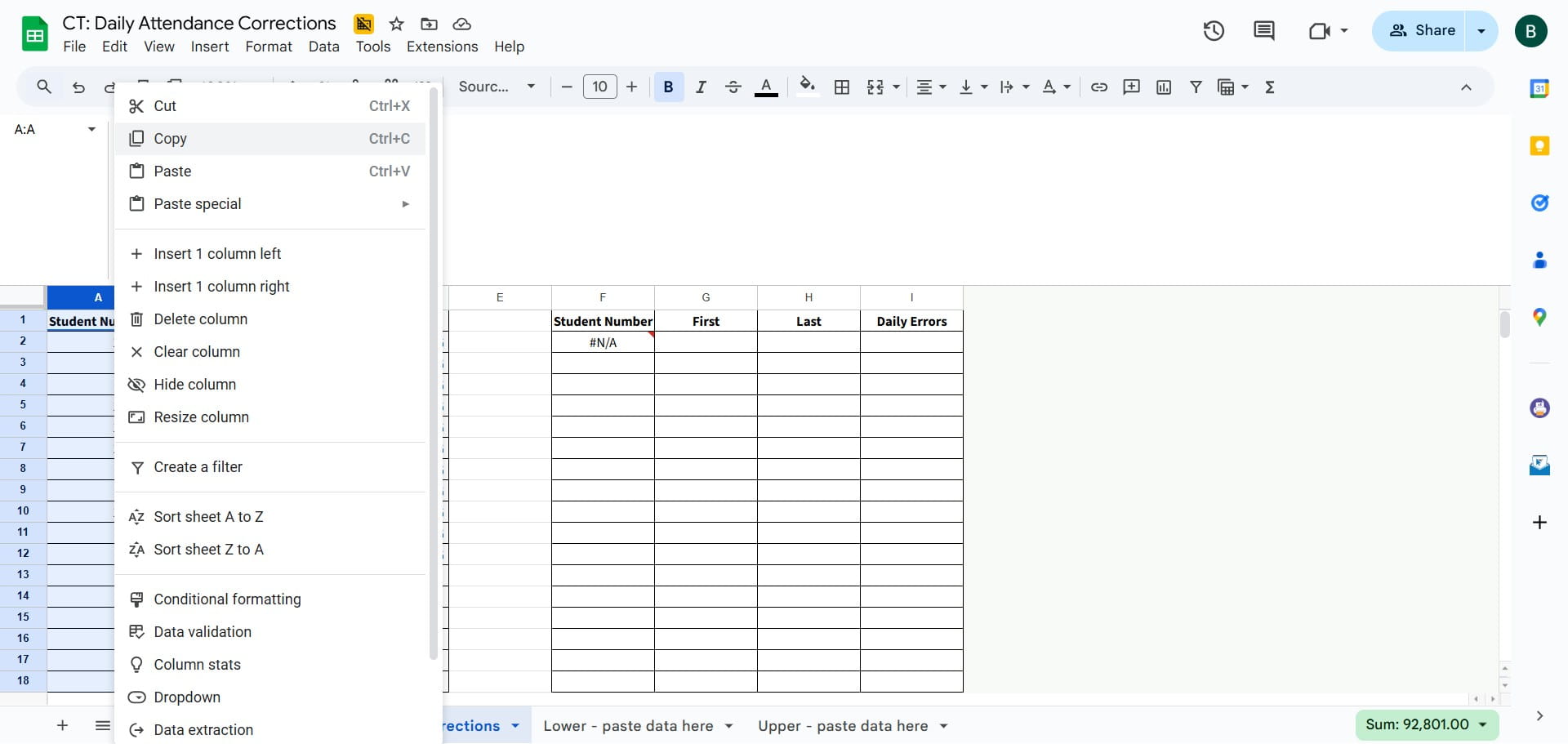
Click on "Copy"
Click on "MultiSelect"
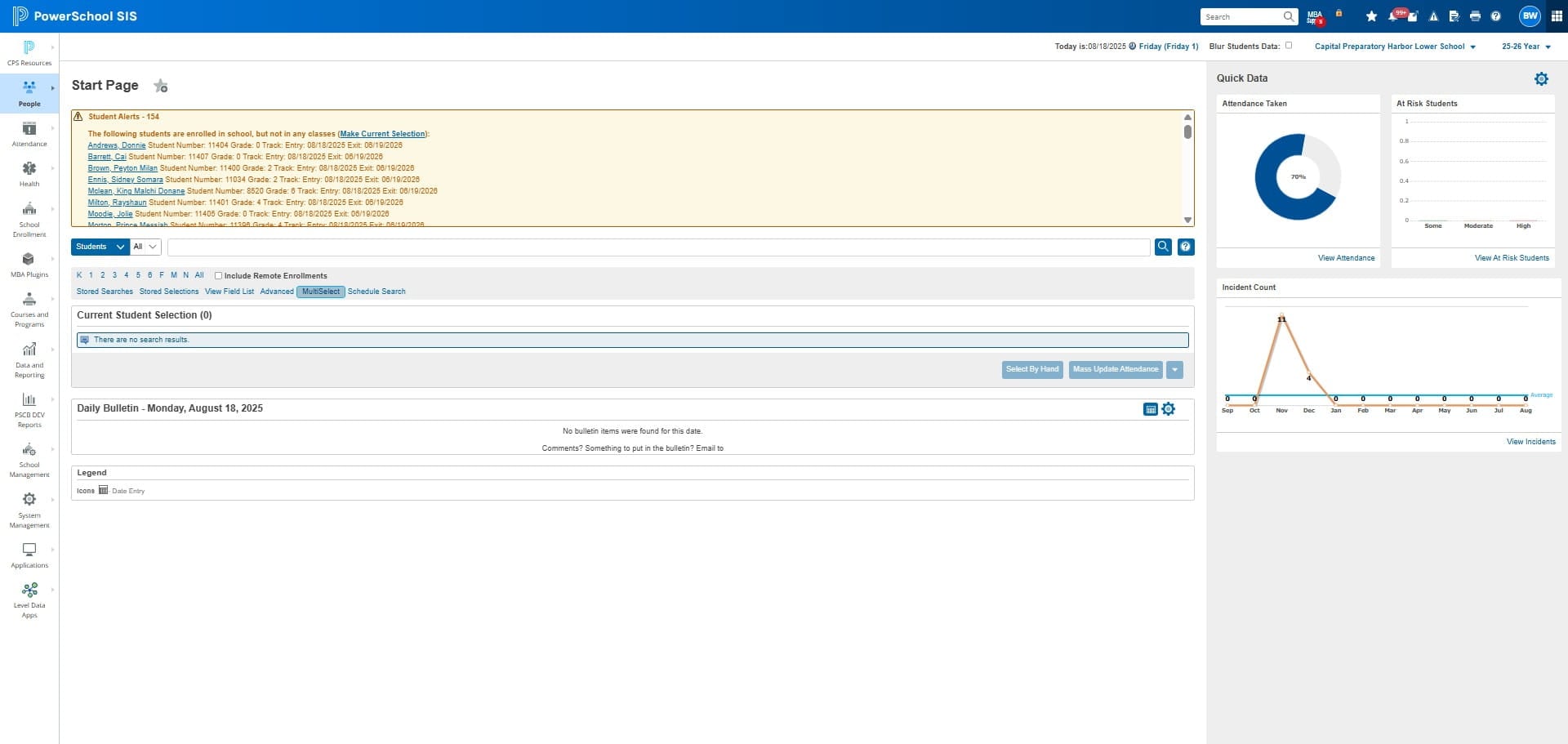
Click here
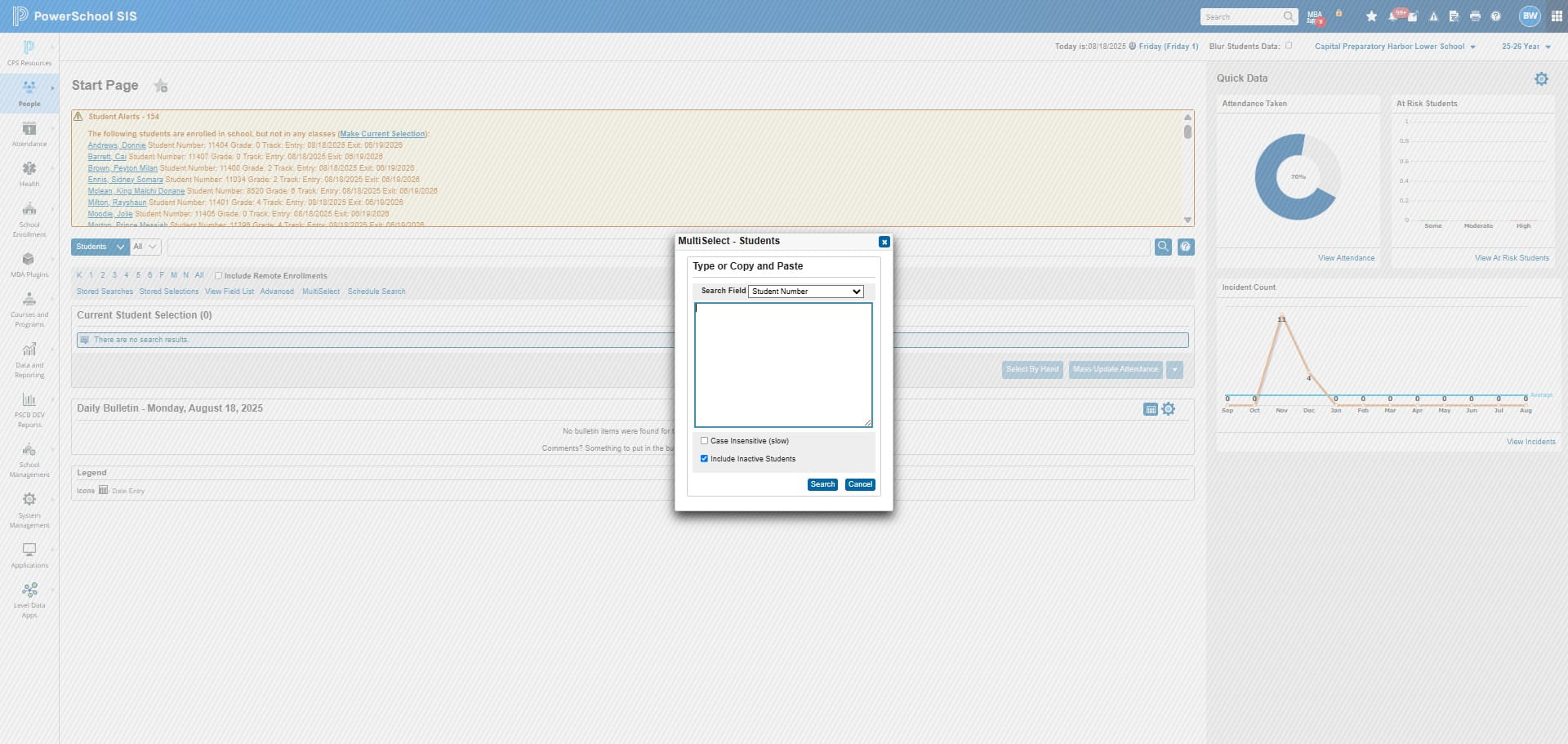
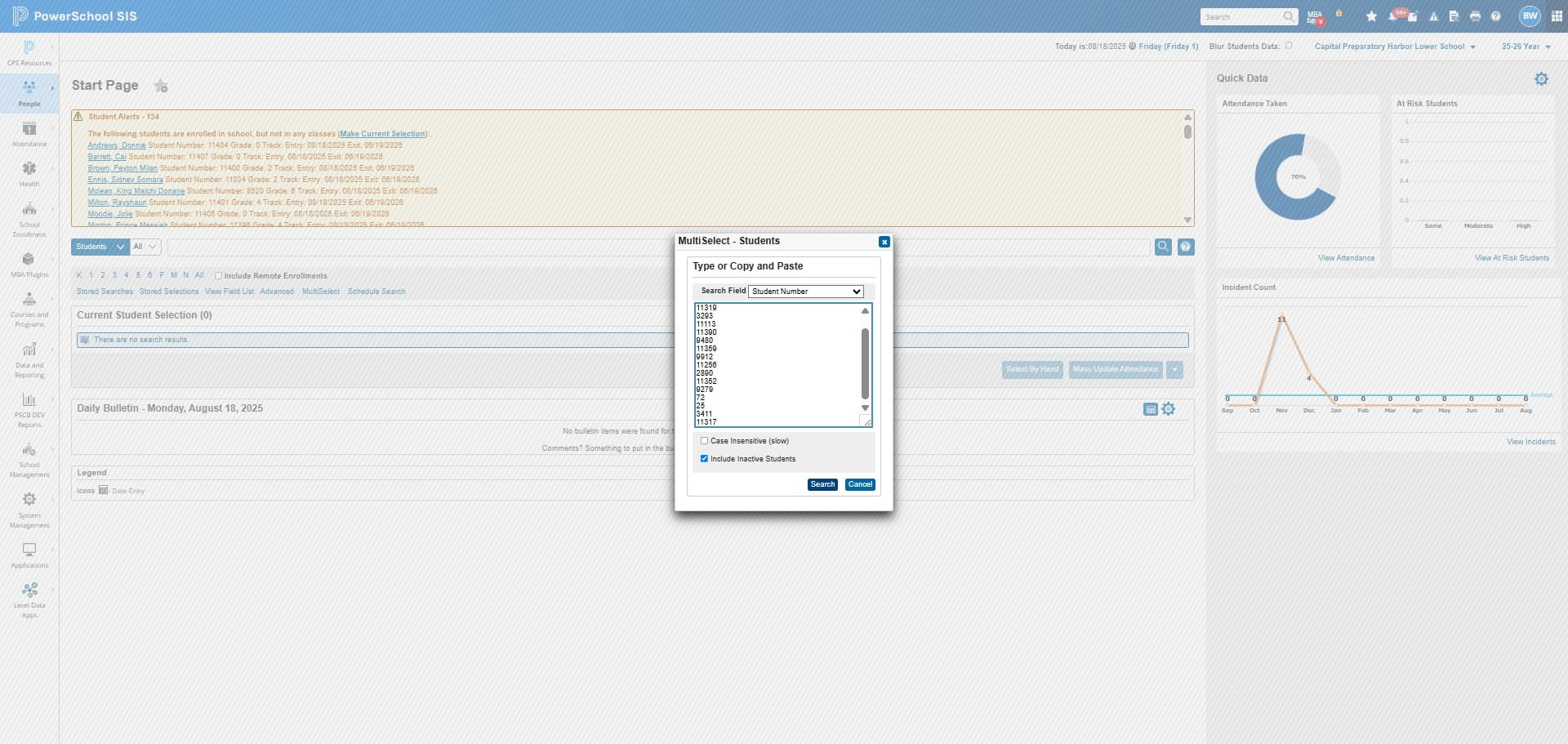
Right click and paste
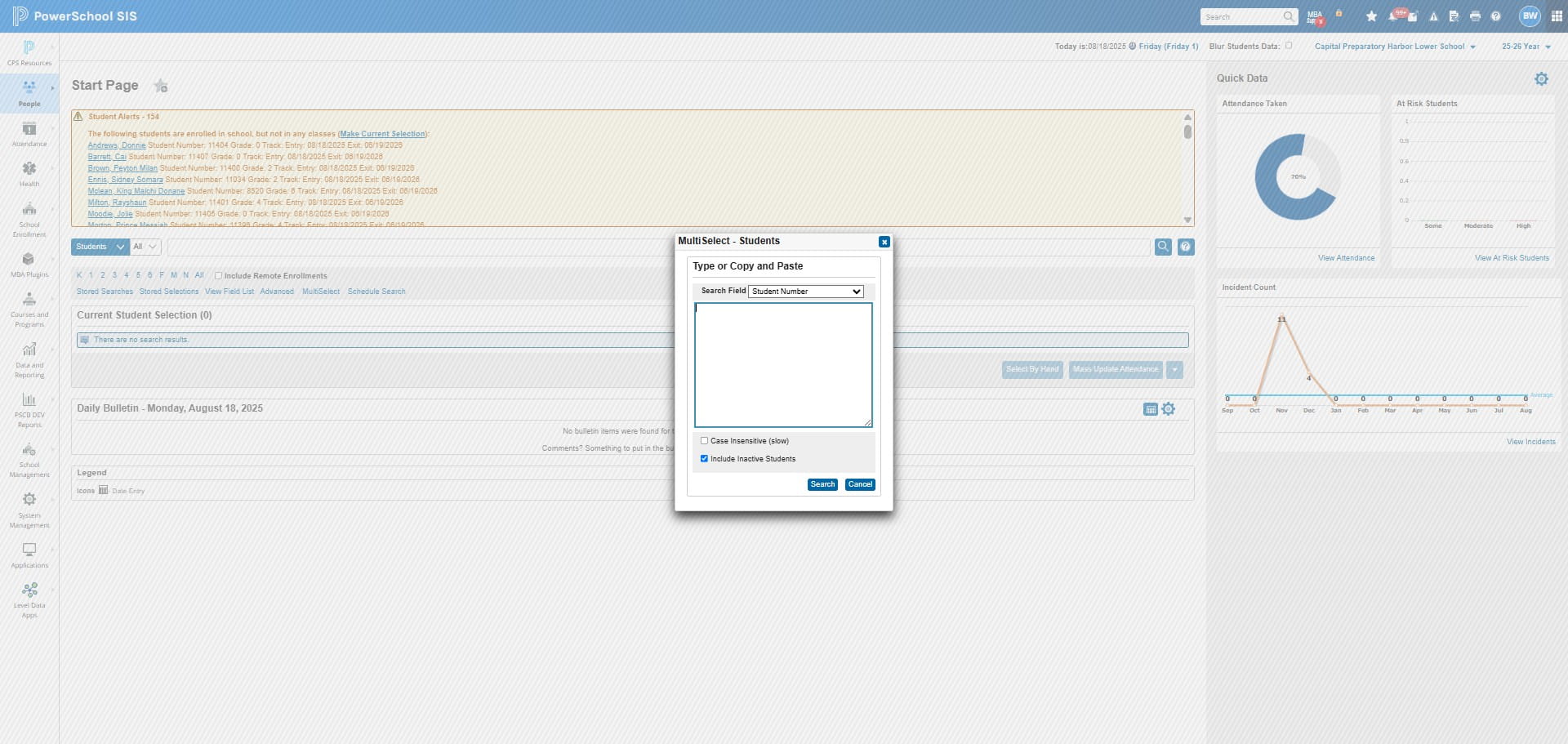
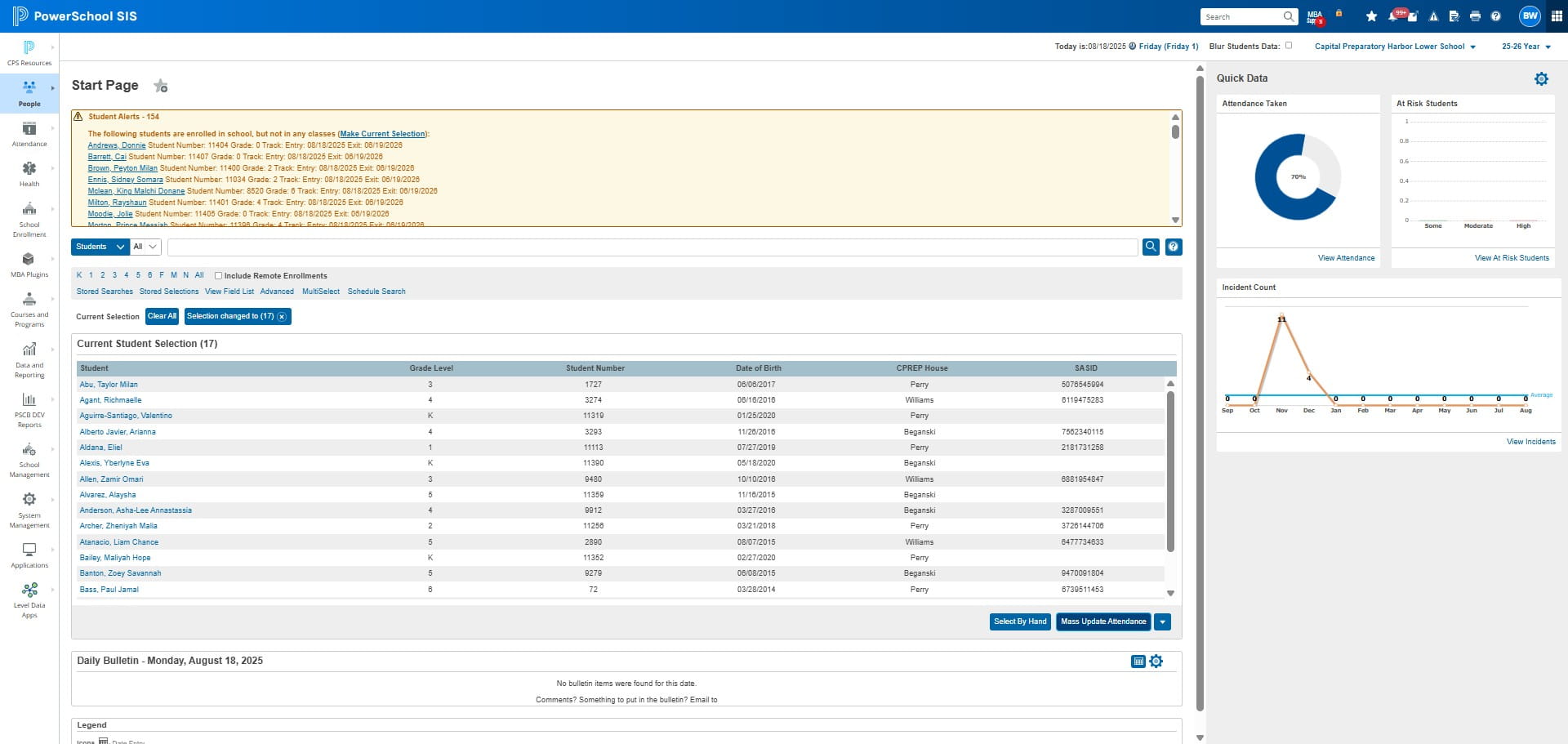
Click on "Search"
Click on "Mass Update Attendance"
Make sure you are in the MEETING tab
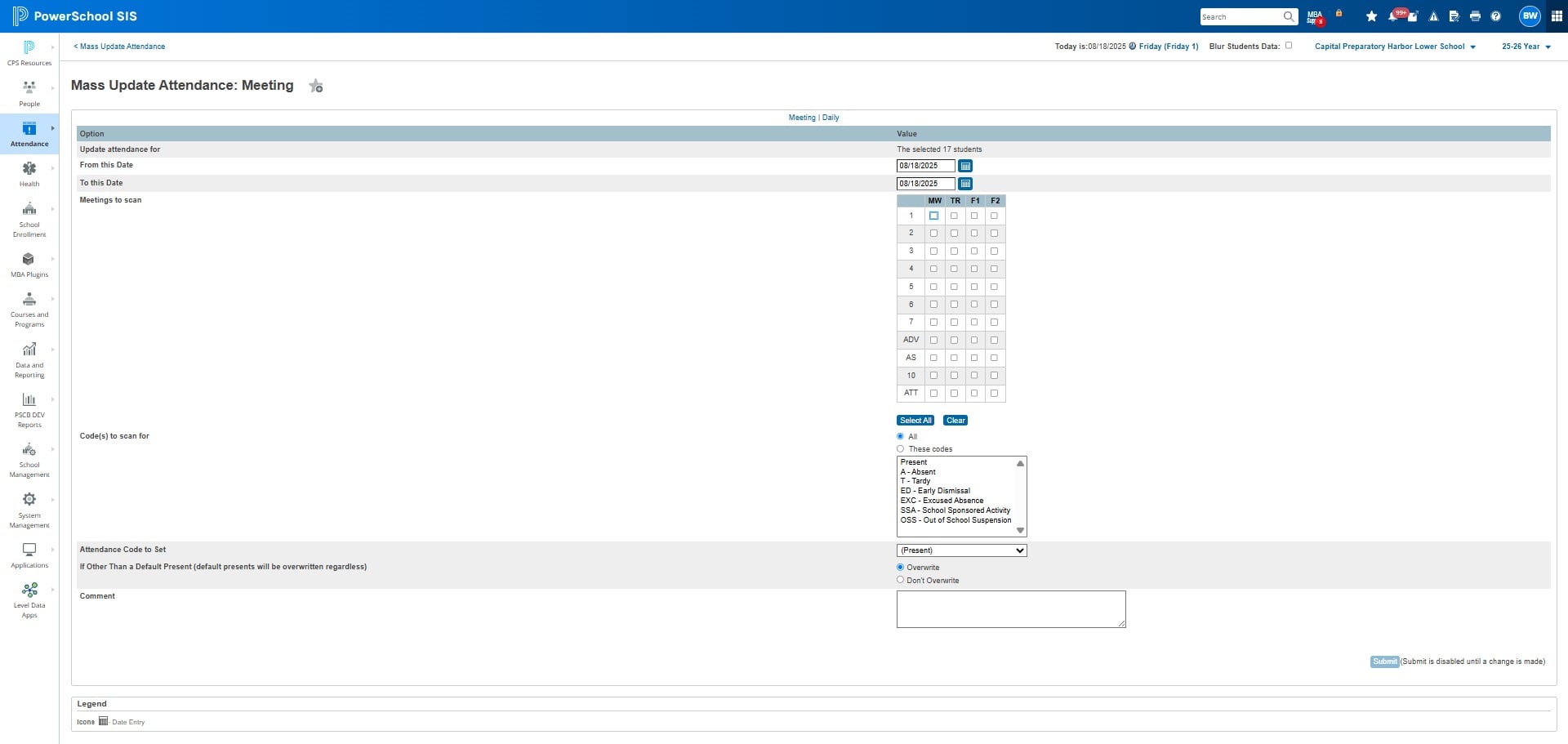
Do not check off ATT
Select all periods for the schedule you are updating for the day EXCEPT ATT
Uncheck ATT if you selected it
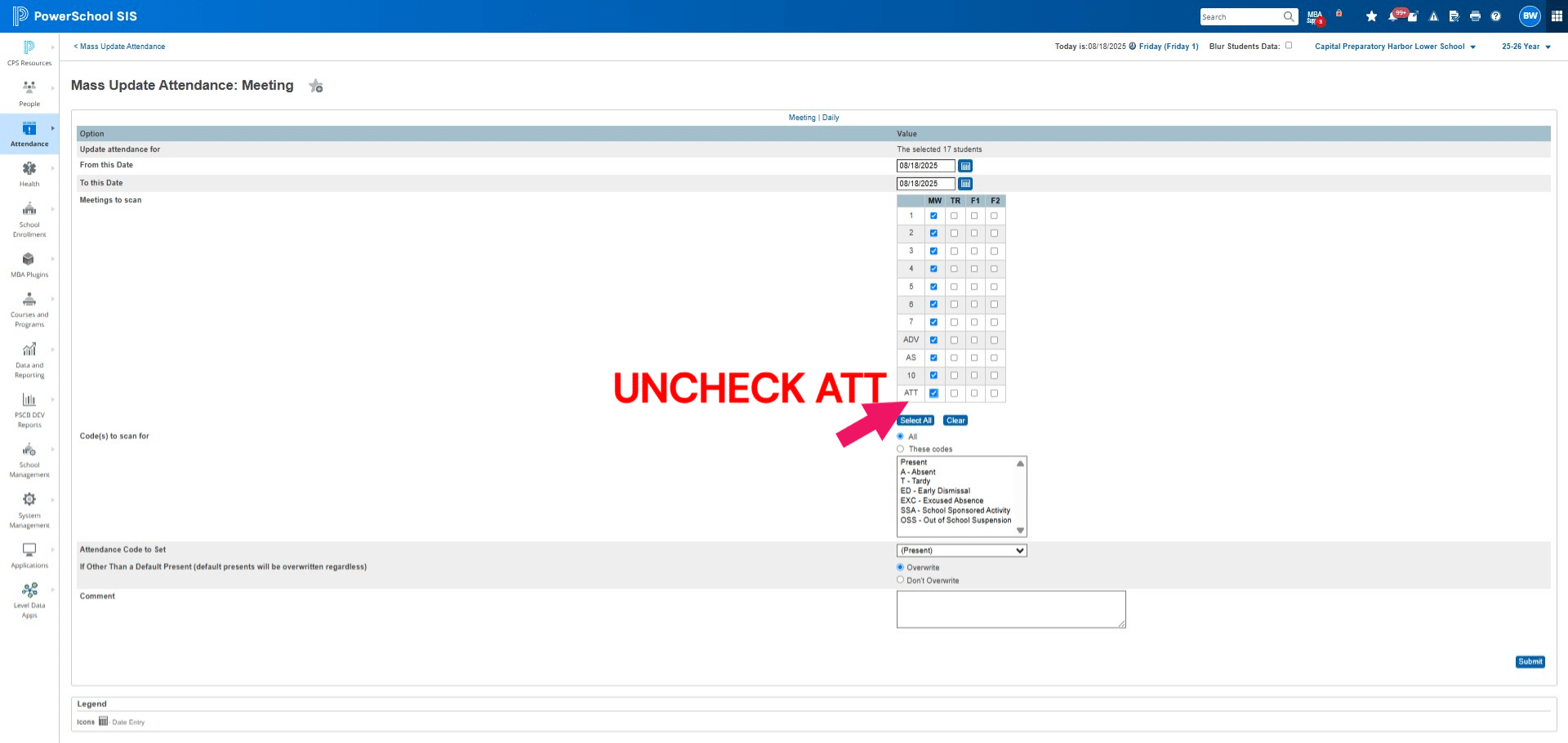
Change Code(s) to scan for to PRESENT
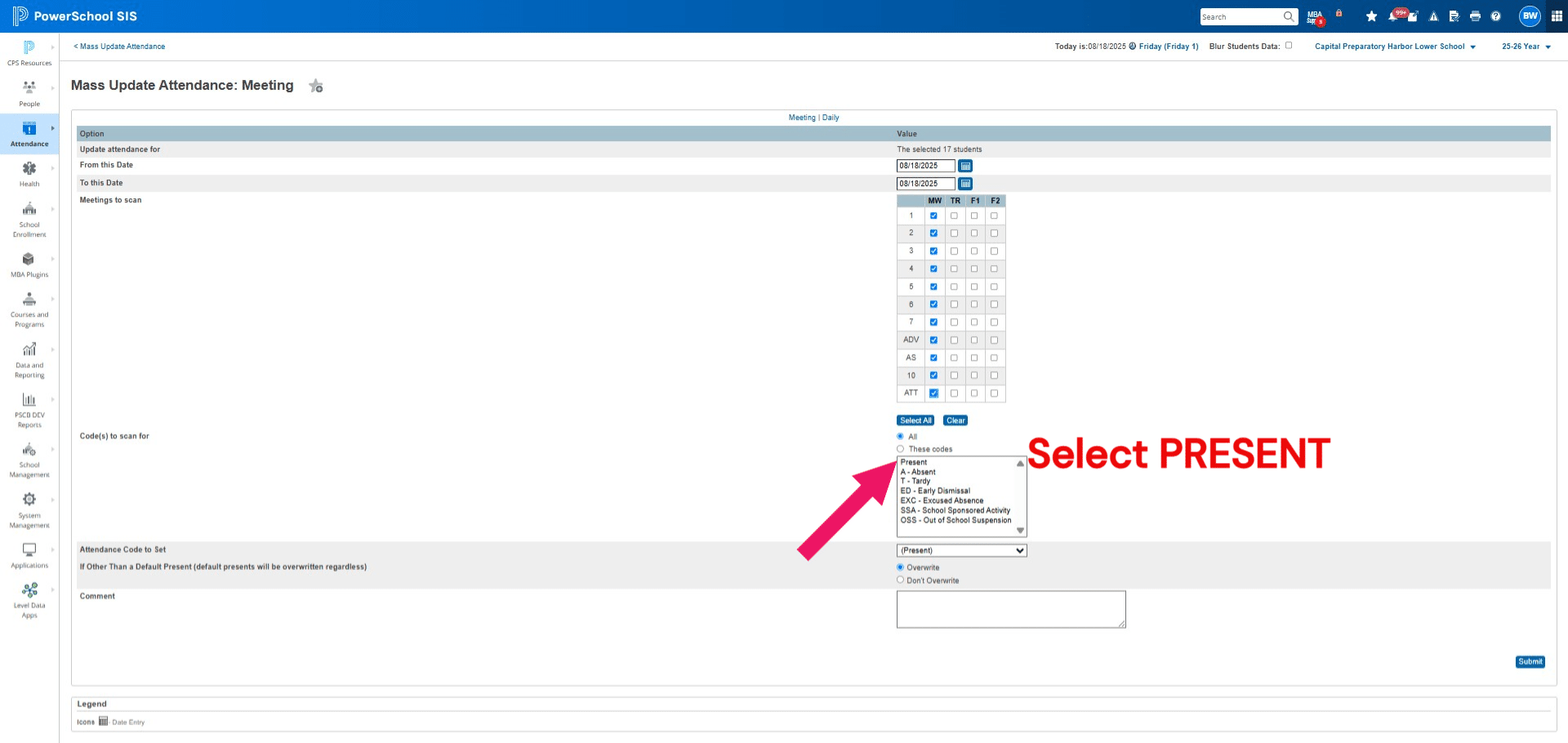
Click on "(Present)"
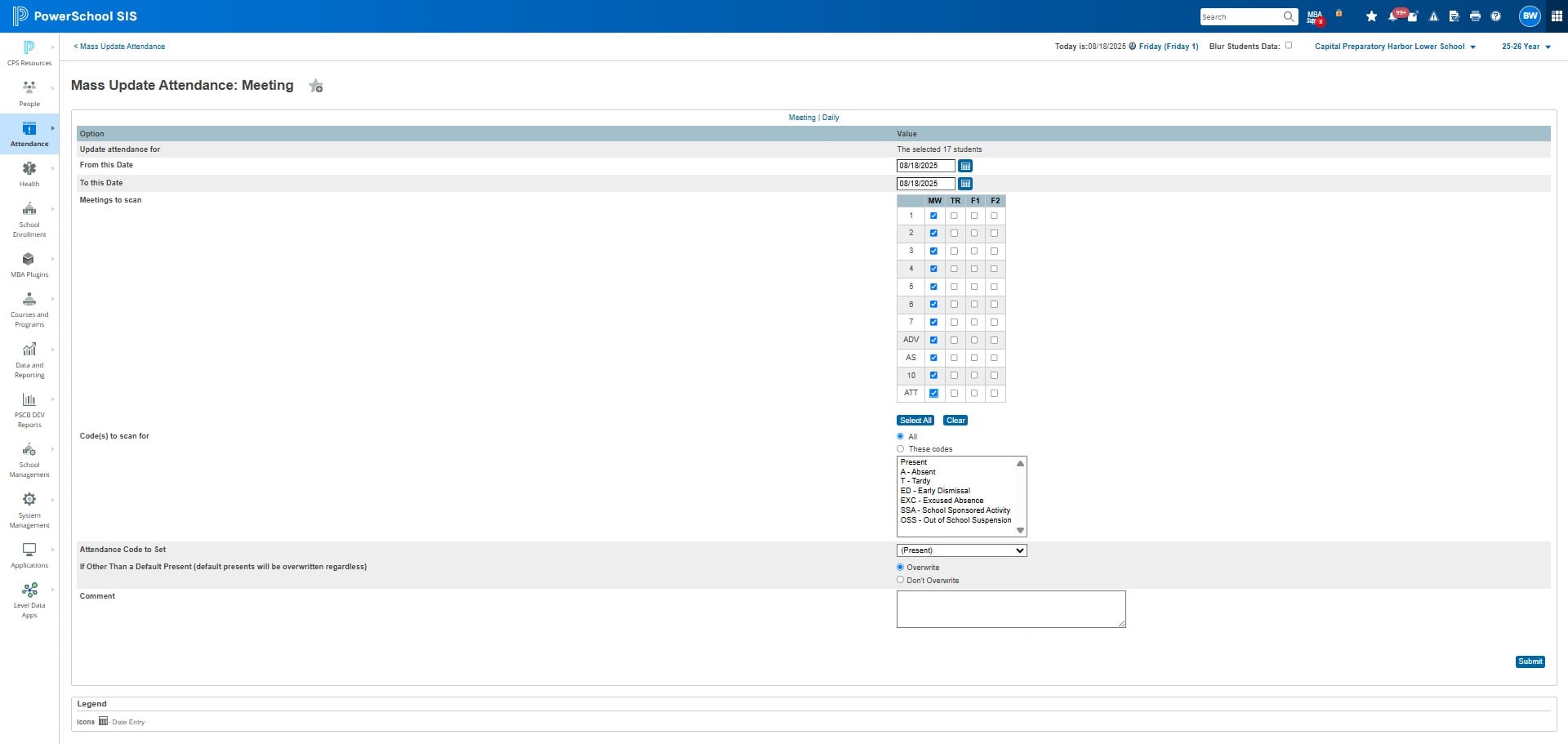
Change PRESENT to ABSENT for all periods
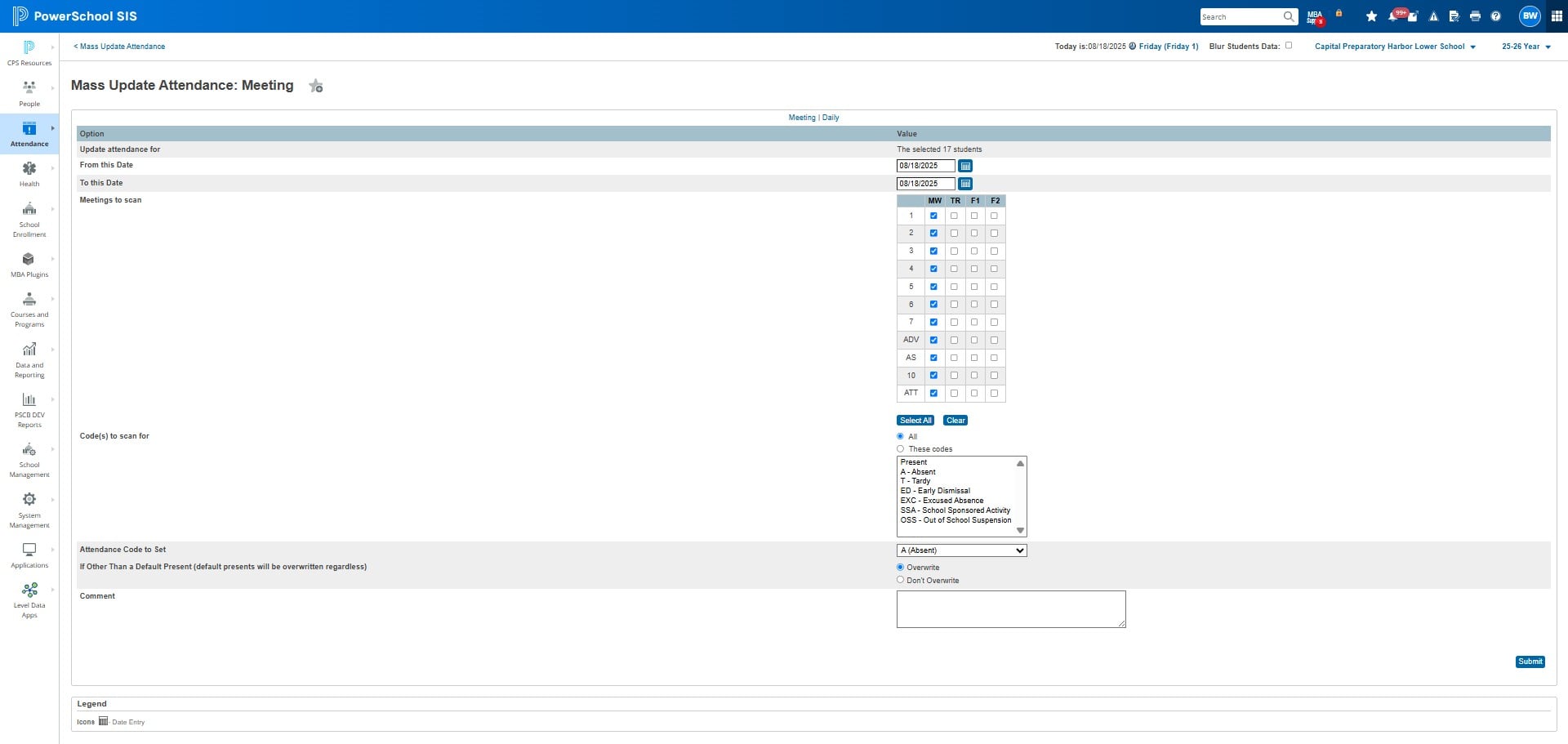
Click Submit to update all periods for the selected day for the students you copied.
Frequently Asked Questions
- When should I perform daily attendance corrections?
This process should only be performed at the end of the day or when the majority of period attendance has been taken to ensure accurate corrections.
- What do the "1" and "0" values in the Meeting and Daily columns represent?
A "1" in the Meeting column indicates the student has been marked absent for more than 50% of the periods, while a "0" indicates they have been marked present for more than 50% of the periods. In the Daily attendance report, a "1" indicates that a student was marked as Absent (A), Out-of-School Suspension (OSS), or Excused (EXC) for that attendance period. A "0" indicates the student was marked with a present code.
- Can you summarize the process of identifying and correcting attendance discrepancies?
After running the "Attendance Daily Check only Meeting Vs Daily" report, copy the data into a Google Sheet, delete extra columns (H-K), and then filter the data to identify discrepancies where Meeting = 1 and Daily = 0, or Meeting = 0 and Daily = 1. You will then use the student IDs in column B to perform a mass update in PowerSchool.
- When fixing MEETING attendance, what are the key steps to ensure all periods are updated correctly?
Make sure you select all periods for the schedule you are updating for the day, change the code(s) to scan for PRESENT, and then change PRESENT to ABSENT for all periods before submitting the update.
- When should I perform daily attendance corrections?
This process should only be done at the end of the day or when a majority of period attendance has been taken, as the report used is updated daily and only valid for correcting attendance on the same day.
- How do I interpret the 'MEETING ERRORS' and 'DAILY ERRORS' columns in the report?
A '1' in the MEETING ERRORS column indicates the student has been marked absent for more than 50% of the periods, while a '0' indicates they have been marked present for more than 50% of the periods. For DAILY ERRORS, a '1' means the student was marked as Absent (A), Out-of-School Suspension (OSS), or Excused (EXC) for the ATT period. A '0' indicates a present code.
- Which periods do I need to correct based on the errors in the report?
If there are errors under MEETING ERRORS, you must fix ALL periods for the day, excluding the ATT period. If there are errors under DAILY ERRORS, you only need to fix the ATT period for the day.
- Where do I paste the copied information from PowerSchool, and where do I find the errors to correct?
Navigate to the 'CT: Daily Attendance Corrections' Google Sheet, click on your school's tab, and paste the copied data into Column B, row 1. Then, navigate to your school's 'corrections' tab to view the errors.