
How to update or change a students attendance in SIS
Option 1: Update from full attendance view
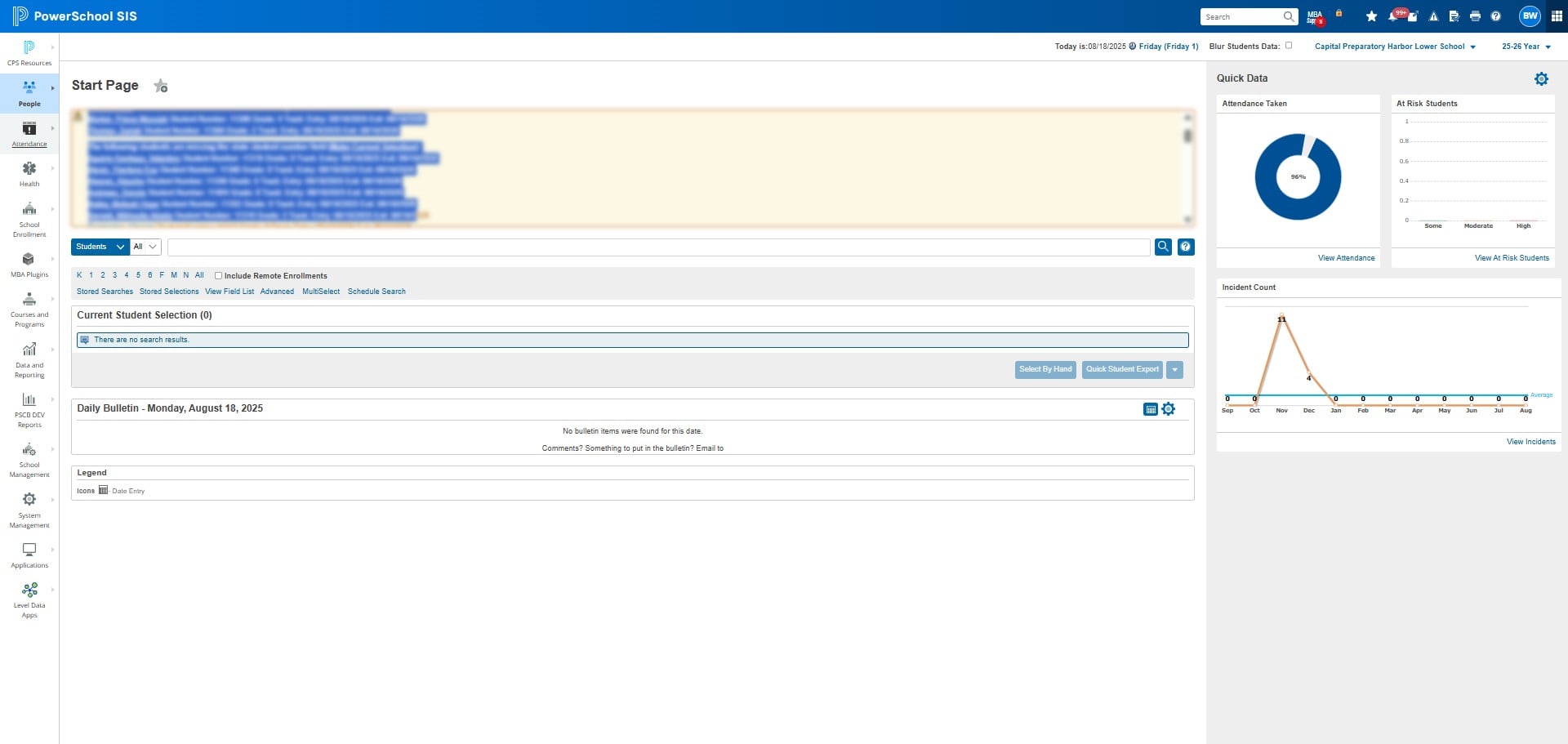
Click on Attendance
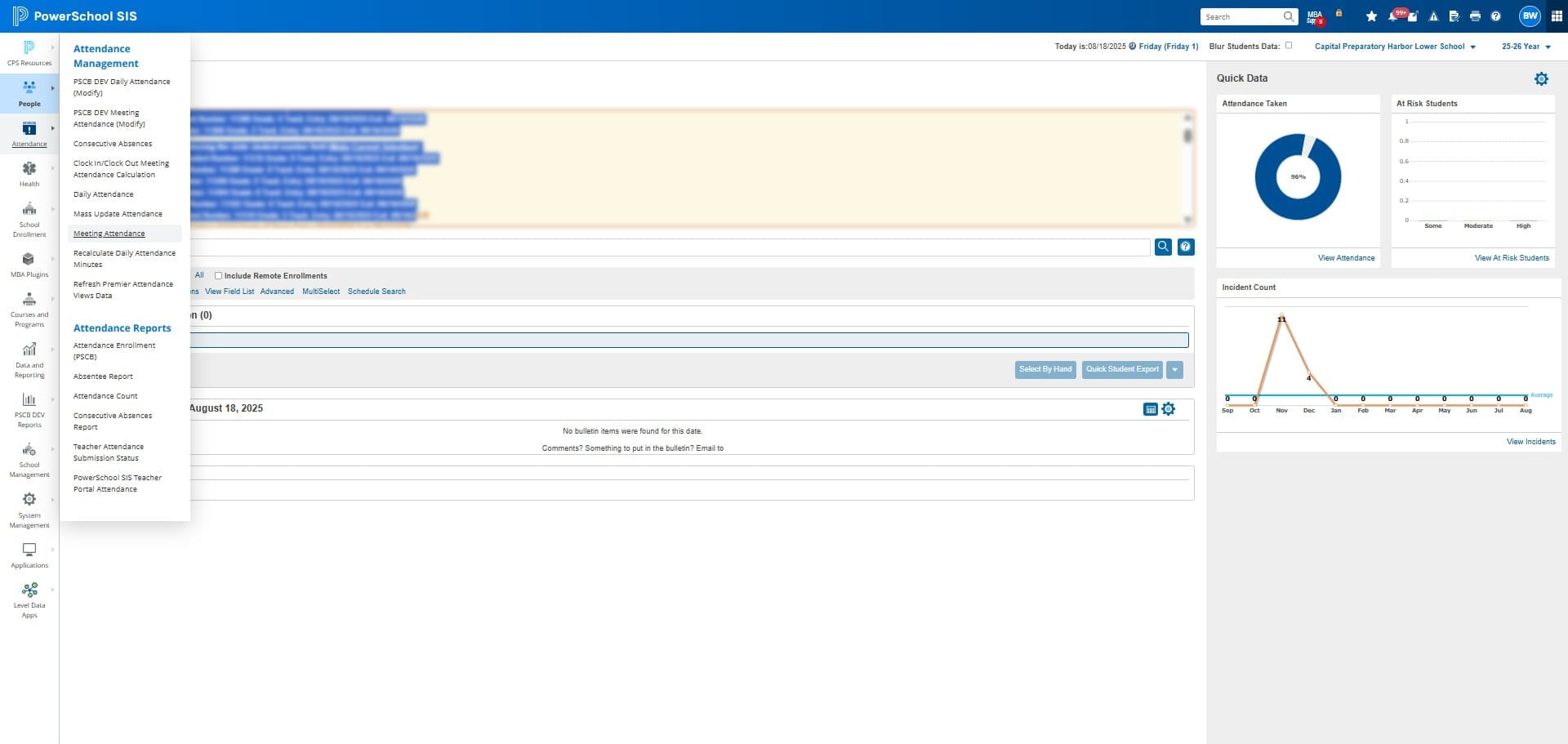
Click on "Meeting Attendance"
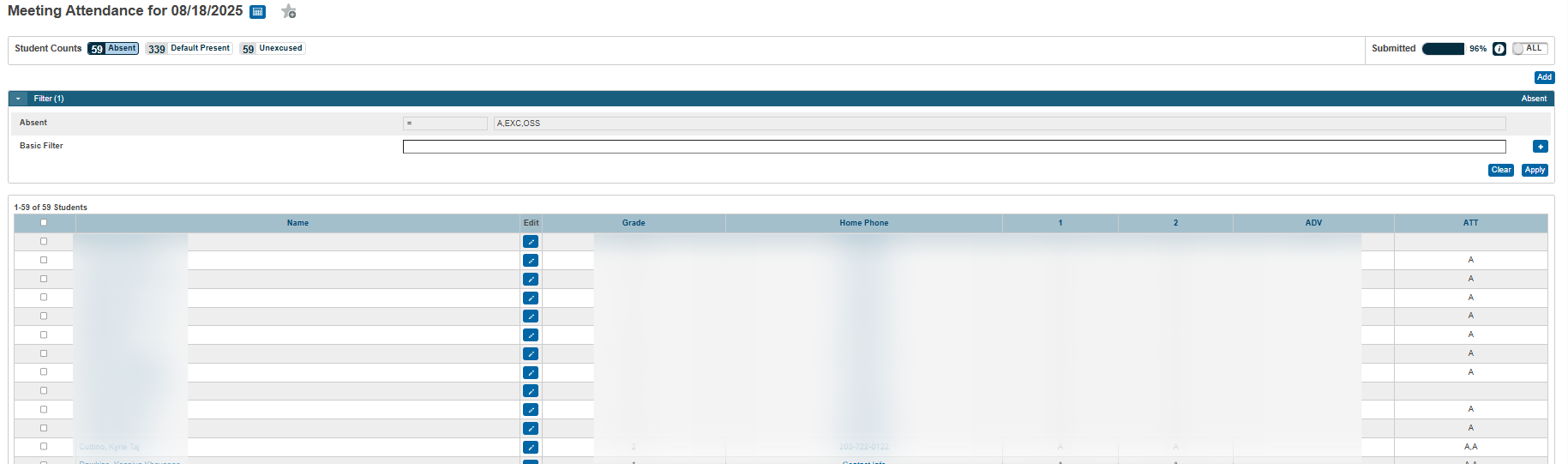
Click on the PENCIL icon next to the students' name you want to edit
Click on the drop down button next to Attendance Code
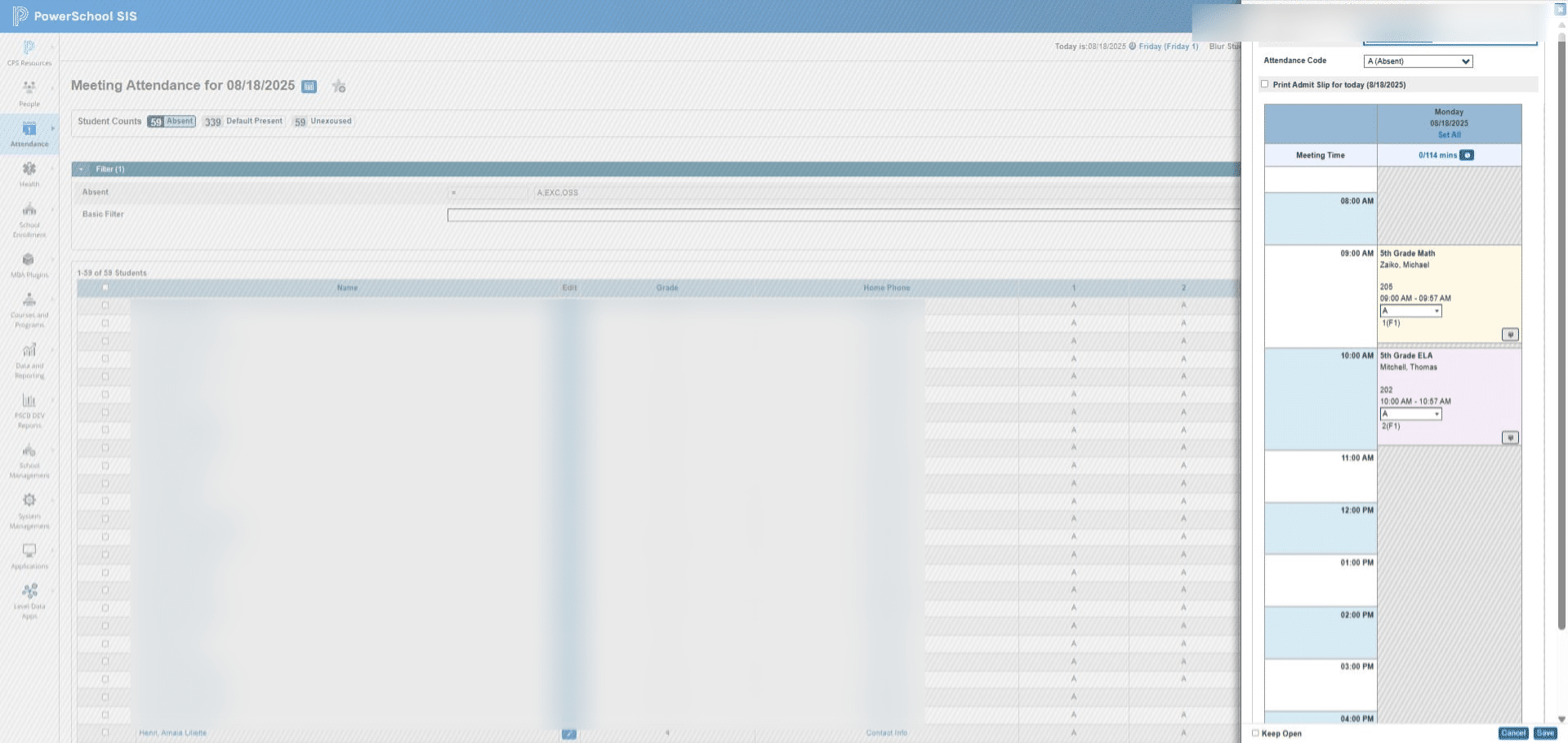
Select the code you want and then click "Set All"
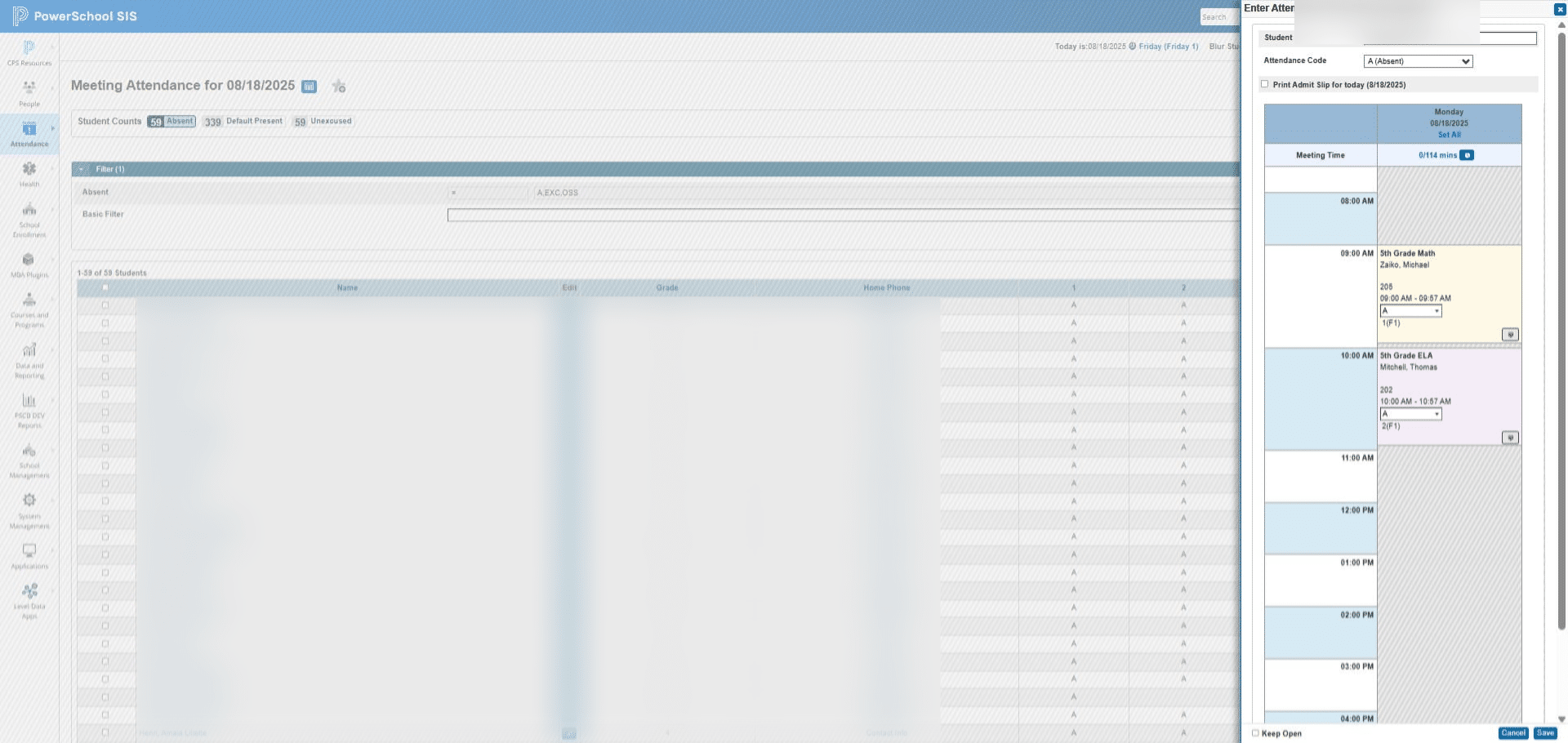
Remember to always update the ATT (Daily) PERIOD!
To update a specific period, locate the period and select the appropriate code from the dropdown menu provided.
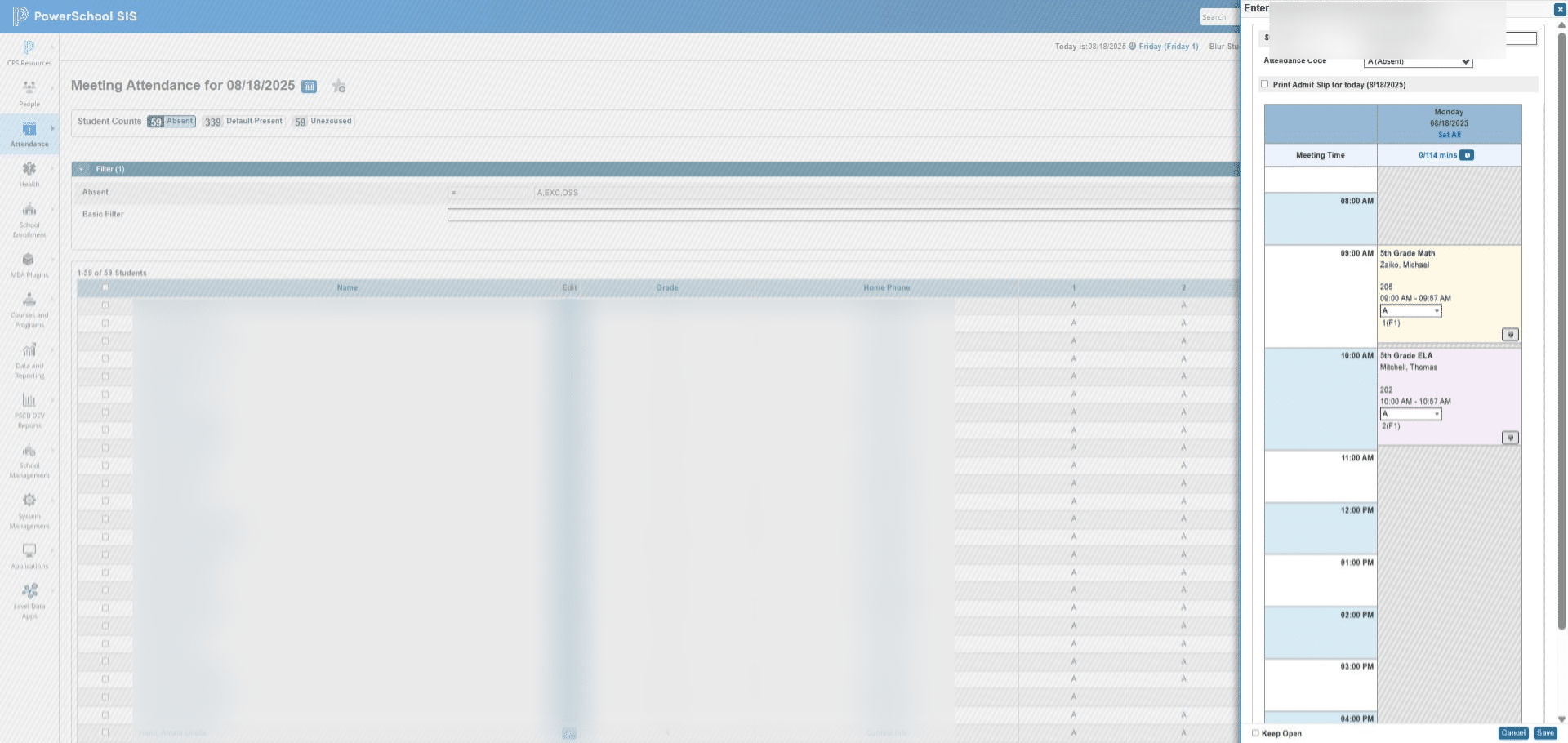
Click on the desired code
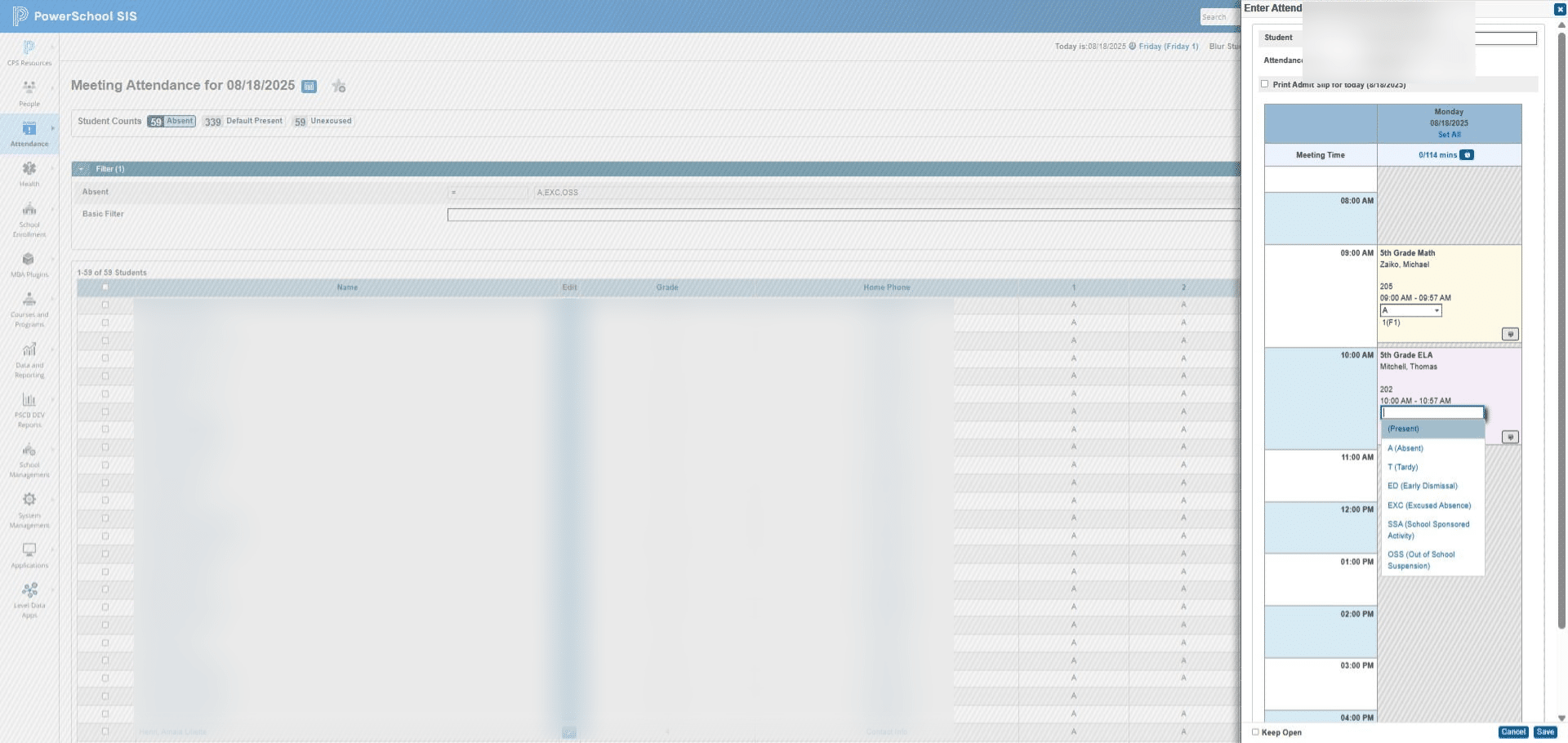
Click SAVE
Option 2: Update attendance directly on the students profile
Search for the student
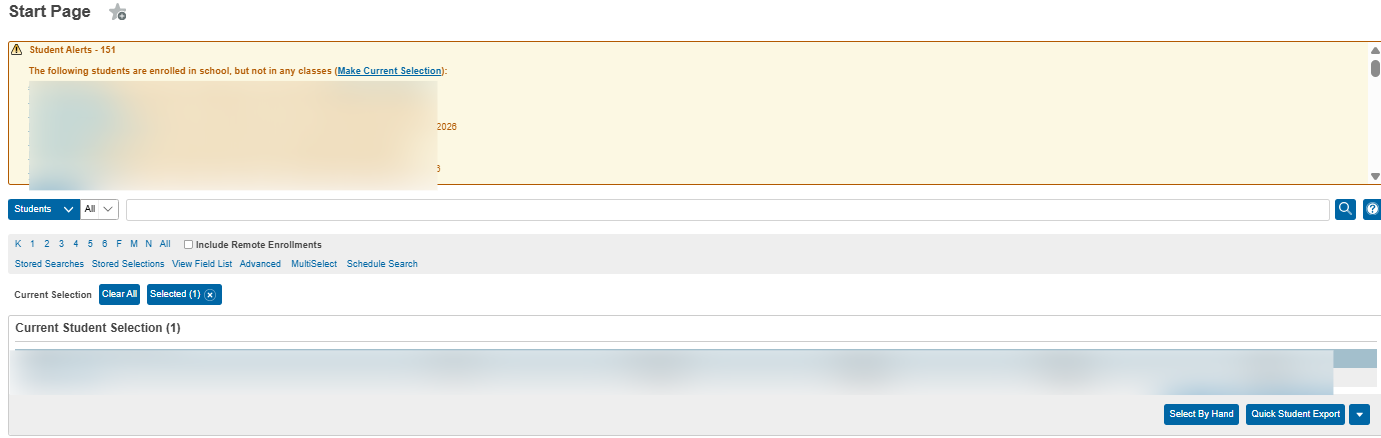
Click on "Attendance"
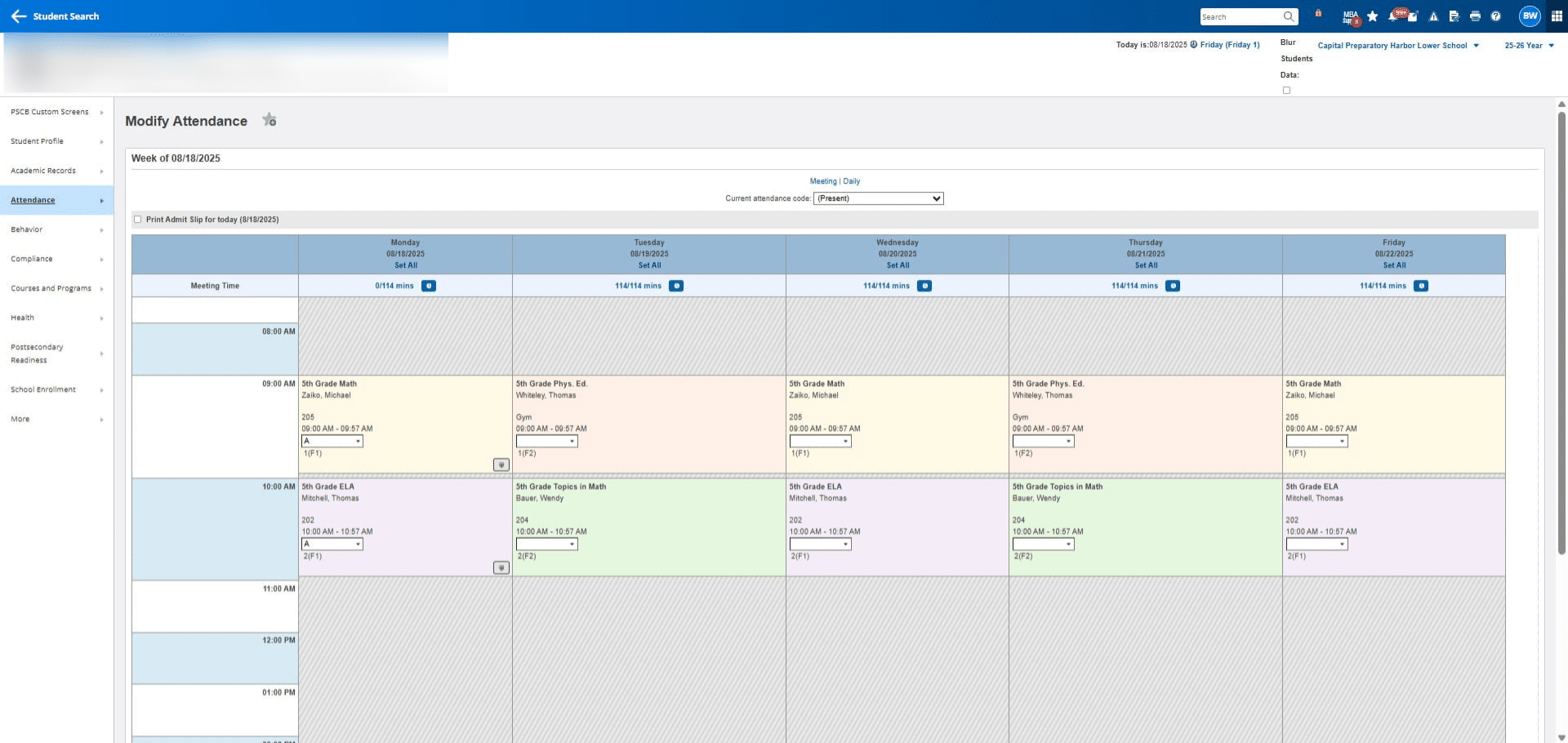
Click on "Modify Attendance"
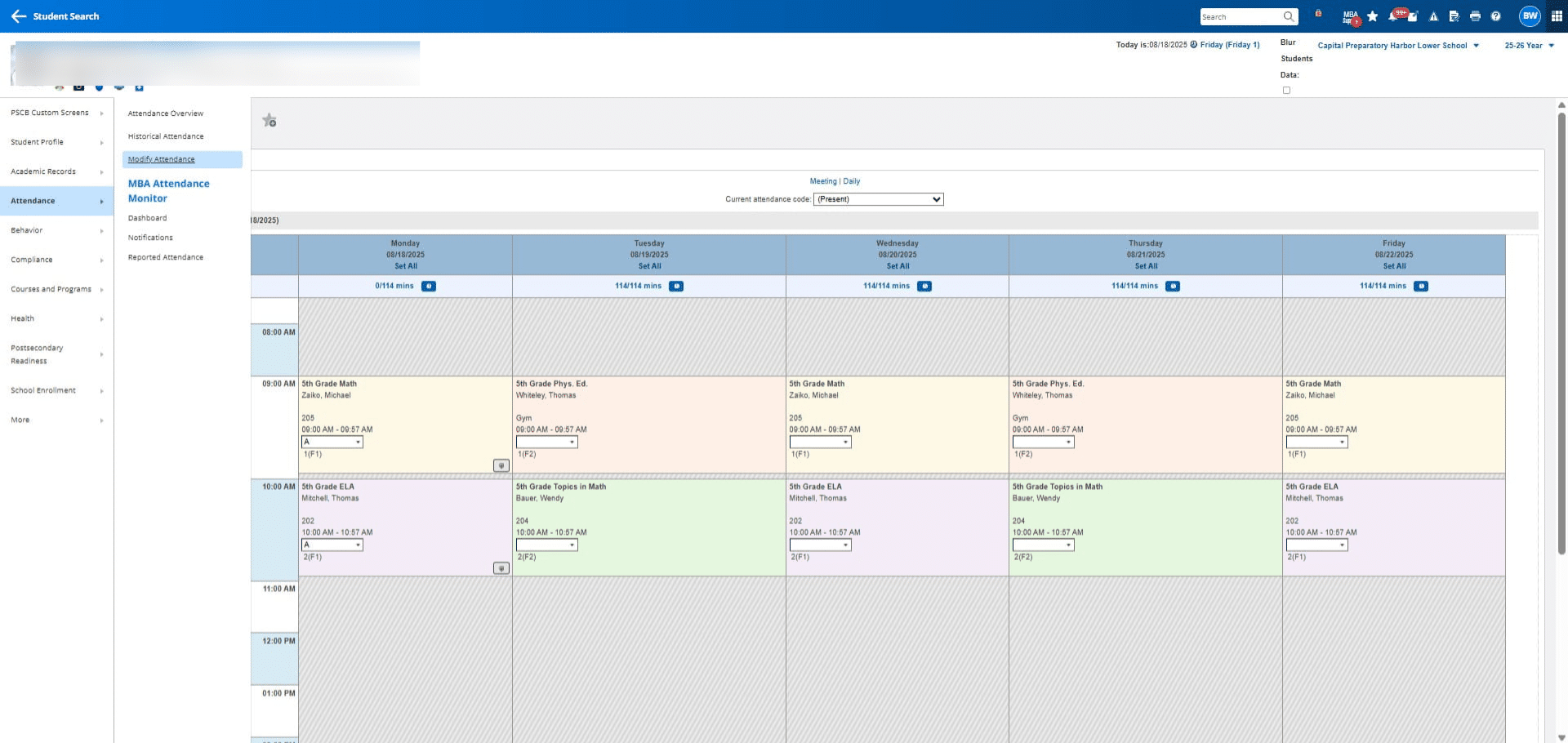
Click on the date range you need to edit
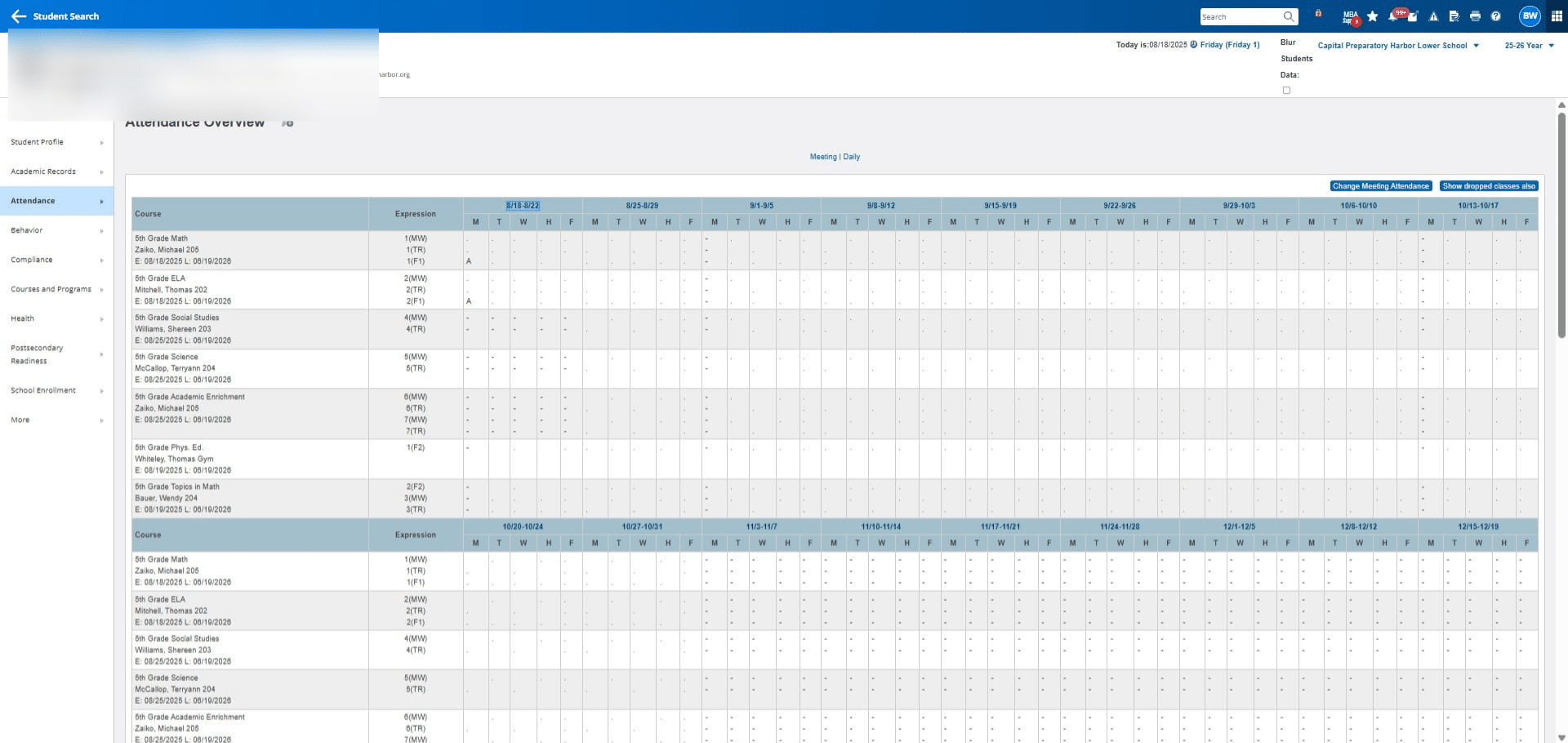
Find the date / period you want to update
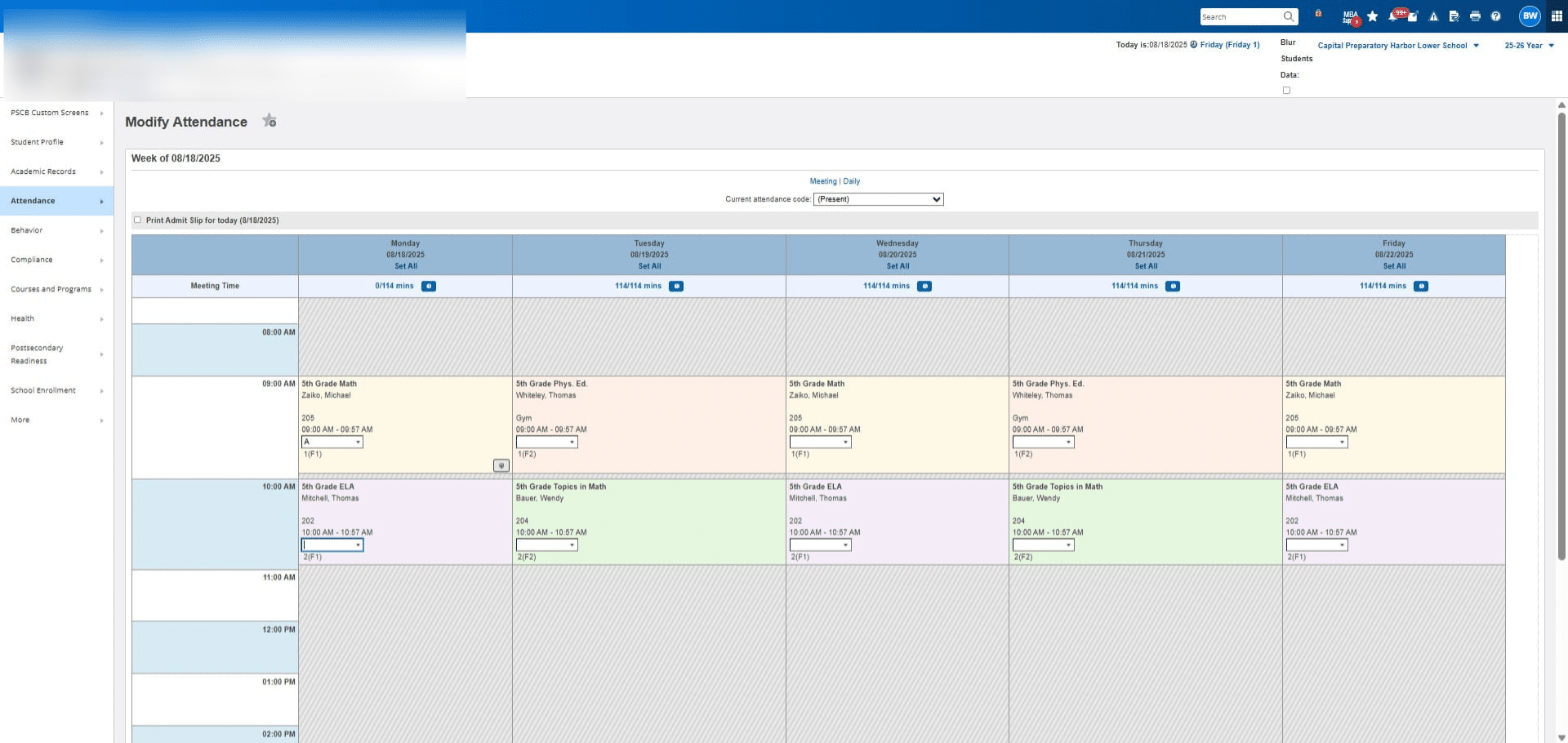
Select the desired attendance code
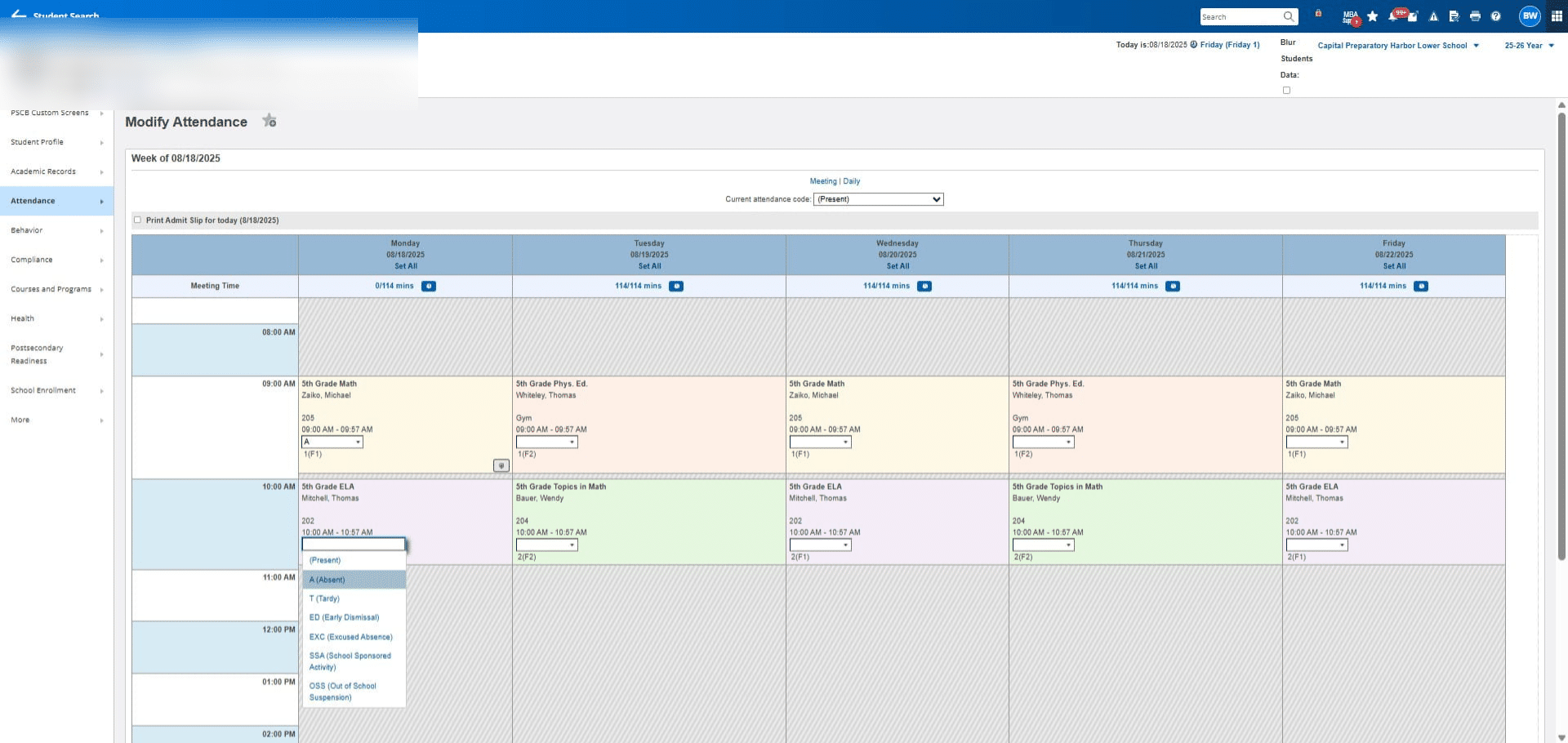
Remember to update the ATT (daily) period as well!
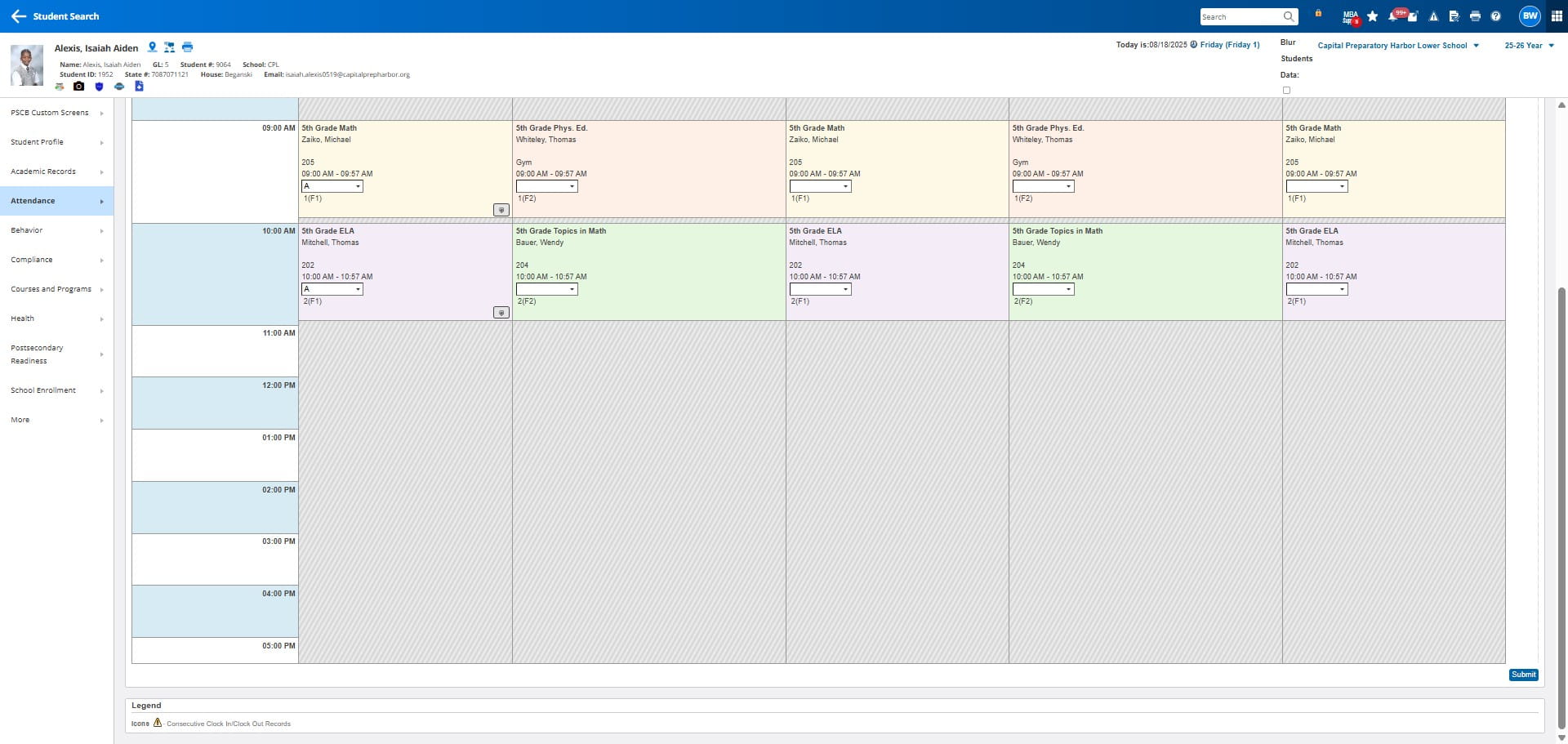
Click submit
Frequently Asked Questions
- What are the two methods for updating attendance?
You can update attendance either from the full attendance view or directly from the student's profile. The guide outlines both methods.
- Why is it important to update the ATT (Daily) period?
The ATT (Daily) period needs to be updated to ensure accurate daily attendance records.
- How do I update attendance codes for a student in the full attendance view?
In the full attendance view, click the pencil icon next to the student's name, then select the attendance code from the dropdown and click "Set All". For specific periods, locate the period and select the code from its dropdown menu.
- How do I update attendance codes for a student directly from their profile?
From the student's profile, click "Attendance", then "Modify Attendance", select the date range, find the specific date/period, choose the attendance code, and click "Submit".